# 3 Google Ads rules to set up before Diwali (step by step)
> Set three free Google Ads rules in 15 minutes: switch your Diwali campaign on and off by date, get an hourly spend alert, and pause campaigns with no sales.
- **Author**: Marxx
- **Published**: 2026-10-22
- **Category**: Agency operations
- **URL**: https://marxx.ai/posts/google-ads-automated-rules-diwali
---
Google Ads can switch your Diwali campaign on and off, warn you about overspending and pause campaigns that aren't working, all by itself. You do it with three free **automated rules**, and this guide shows every click, even if you've never opened the Rules page.
Diwali is on **Sunday, 8 November 2026**. Set these up this week, so they're ready before ad costs climb.
## What you'll set up
| Rule | What it does | How often it runs |
|---|---|---|
| 1. Switch on by date | Turns your Diwali campaign on on launch day, and off the day after Diwali | Once |
| 2. Hourly spend alert | Emails you when today's spend goes over your limit | Every hour |
| 3. Pause the wasters | Pauses campaigns that spent money but got zero sales | Every day |
You need access to your Google Ads account and about 15 minutes. Nothing here costs extra.
## Before you start
- **Create your Diwali campaign first** and leave it **paused**. Rule 1 switches it on for you.
- **Check your conversion tracking.** Rule 3 looks at sales (Google calls them "conversions"). If tracking is broken, every campaign looks like it has zero sales.
## Open the Rules page
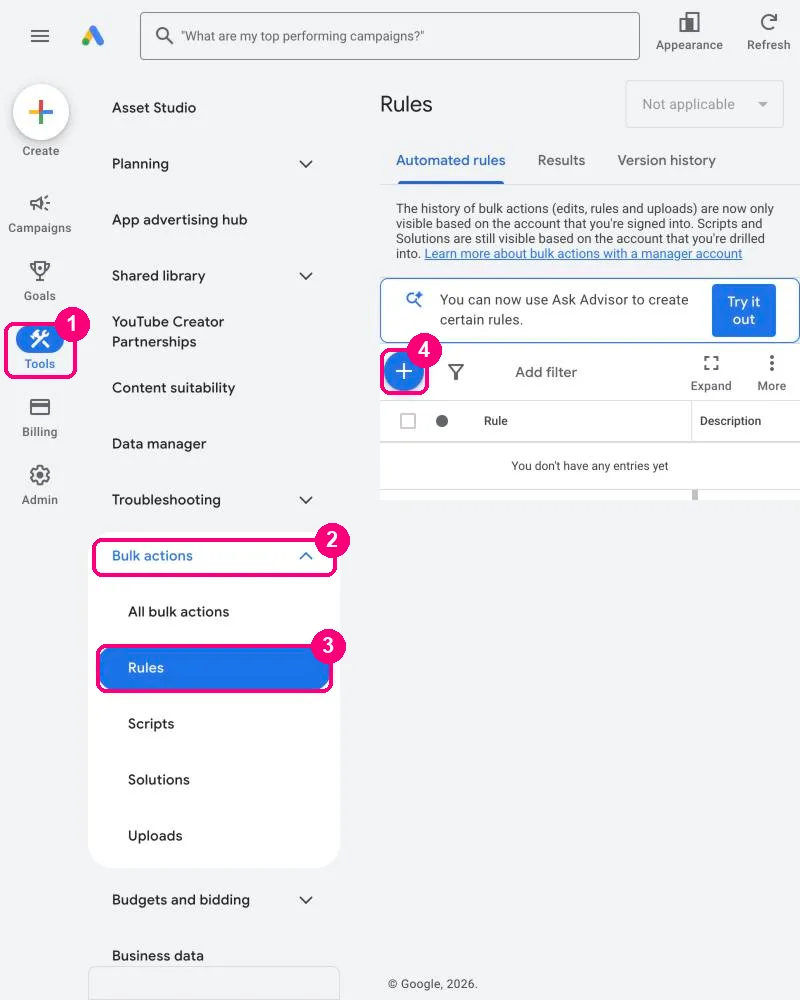
1. In Google Ads, click **Tools** in the left menu.
2. Click **Bulk actions**.
3. Click **Rules**.
4. Click the blue **+** button.
Tools, then Bulk actions, then Rules, then the blue + button.
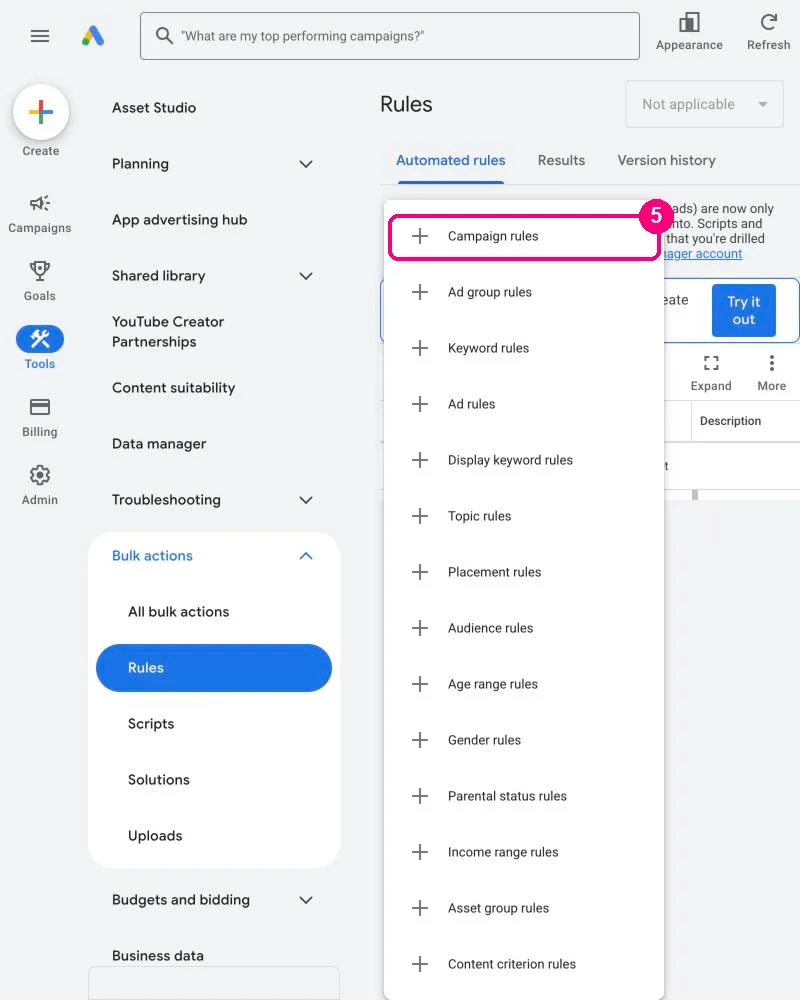
5. A list of rule types opens. Click **Campaign rules**.
Pick Campaign rules. You'll use this for all three rules.
## Rule 1: switch your Diwali campaign on by date
This rule turns your campaign on, by itself, on the day you choose.
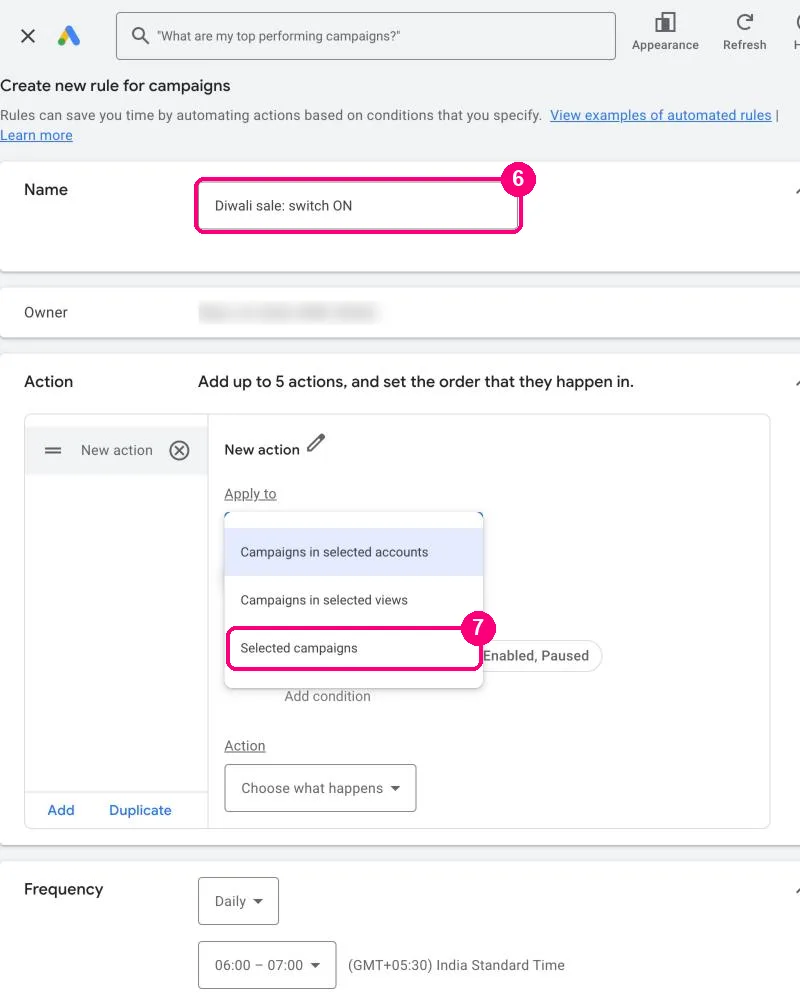
6. Type a name you'll recognise, like **Diwali sale: switch ON**.
7. Under **Apply to**, choose **Selected campaigns**.
Name the rule, then choose Selected campaigns.
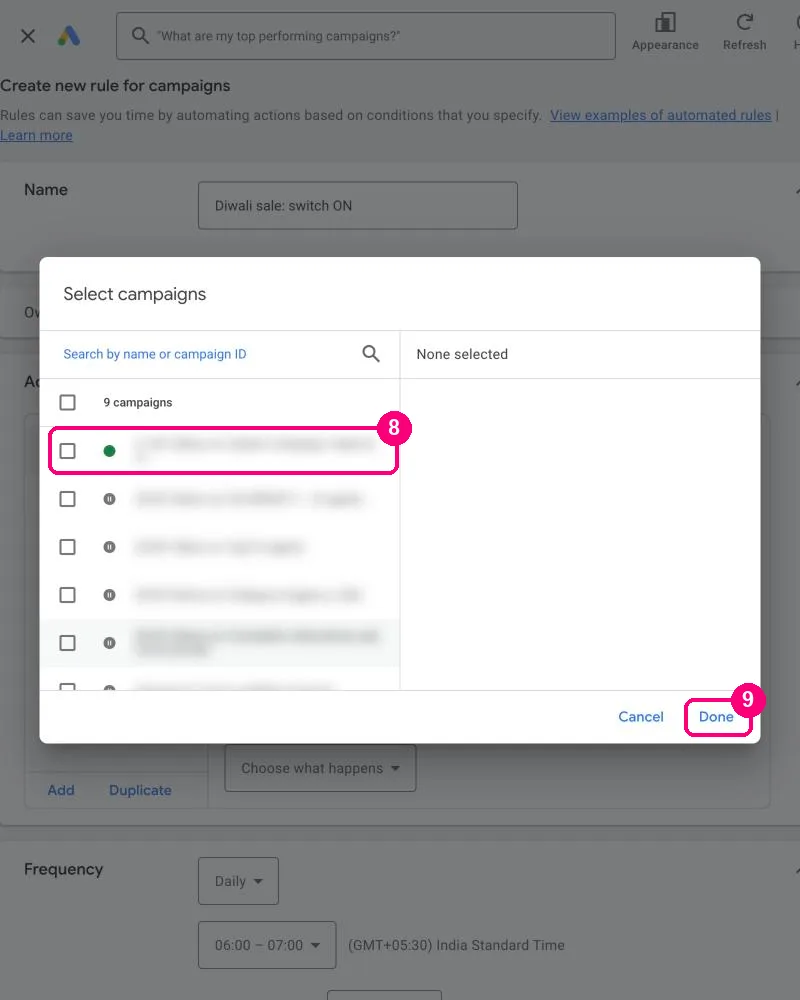
8. Tick your Diwali campaign.
9. Click **Done**.
Tick only your Diwali campaign. (We blurred our campaign names.)
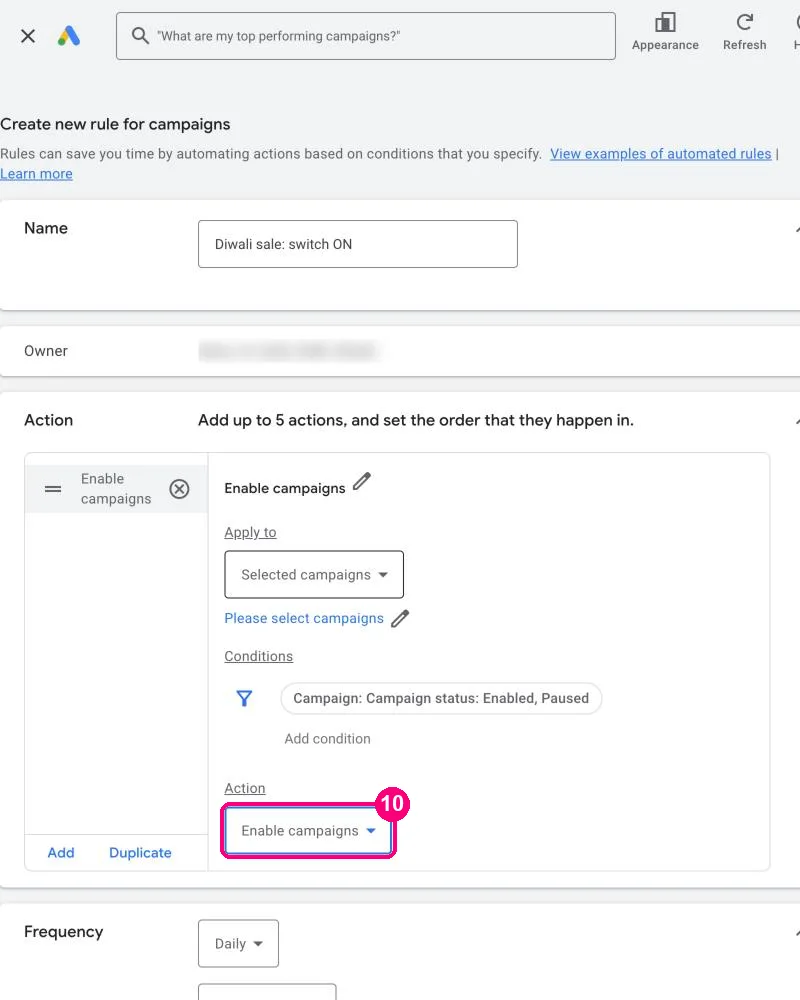
10. Under **Action**, choose **Enable campaigns**.
Enable campaigns means "switch it on".
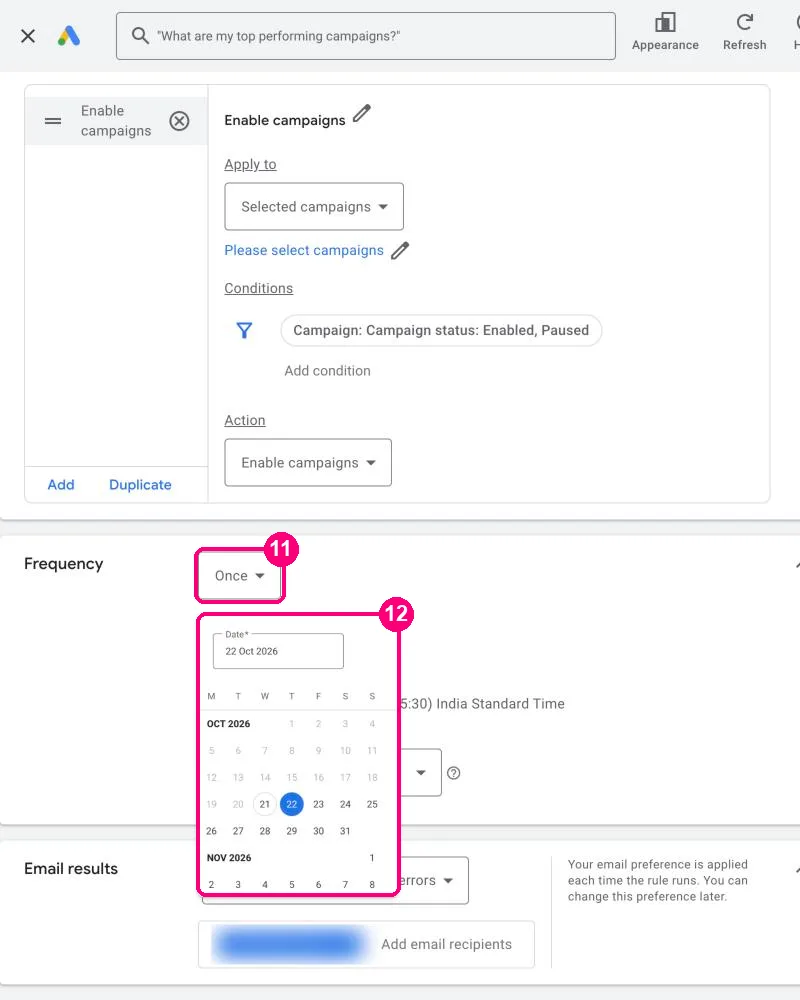
11. Under **Frequency**, choose **Once**.
12. Pick your launch date, then a time.
Once, then the date your Diwali ads should start.
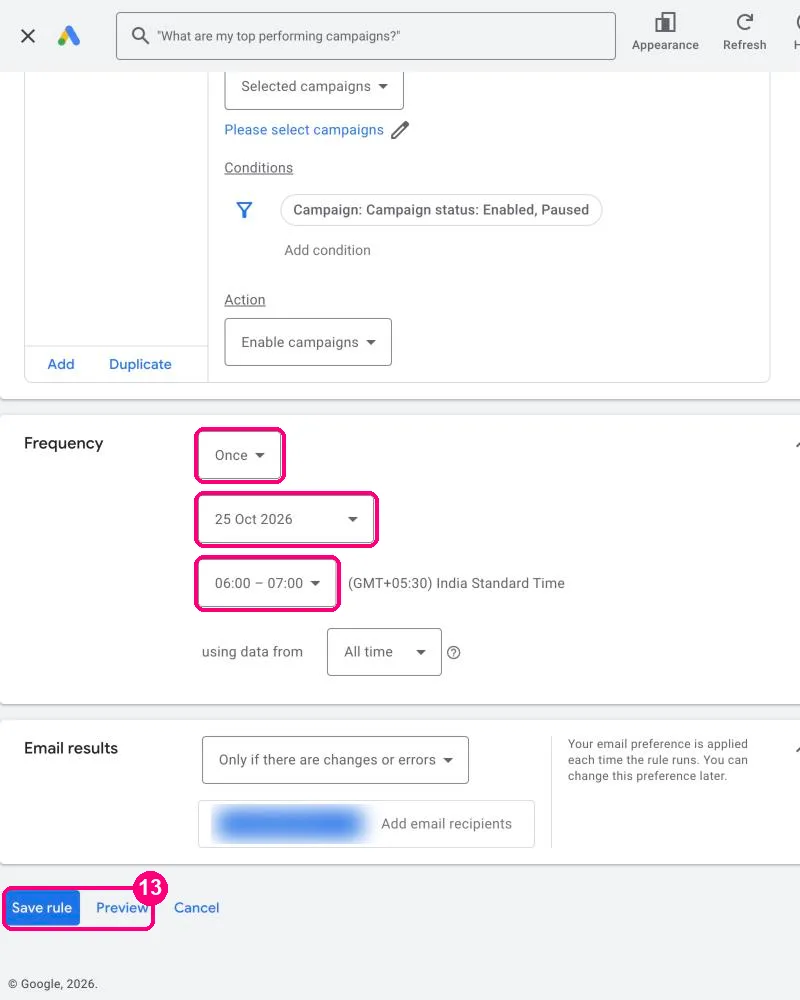
**Set the time 2 hours early.** Google says a rule can run [up to 2 hours after its scheduled time](https://support.google.com/google-ads/answer/2472728). So if you want ads live by 8 a.m., pick **06:00 - 07:00**. The time shown is India Standard Time.
13. Click **Preview** to see which campaign the rule will change. If it looks right, click **Save rule**.
Once, your date, a time 2 hours early. Then Preview and Save rule.
**Now make the "off" rule.** Repeat steps 4 to 13 with two changes:
- Name it **Diwali sale: switch OFF**, and under **Action** choose **Pause campaigns**.
- Set the date to **9 November**, the day after Diwali.
Your Diwali ads now start and stop on time, even if nobody is at a desk.
## Rule 2: get an email when spend goes over your limit
Diwali week is busy, and costs can jump. This rule checks today's spend every hour and emails you if it's over your limit. It doesn't change anything in your account. It only tells you.
1. Start a new **Campaign rule** (Tools, Bulk actions, Rules, **+**, Campaign rules).
2. Name it **Diwali: hourly spend alert**, and under **Action** choose **Send email**.
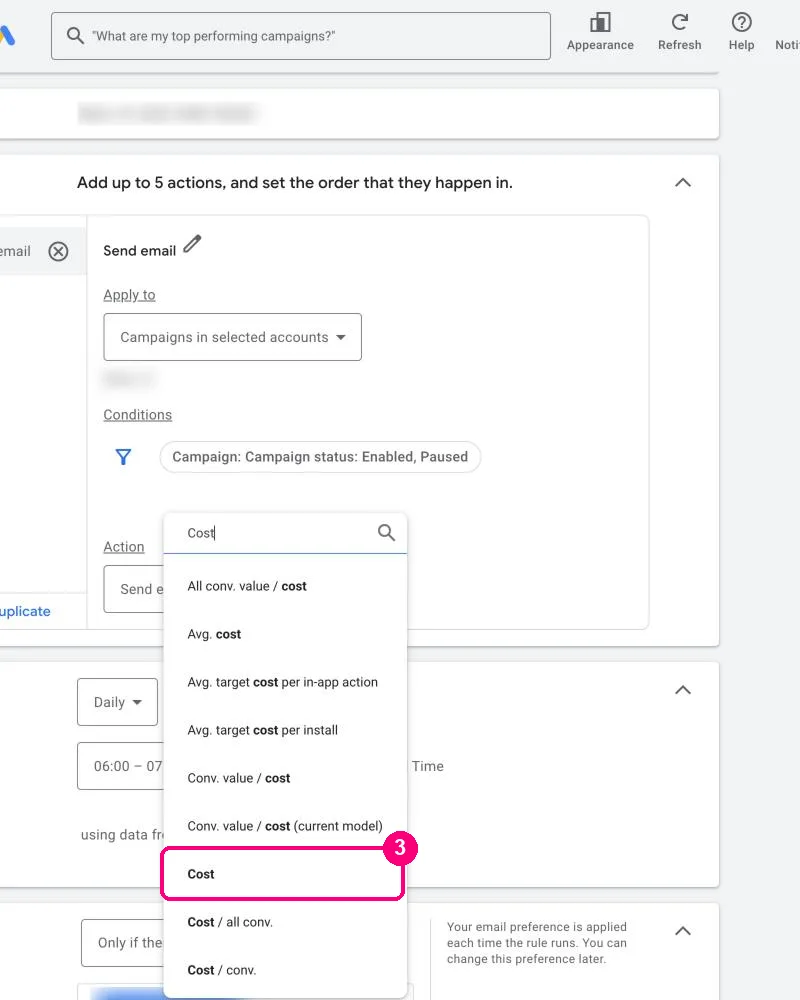
3. Next to **Conditions**, click **Add condition**, type **Cost** in the search box and pick **Cost**.
Search for Cost and pick the plain "Cost" option.
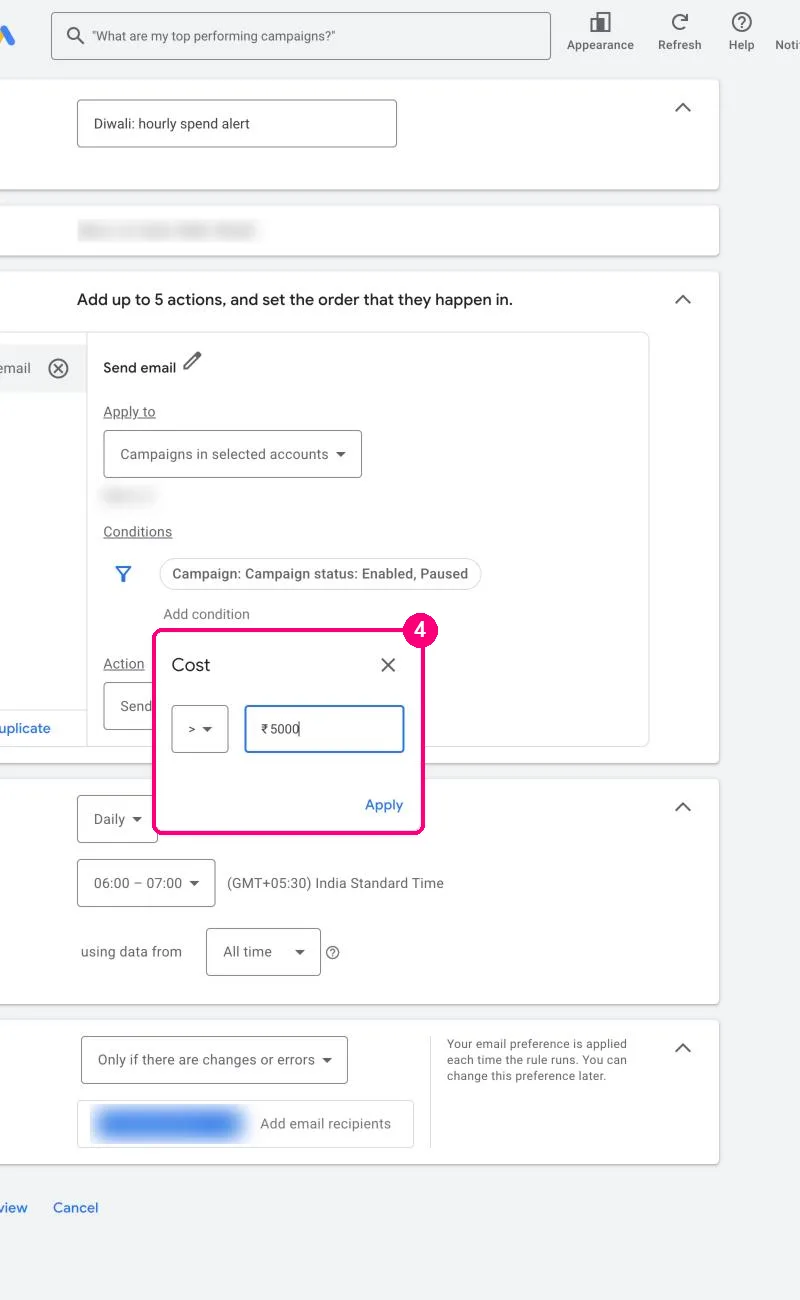
4. Leave it on **>** (more than), type your daily limit and click **Apply**. In our example the limit is INR 5,000.
Say your daily limit is INR 5,000. Use your own number.
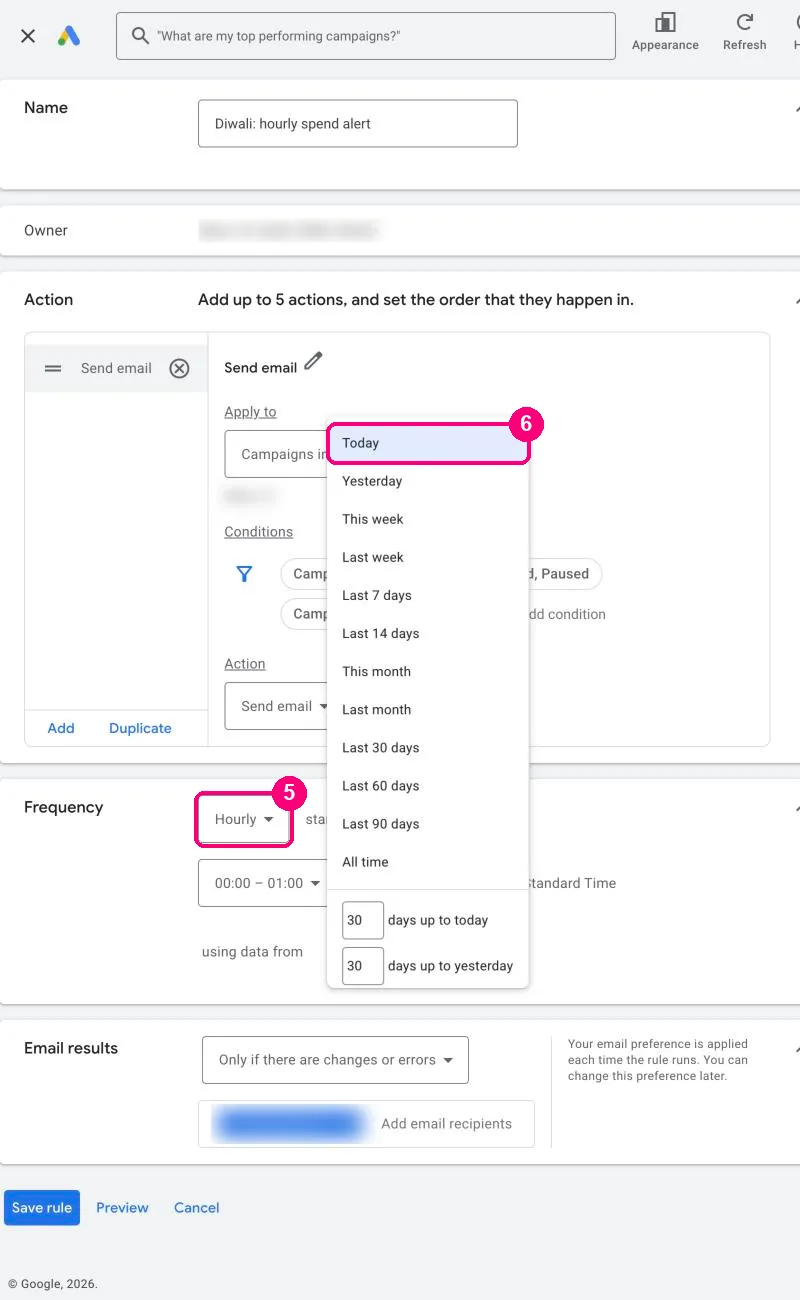
5. Under **Frequency**, choose **Hourly**.
6. Next to **using data from**, choose **Today**.
Hourly, using data from Today.
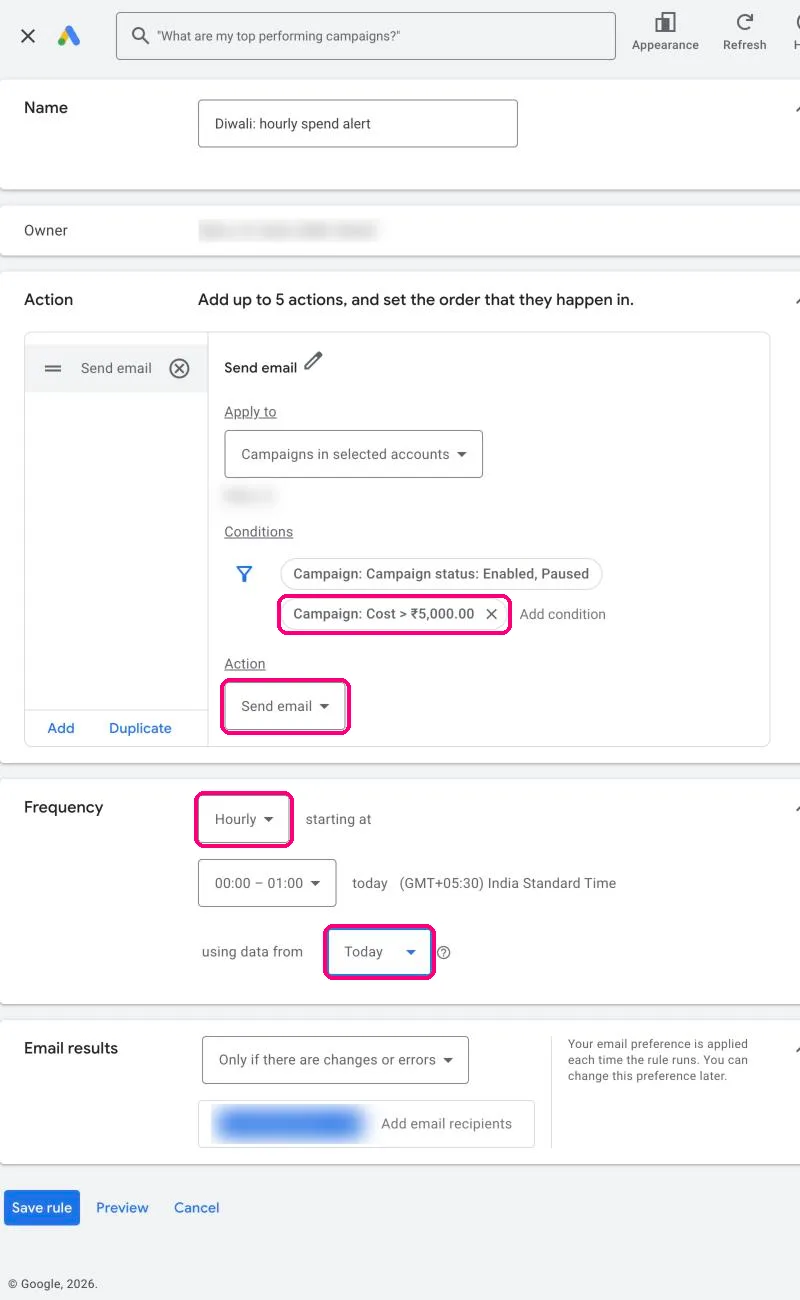
7. Under **Email results**, add the email address of whoever should get the alert, then click **Save rule**.
The finished alert: Send email, Cost > INR 5,000, Hourly, Today.
Google's numbers aren't live to the minute, so the email can arrive a little after you cross the limit. It's still far sooner than finding out the next morning.
## Rule 3: pause campaigns that spend with no sales
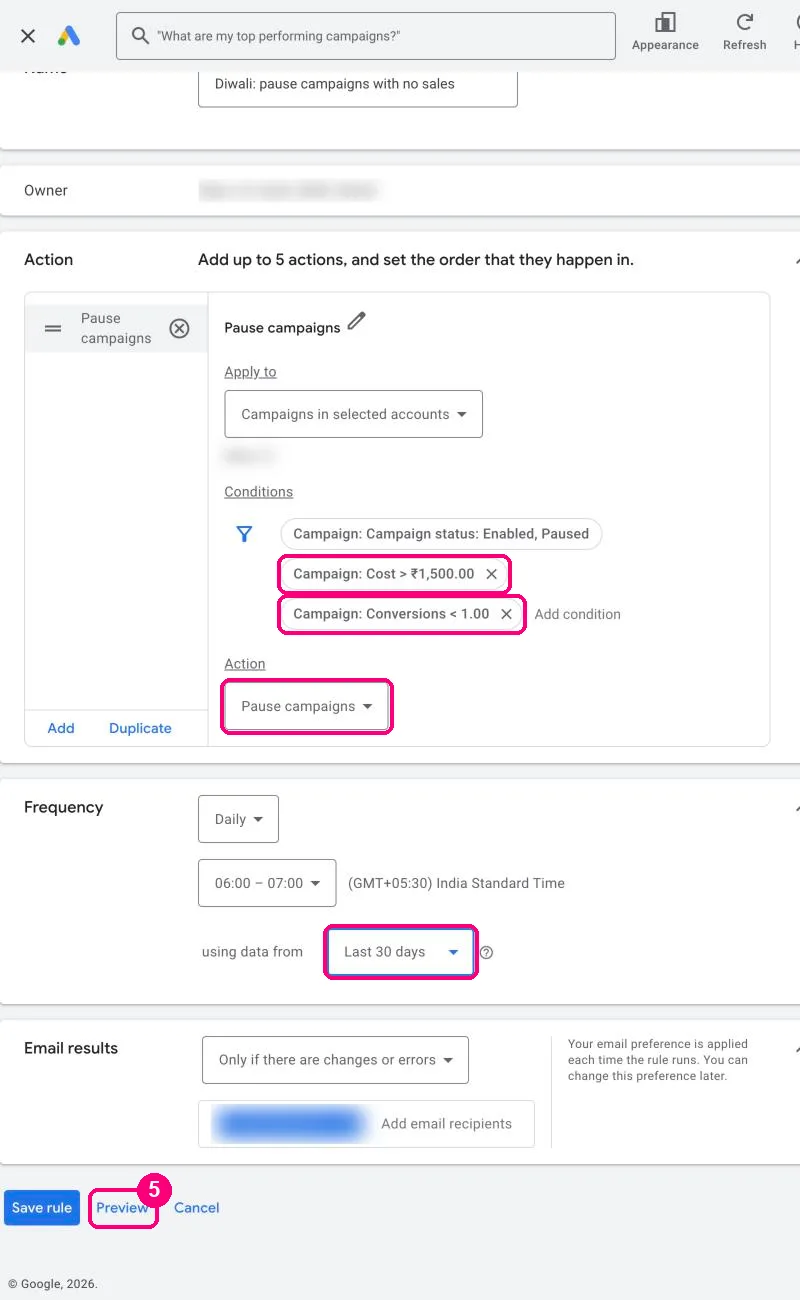
This rule does the work for you. Once a day, it pauses any campaign that spent more than one sale is worth to you and still got zero sales.
1. Start a new **Campaign rule** and name it **Diwali: pause campaigns with no sales**.
2. Under **Action**, choose **Pause campaigns**.
3. Add the condition **Cost**, keep **>**, and type what one sale is worth to you. Say a sale earns you INR 1,500. Then type 1500.
4. Add a second condition: search **Conversions**, pick **Conversions**, change **>** to **<**, type **1** and click **Apply**. "Conversions < 1" means zero sales.
5. Leave **Frequency** on **Daily**.
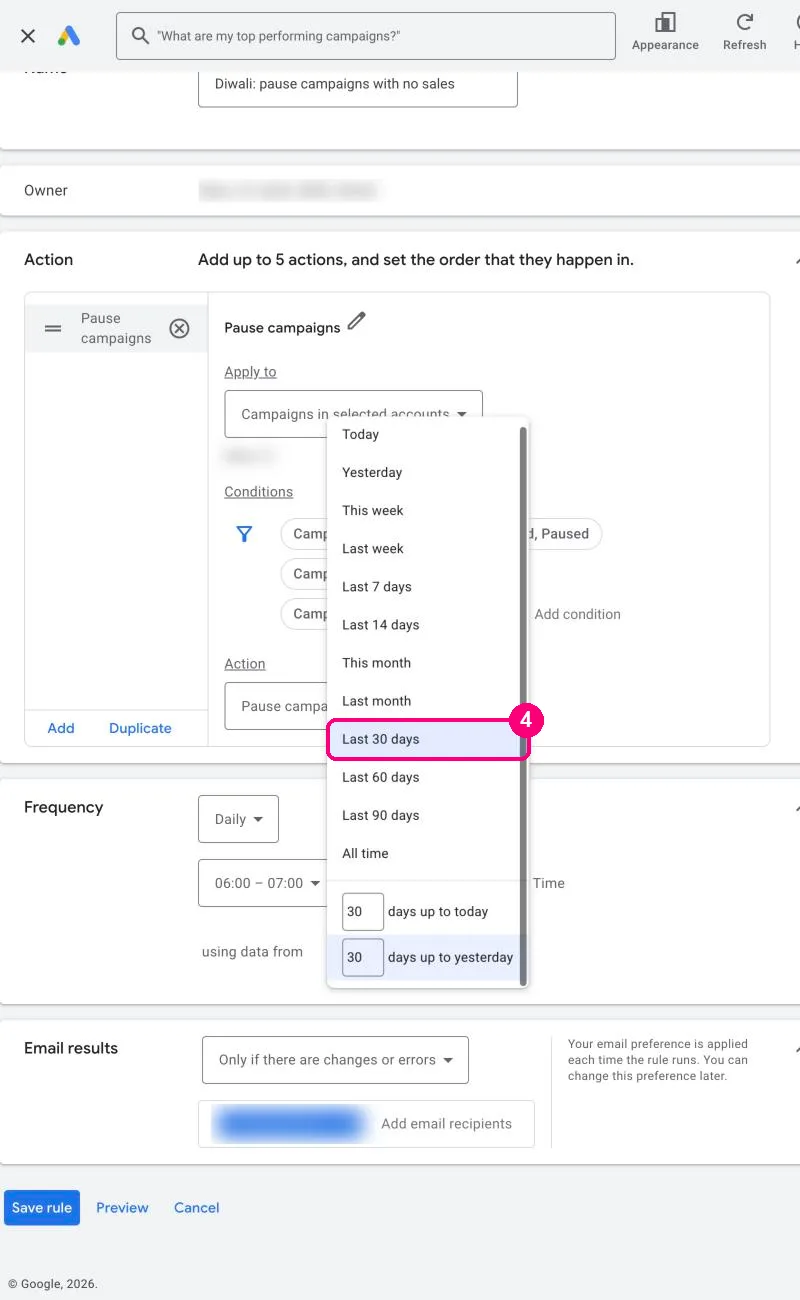
6. Next to **using data from**, choose **Last 30 days**.
Choose Last 30 days, not Today.
**This rule won't work unless you use the last 30 days.** Sales often get counted days after the click. Google says conversions [can take up to 30 days to show up](https://support.google.com/google-ads/answer/2497710). If the rule only looks at today, a good campaign can look like it has zero sales, and the rule pauses it.
7. Click **Preview** first. It lists every campaign the rule would pause. If one of them is a campaign you want to keep, change your numbers before you save.
8. Click **Save rule**.
The finished rule. Always click Preview before Save rule.
## Check your rules are working
Go back to **Tools, Bulk actions, Rules**. You'll see your three rules. The **Results** and **Version history** tabs show every time a rule ran and what it changed.
Want to know what a sale is worth before you set rule 3? Work it out with our [ROAS calculator](/roas-calculator). If you're planning the festive budget, the [CPM calculator](/cpm-calculator) helps you see what reach will cost.
We make Marxx, which shows you the ads your competitors are running on Meta. You don't need it for these rules, because they're built into Google Ads. See [how Marxx works](/features) if you also want to see your rivals' Diwali ads.
## FAQ
### Do Google Ads automated rules cost money?
No. They're a free feature in every Google Ads account. You only pay for your ads, as usual.
### Will my rule run at exactly the time I picked?
Not always. Google says a rule can run up to 2 hours after its scheduled time. That's why this guide tells you to set the time 2 hours early.
### Can I undo something a rule did?
Yes. Open **Tools, Bulk actions, Rules** and check the **Results** and **Version history** tabs to see each run and what changed. You can also switch a paused campaign back on by hand at any time.
### Do these rules work for Performance Max?
Performance Max has its own **Asset group rules** in the same **+** menu. Campaign rules, as used in this guide, work on Search campaigns.
---
- [More Agency operations articles](https://marxx.ai/posts/category/agency-operations)
- [All articles](https://marxx.ai/posts)