Connections
Connect Google Ads
Sign in with Google, then choose the account to import. Nothing imports until you choose one.
Connecting Google Ads has two parts: signing in with Google, and choosing which account Marxx imports. If you skip the second part, nothing comes in.
Connect
Switch to the client you want the data in. Google Ads is connected per client. See How Marxx is organised.
Open Settings → Integrations.
On the Google Ads card, select Connect.
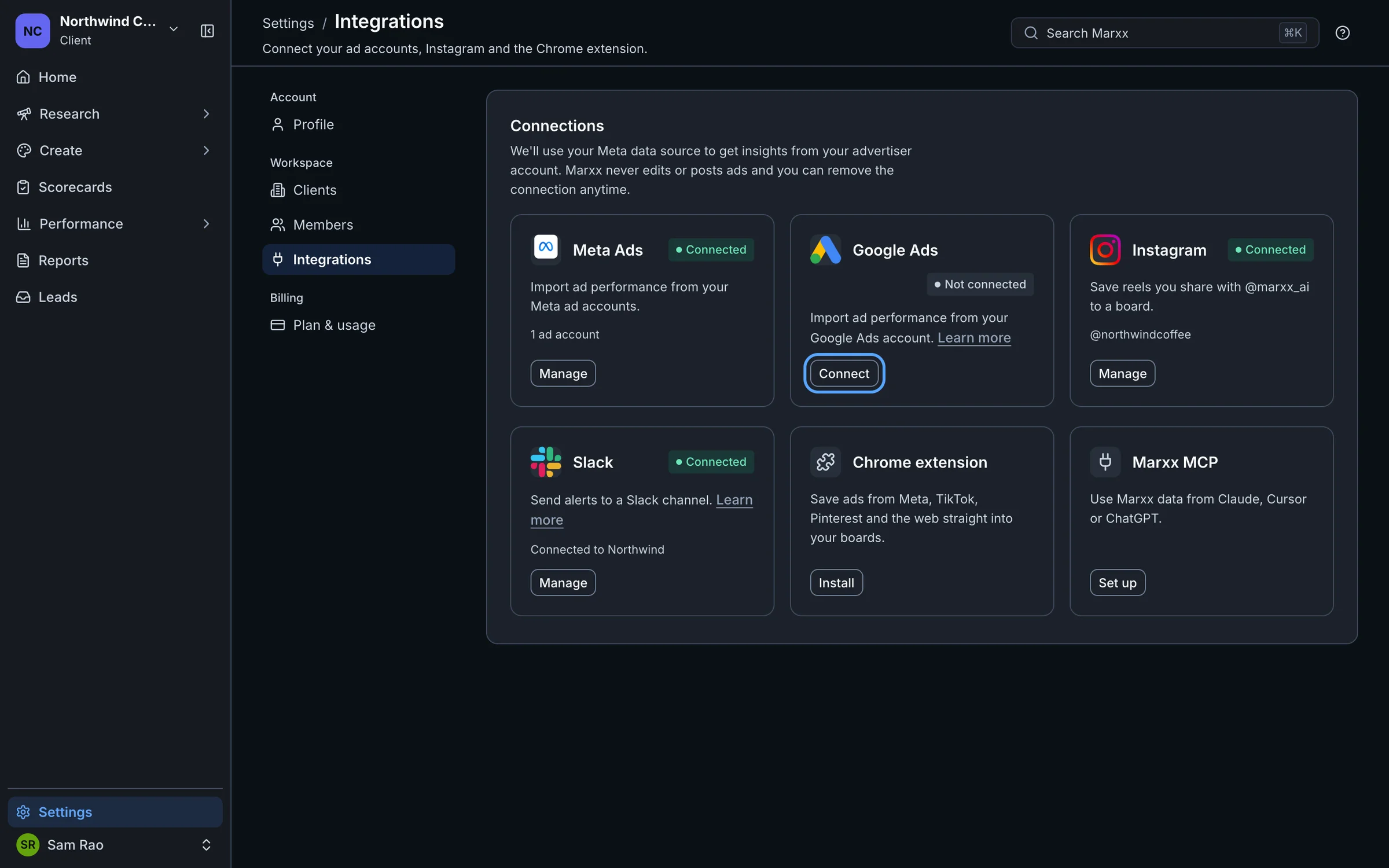
A Google popup opens. Sign in with the Google account that has access to the ads account, and approve the access Google asks for.
The popup closes by itself and you see "Google Ads connected".
If no popup appears, your browser blocked it. Allow popups for app.marxx.ai and select Connect again.
Choose the account
After you sign in, the card shows Needs attention and the line "Choose an account to import". This is expected.
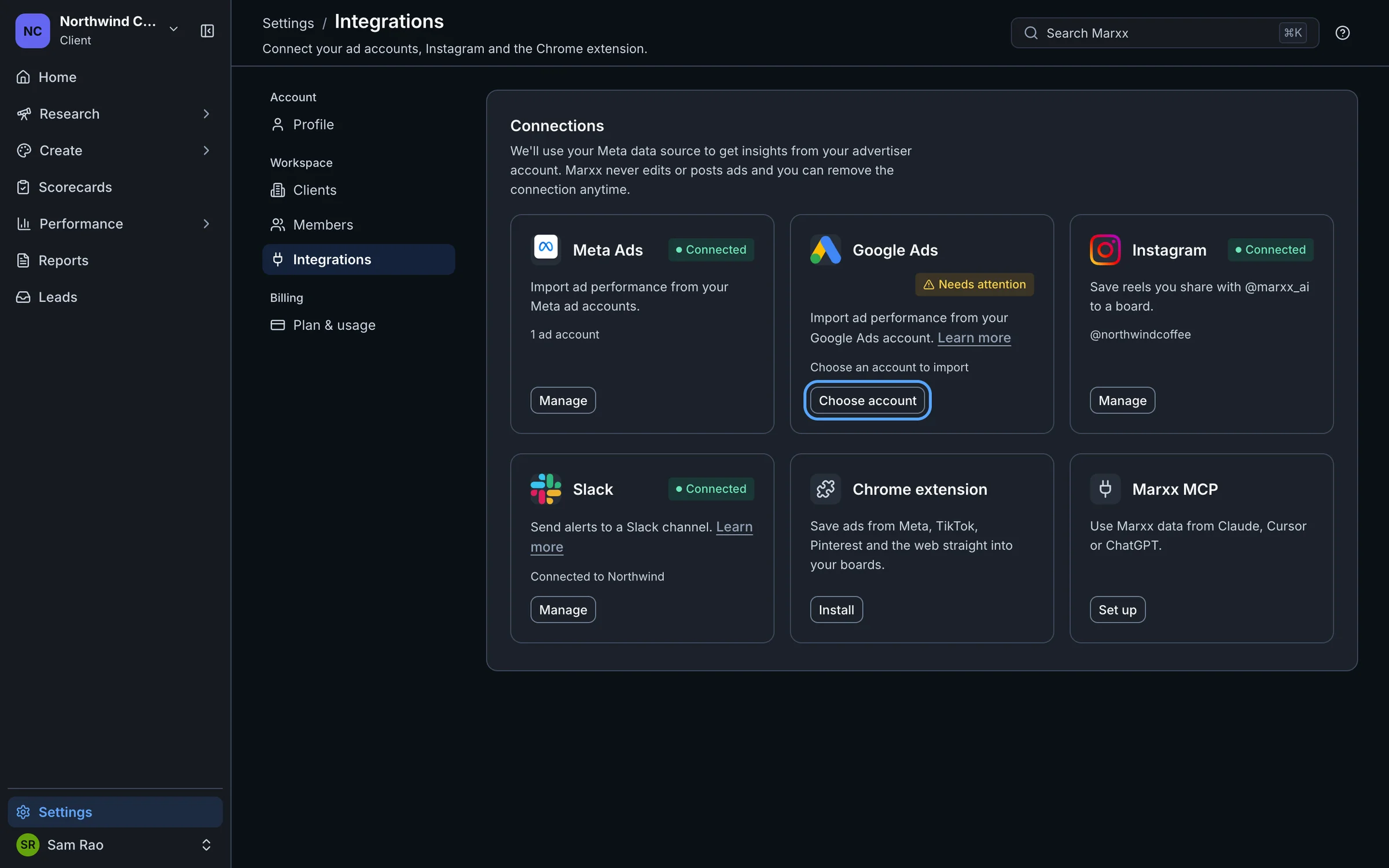
On the Google Ads card, select Choose account.
In the Account list, which starts on "Choose an account…", pick the account you want. Accounts appear by name, or by customer ID when Google gave no name.
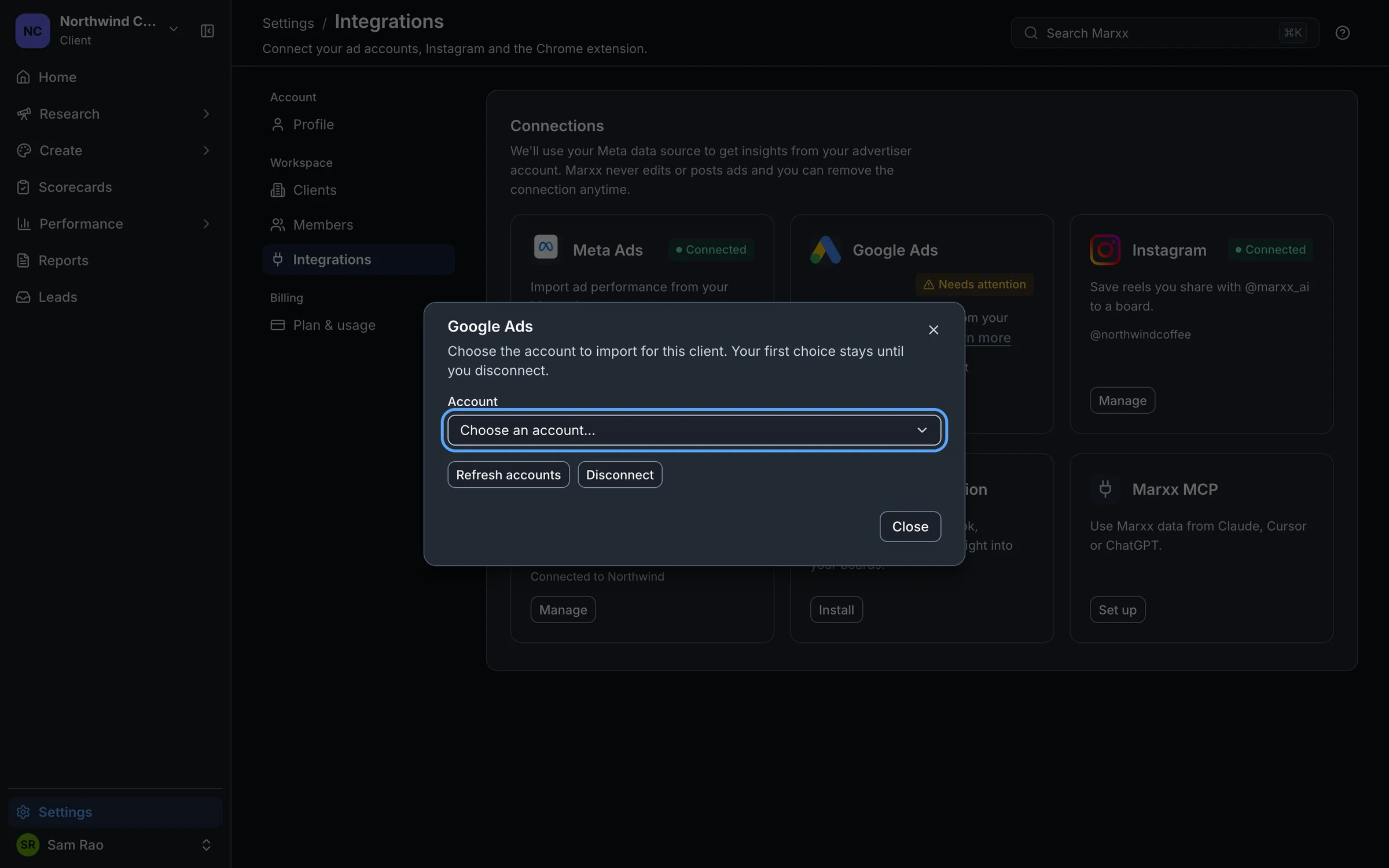
You see "Google Ads account selected". The card now shows Connected with the account's name.
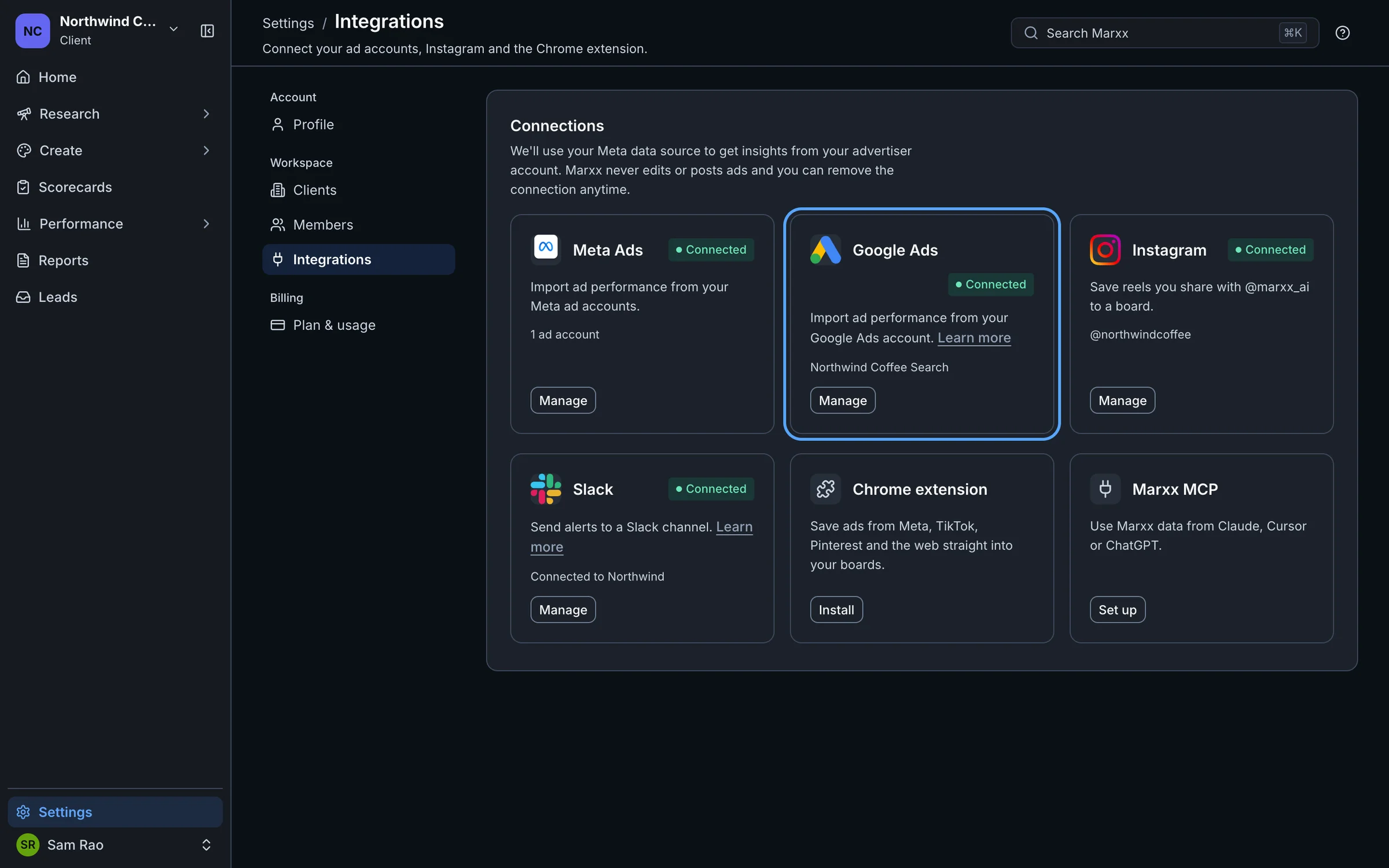
Marxx imports only the account you choose.
Your first choice sticks
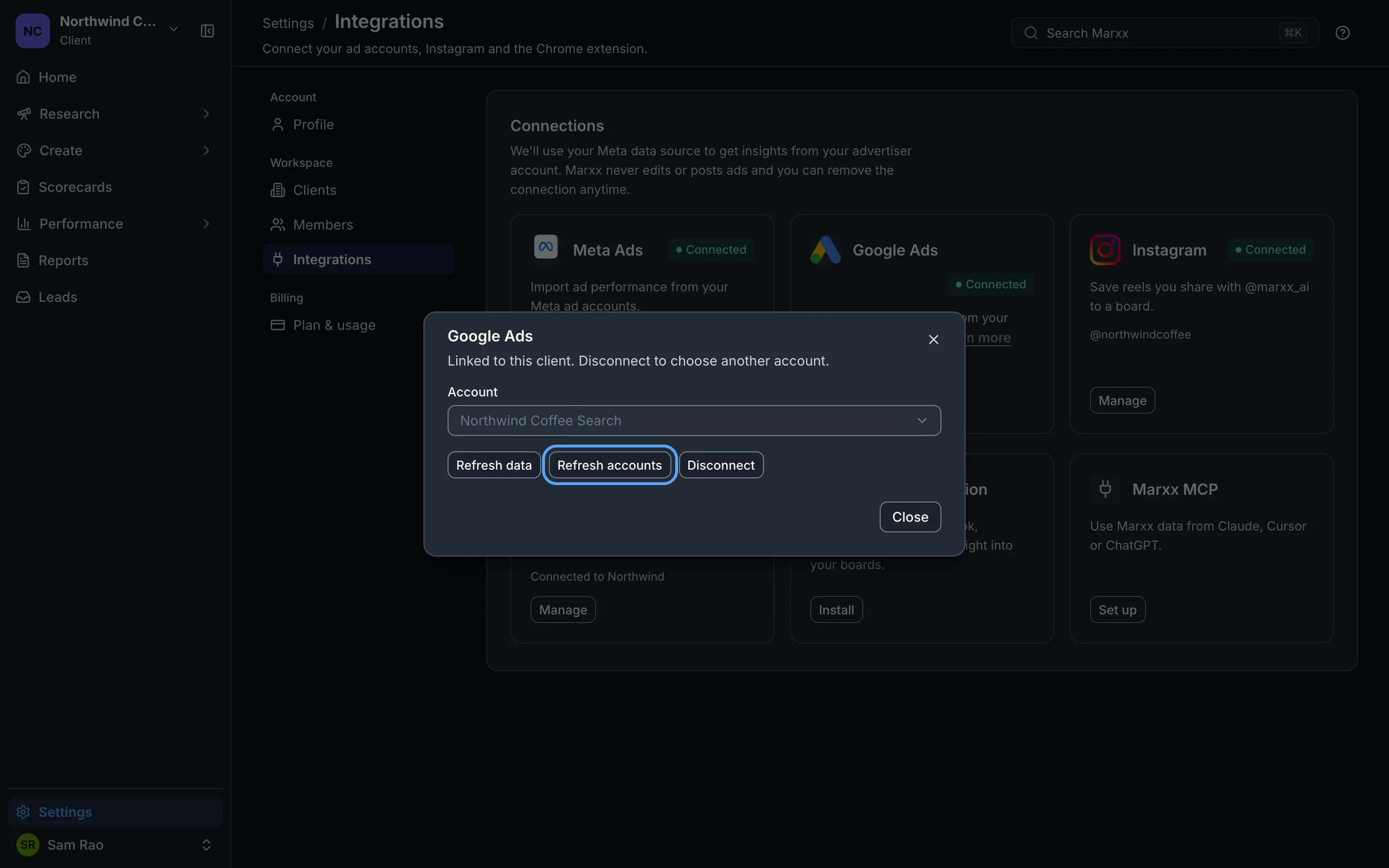
The first account you pick is tied to this client. The list is locked afterwards, and the dialog says "Linked to this client. Disconnect to choose another account." To switch, open Manage, select Disconnect, confirm, and connect again. Disconnecting means you lose access to insights and data from that account, and you can pick another afterwards.
If your plan limits how many Google Ads accounts you can use, a dialog tells you when you pick one. See Credits and limits.
Manage the connection
Open Manage on the card for these buttons:
- Refresh accounts: reloads the list of accounts and their names from Google. Use it if an account you expect is missing or shows only a number.
- Refresh data: pulls the chosen account's latest numbers now. It appears once you've chosen an account.
- Disconnect: removes the connection for this client.
If it doesn't work
- "Couldn't connect Google Ads. Try again." The Google popup returned an error, or you closed it before finishing. Select Connect again and complete every screen. If Google gave a reason, it may appear in that message.
- The card says Connected but there is no data. Check the card first. If it says Needs attention, you haven't chosen an account yet. Select Choose account.
- The account you need isn't in the list. Google lists only accounts the signed-in Google user can open. Sign in with the right Google account, or ask the account owner to add your Google login in Google Ads. Then select Refresh accounts.
- A different client shows an empty list. Each client connects on its own. Switch to the client and select Connect.
If a card shows Couldn't check, select Retry on it.
For other cases where numbers don't appear, see Data not showing.
Still stuck?
Email apurv@marxx.ai with a screenshot of what you see, or book a call and we will walk through it with you.