Connections
Use Marxx inside Claude, ChatGPT and Cursor
Add the Marxx MCP server to your AI assistant, approve it on Marxx, and ask about your ads in plain English.
Marxx has a hosted MCP server. Add it to Claude, ChatGPT or Cursor and you can ask your assistant about your ads, competitors and brand without leaving the chat.
The server address is the same for every assistant:
You need a Marxx account first, and for your own numbers you need your ad accounts connected. See Connect your Meta ad account and Connect Google Ads.
To see this guide inside Marxx, open Settings → Integrations and select Set up on the Marxx MCP card.
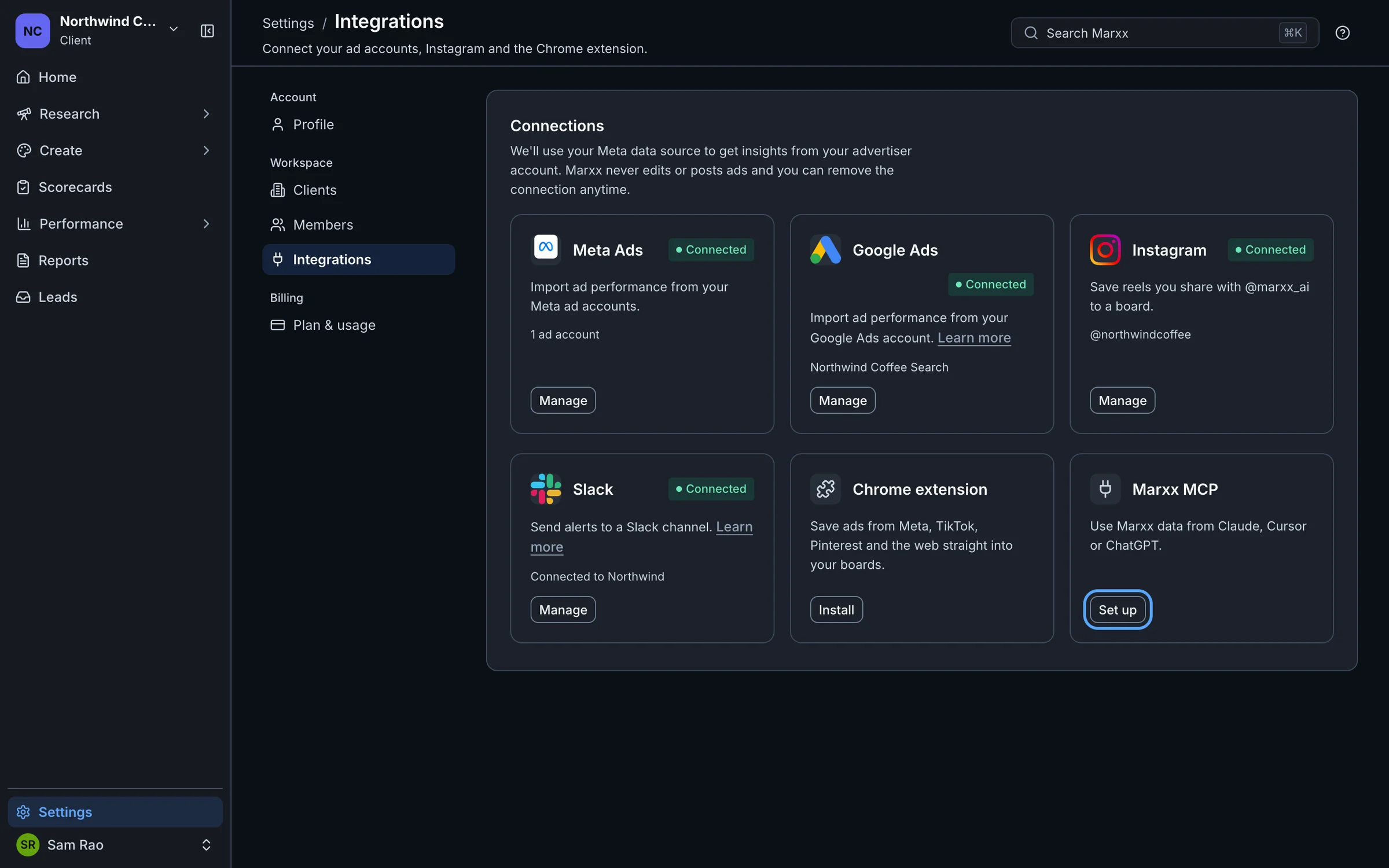
The window it opens has a Copy button for the address.
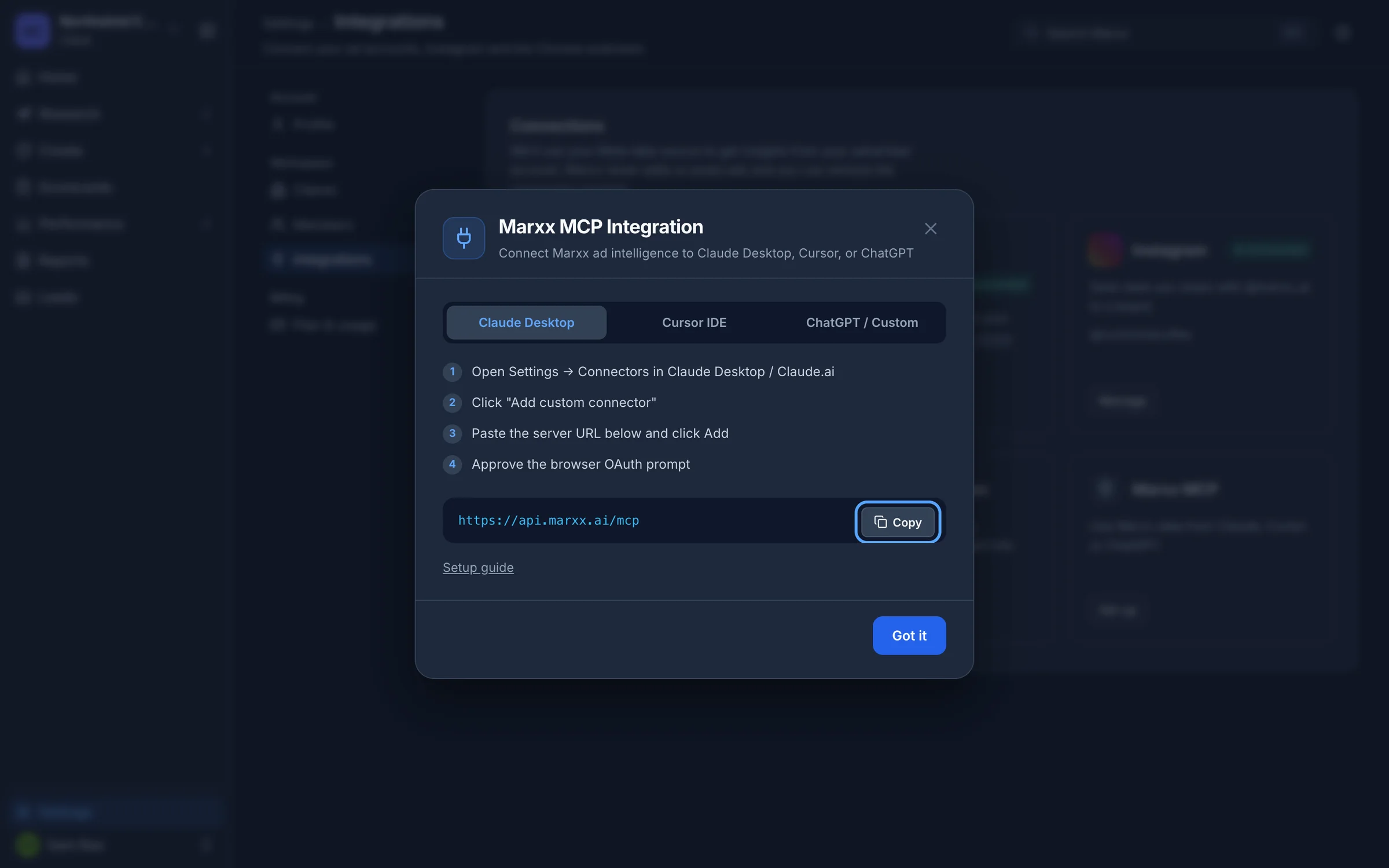
Add it to Claude
- Open Settings → Connectors in Claude Desktop or Claude.ai.
- Select Add custom connector.
- Paste the server address and select Add.
- Approve the connection in the browser window that opens (see below).
Add it to Cursor
- Open Cursor Settings → Features → MCP.
- Select Add new MCP Server.
- Set Name to marxx and Type to sse or http.
- Paste the server address and save.
Add it to ChatGPT
- In ChatGPT, or your own AI agent, create a new action or connection.
- Set the server URL to the address above.
- Approve the authorization prompt.
The menu names in ChatGPT change from time to time. Look for the place that adds a custom connector or MCP server.
Approve it on Marxx
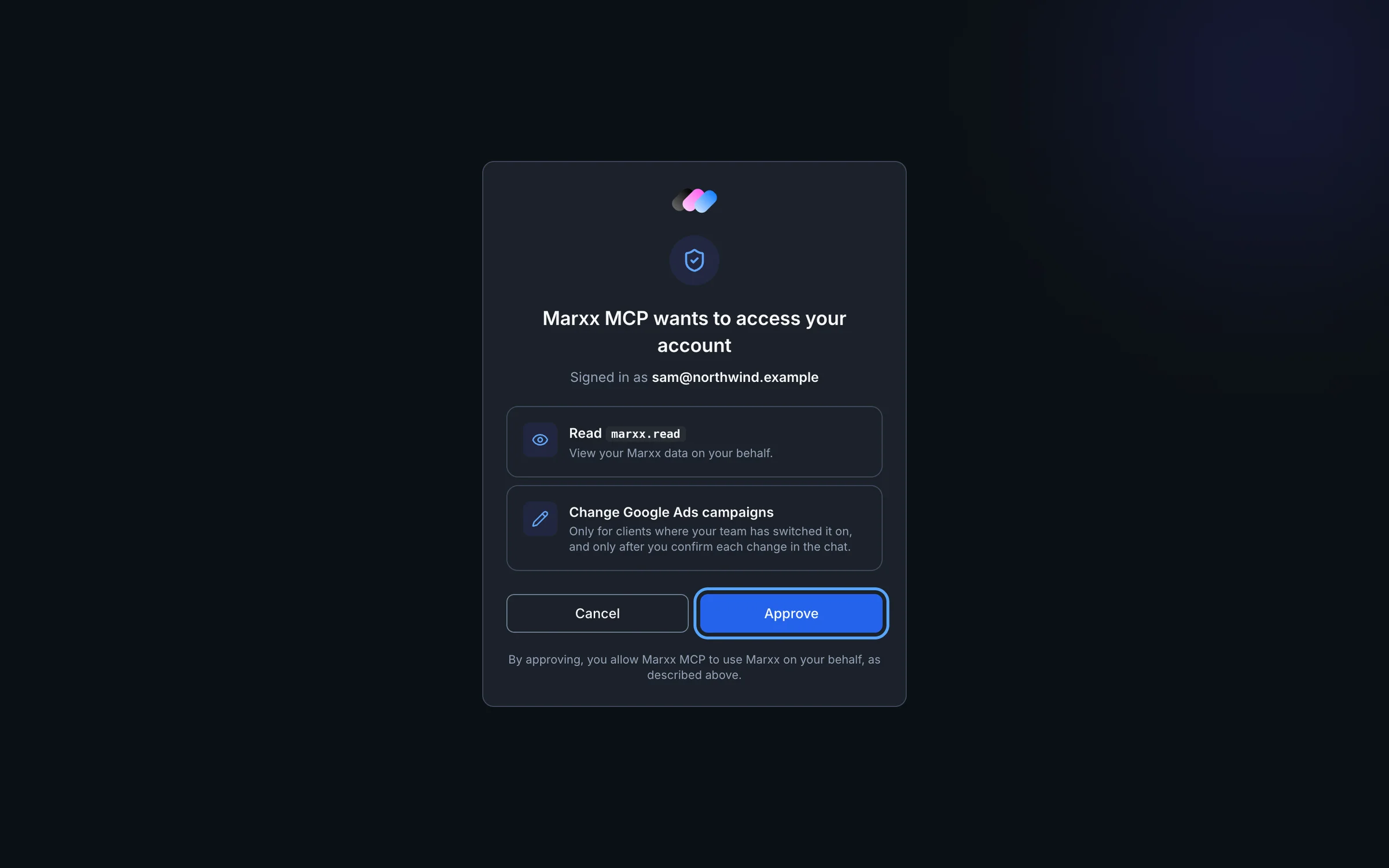
Your assistant sends you to Marxx to approve the connection. You never paste a key into the assistant.
If you aren't signed in, sign in to Marxx. You come straight back to the approval screen.
The screen reads Marxx MCP wants to access your account and shows the email you're signed in as.
It lists what you're allowing: Read access to view your Marxx data on your behalf, and the ability to change Google Ads campaigns. The second only applies to clients where your team has switched it on, and only after you confirm each change in the chat.
Select Approve. Select Cancel to refuse.
Pick a client
If you manage more than one client, the assistant works on one client at a time. It asks which client you mean before it answers, and it can't read another client's data in that session. Choose the one you want, and switch the same way later.
Ask something
Try a question like "What changed across Meta and Google last week, and which creative is behind it?" or "Tear down the last twenty ads this competitor shipped." The assistant picks the right tools and answers in the chat.
For example prompts, the list of tools, and common questions, see the Marxx MCP page.
If it doesn't work
- "This authorization request is invalid or has expired." Start the connection again from your assistant. The approval link only works for a short time.
- "Your Marxx session is invalid or has expired." Sign in to Marxx again, then retry.
- "Invalid request" with a missing login_request. You opened the approval address directly. Start from the assistant instead.
- Answers about your own ads come back empty. The client you picked may have no ad account connected yet. Connect one first.
If the approval keeps failing, email apurv@marxx.ai or book a call with the message you saw.
Still stuck?
Email apurv@marxx.ai with a screenshot of what you see, or book a call and we will walk through it with you.