Connections
Connect your Meta ad account
Log in with Facebook, pick an ad account and let Marxx import your ads. Includes fixes for login, popup and missing-account problems.
Connecting Meta is what turns on your own ad performance in Marxx. You log in with Facebook, choose one ad account, and Marxx starts importing it.
Before you start
- Connect Meta for the client you want the data in. If you run several clients, switch to the right one first. Each client has its own Meta connection. See How Marxx is organised.
- Log in to Facebook with the profile that can already open the ad account in Meta Ads Manager. Marxx can only list ad accounts that profile can see.
- Allow popups for app.marxx.ai. The Facebook login opens in a popup.
Connect
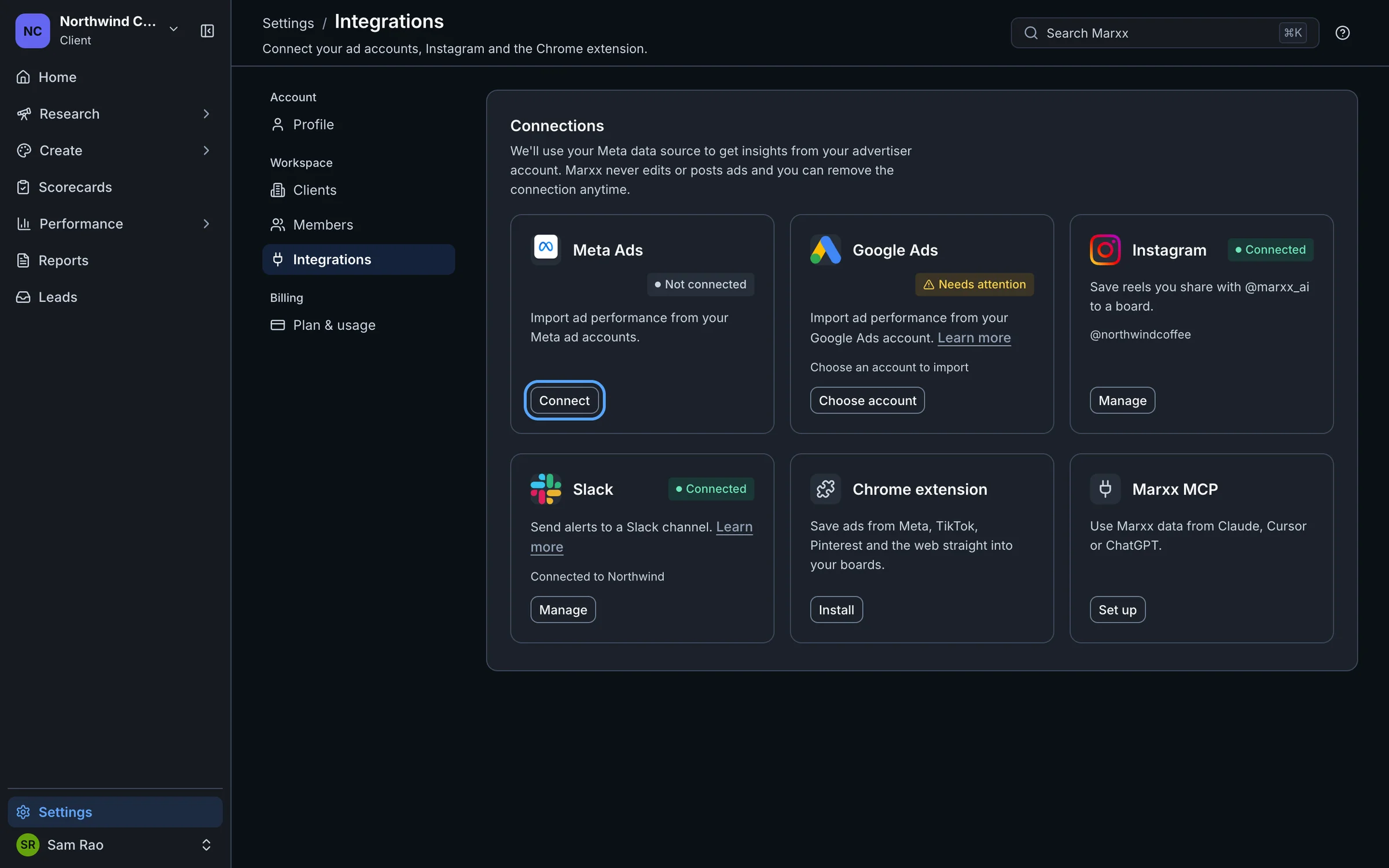
Open Settings → Integrations, find the Meta Ads card and select Connect. On the Performance page you can instead use the Connect your Meta account card.
A client with no ad account sees the same step as a card on the Performance page:
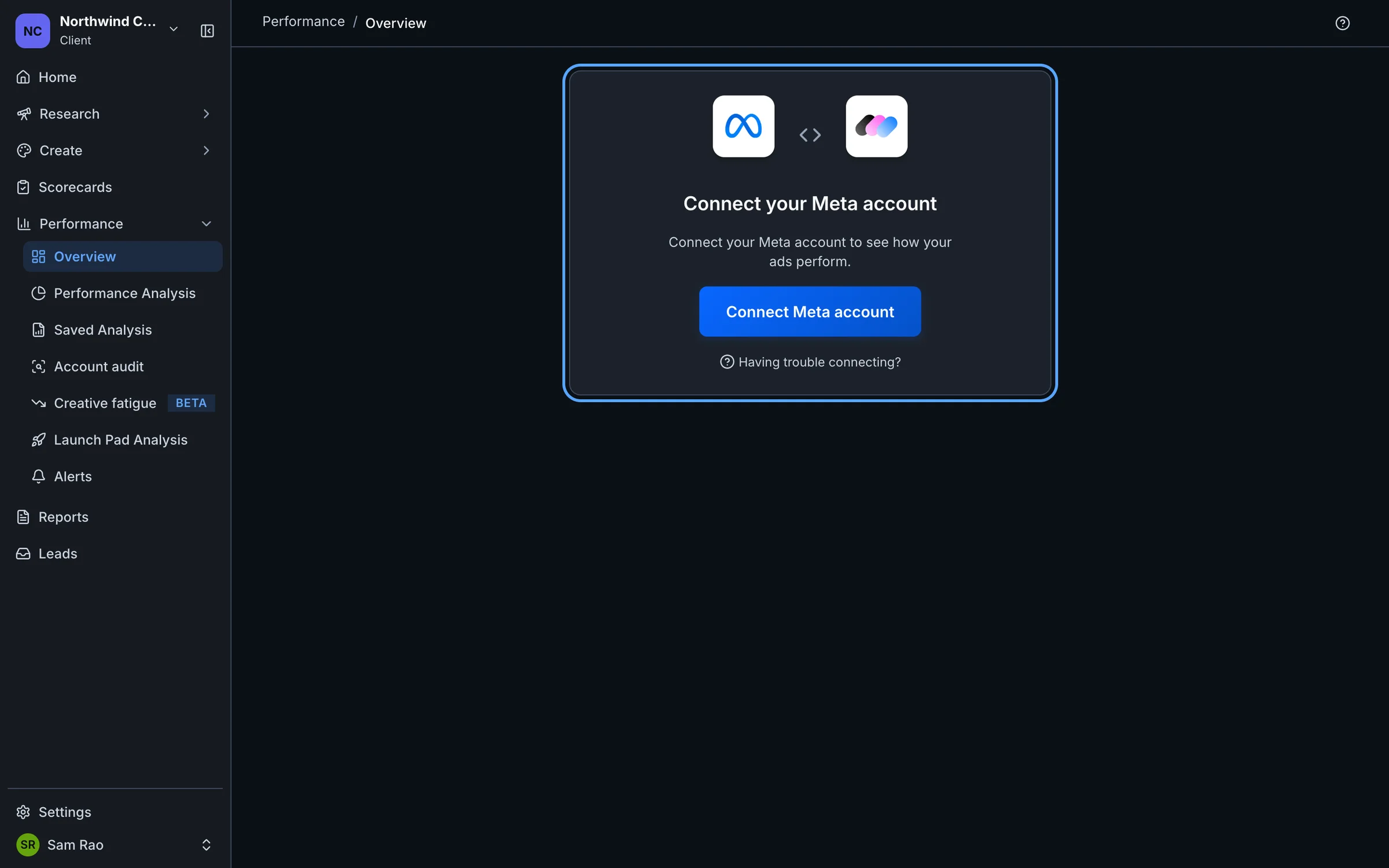
Select Connect Meta account. The button reads "Loading..." for a moment while Facebook's login loads.
In the Facebook popup, log in and approve the permissions. Meta shows them in its own wording.
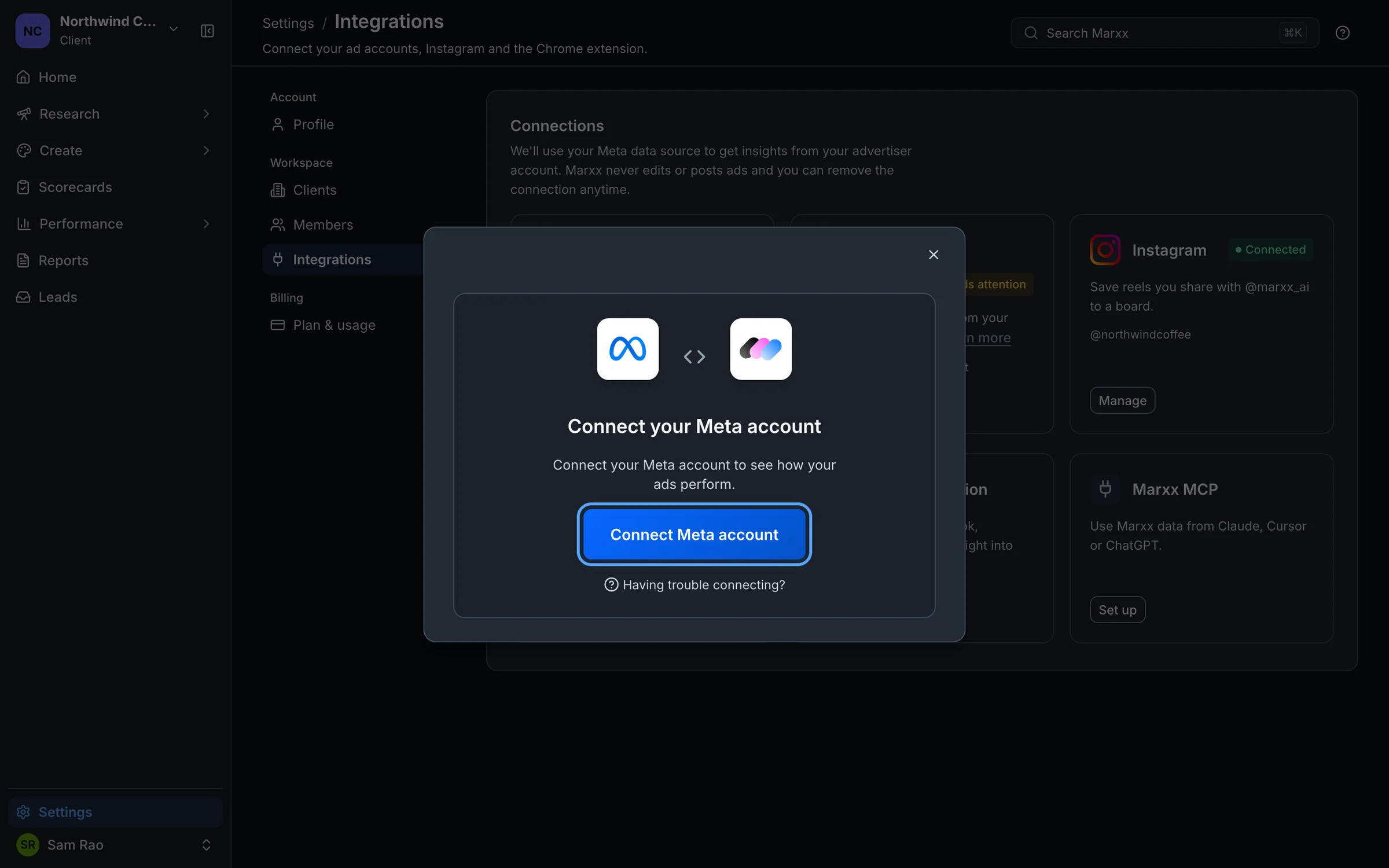
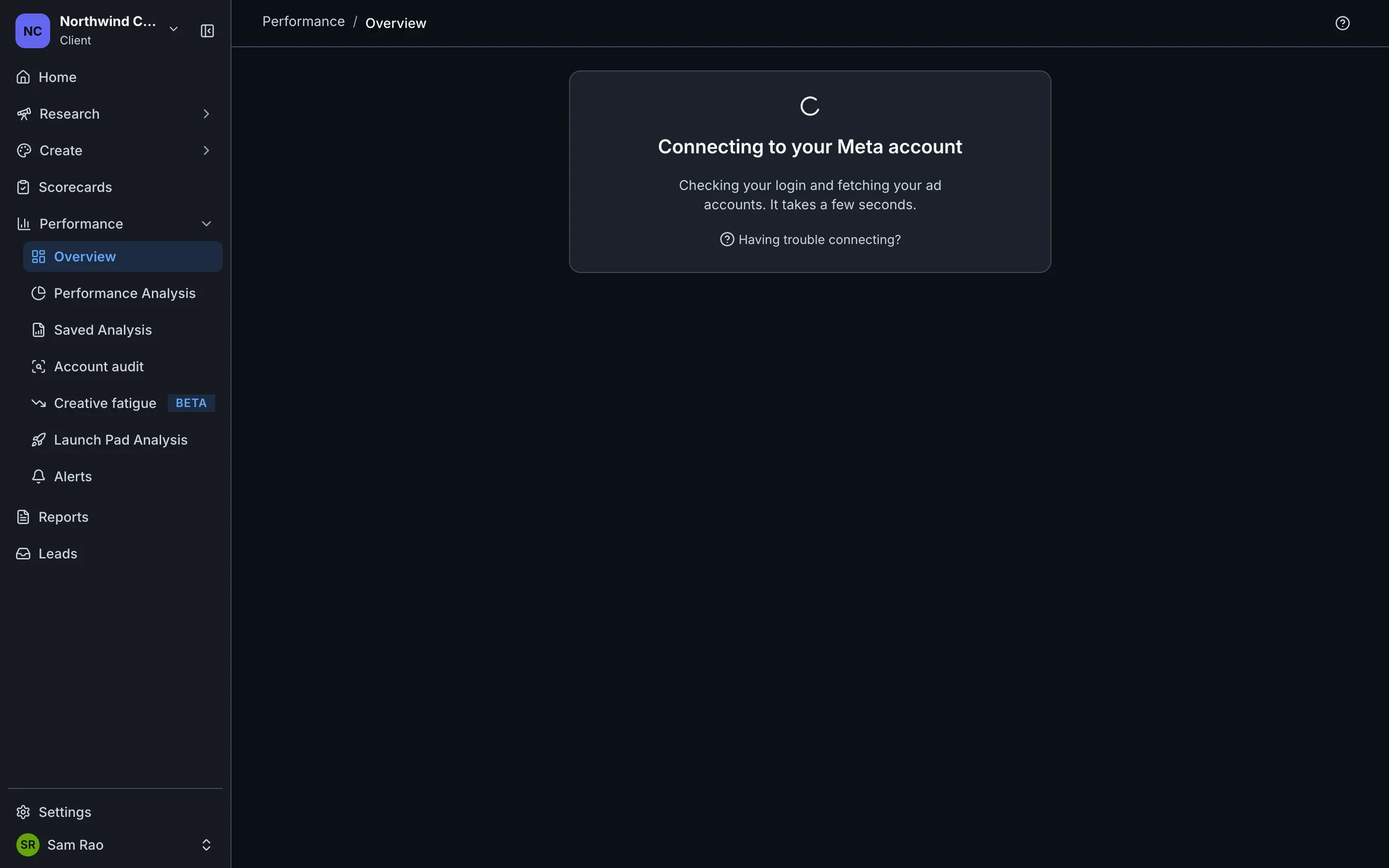
Wait a few seconds. Marxx shows "Connecting to your Meta account" while it checks your login and fetches your ad accounts.
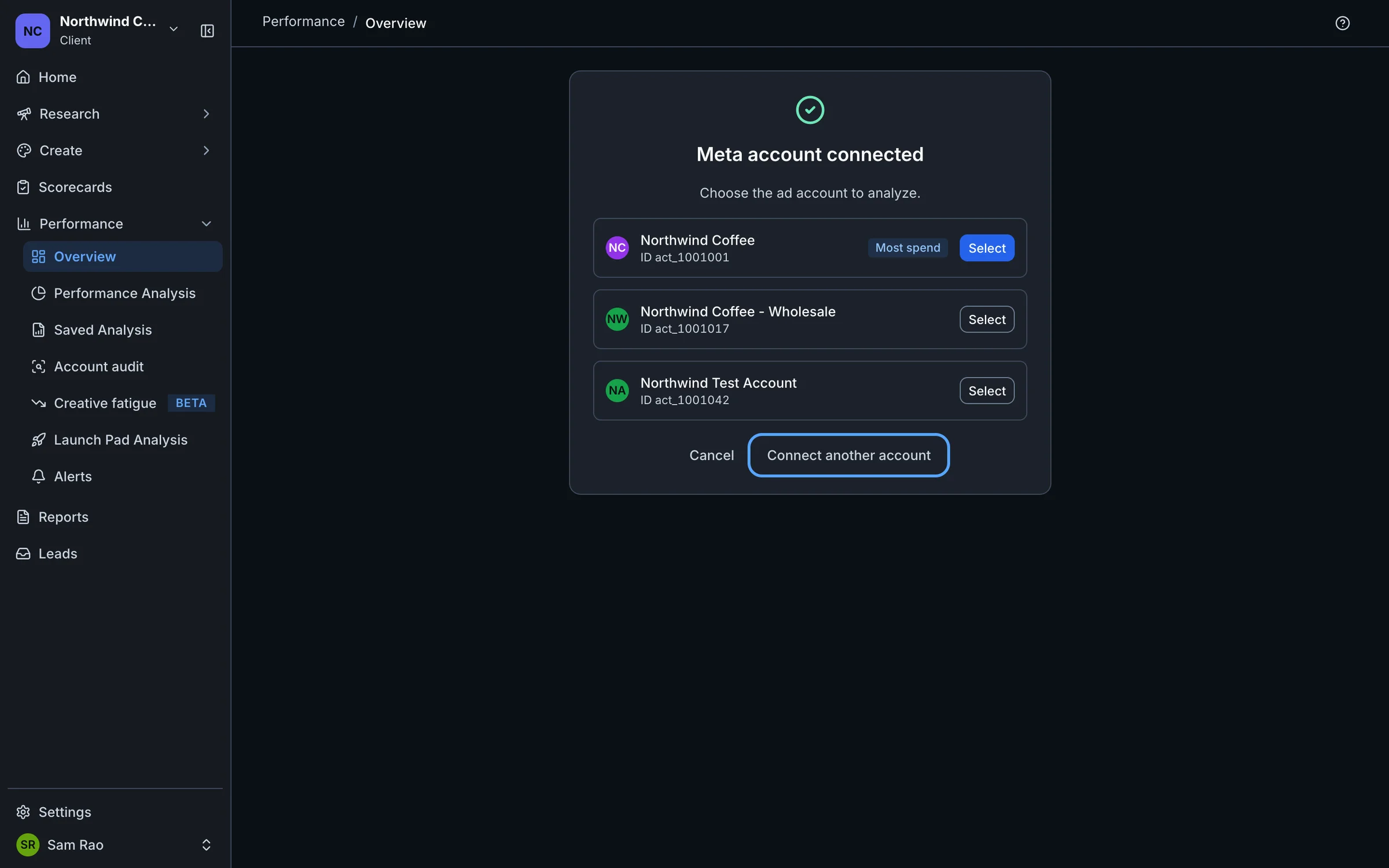
Under Meta account connected, pick the ad account to analyze and select Select.
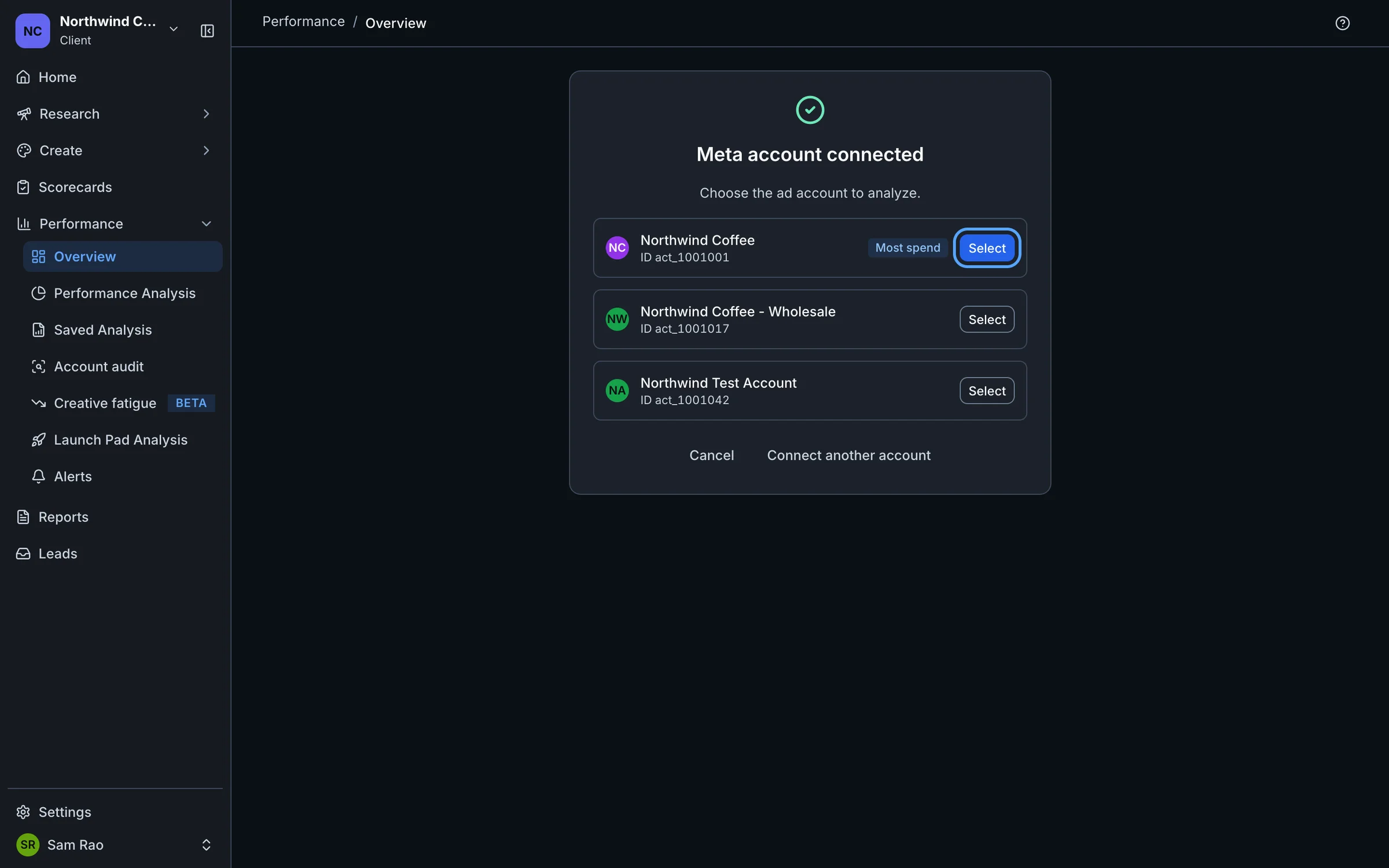
The list shows each account's name and ID. The account with the highest total spend carries a Most spend label, which is usually the one you want.
You pick one ad account at a time. To add another, go through the connection again.
If your plan caps the number of Meta ad accounts, a dialog tells you so when you select one. See Credits and limits.
What Marxx asks for, and why
- business_management: see the Business your ad accounts belong to.
- ads_management: reach your ad accounts, so Marxx can list them and import your ads, creatives and results.
- pages_show_list and pages_read_engagement: see the Facebook Pages that run your ads.
- pages_manage_metadata: let Marxx subscribe a Page to lead-form notifications, so new lead submissions reach the Leads tab.
- leads_retrieval: read the answers on your lead forms.
- instagram_basic and instagram_manage_insights: link the Instagram account behind your ads and read its insights.
- instagram_manage_comments: read comments on your Instagram posts and ads.
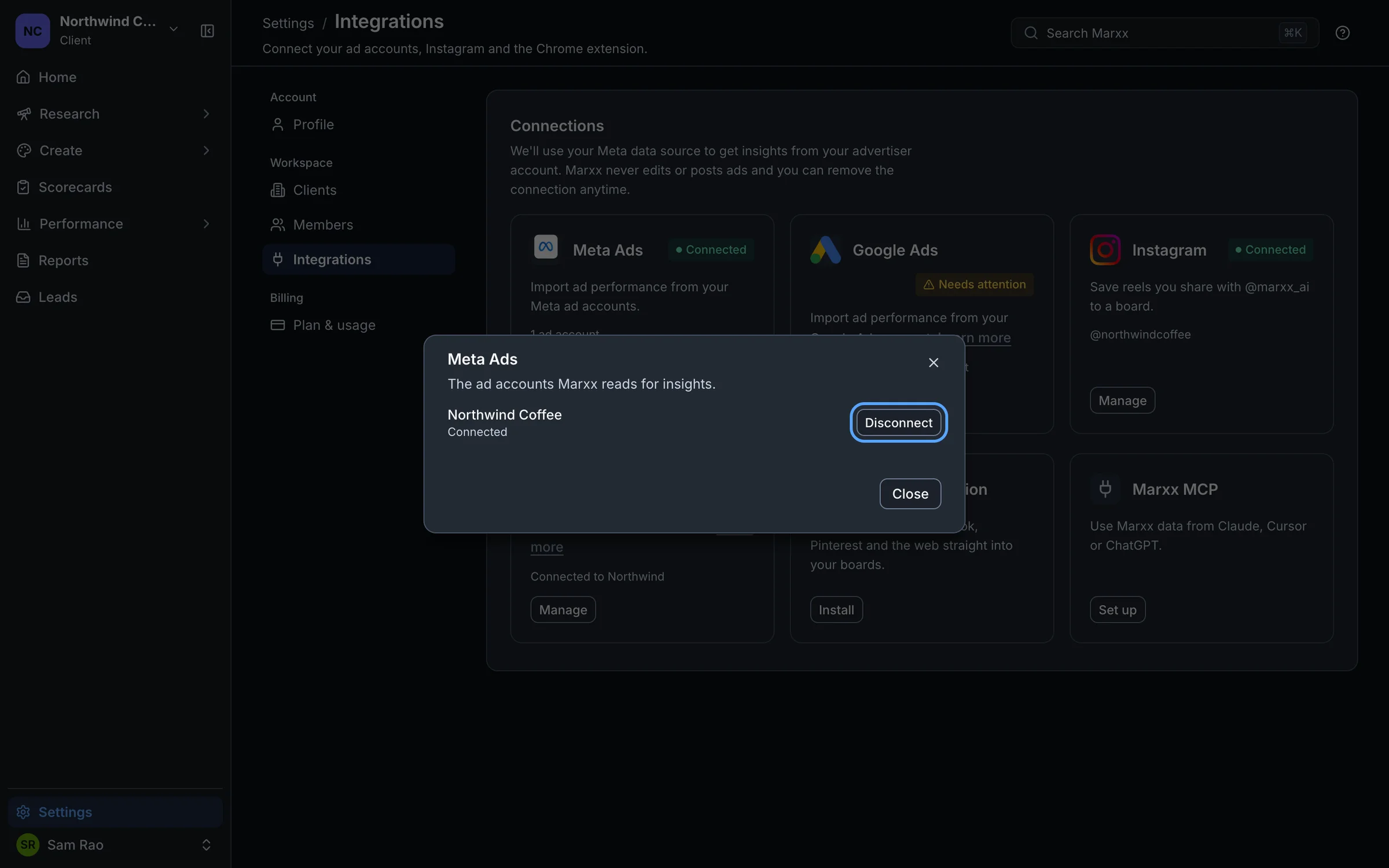
You can remove the connection at any time from Settings → Integrations → Manage.
The first import
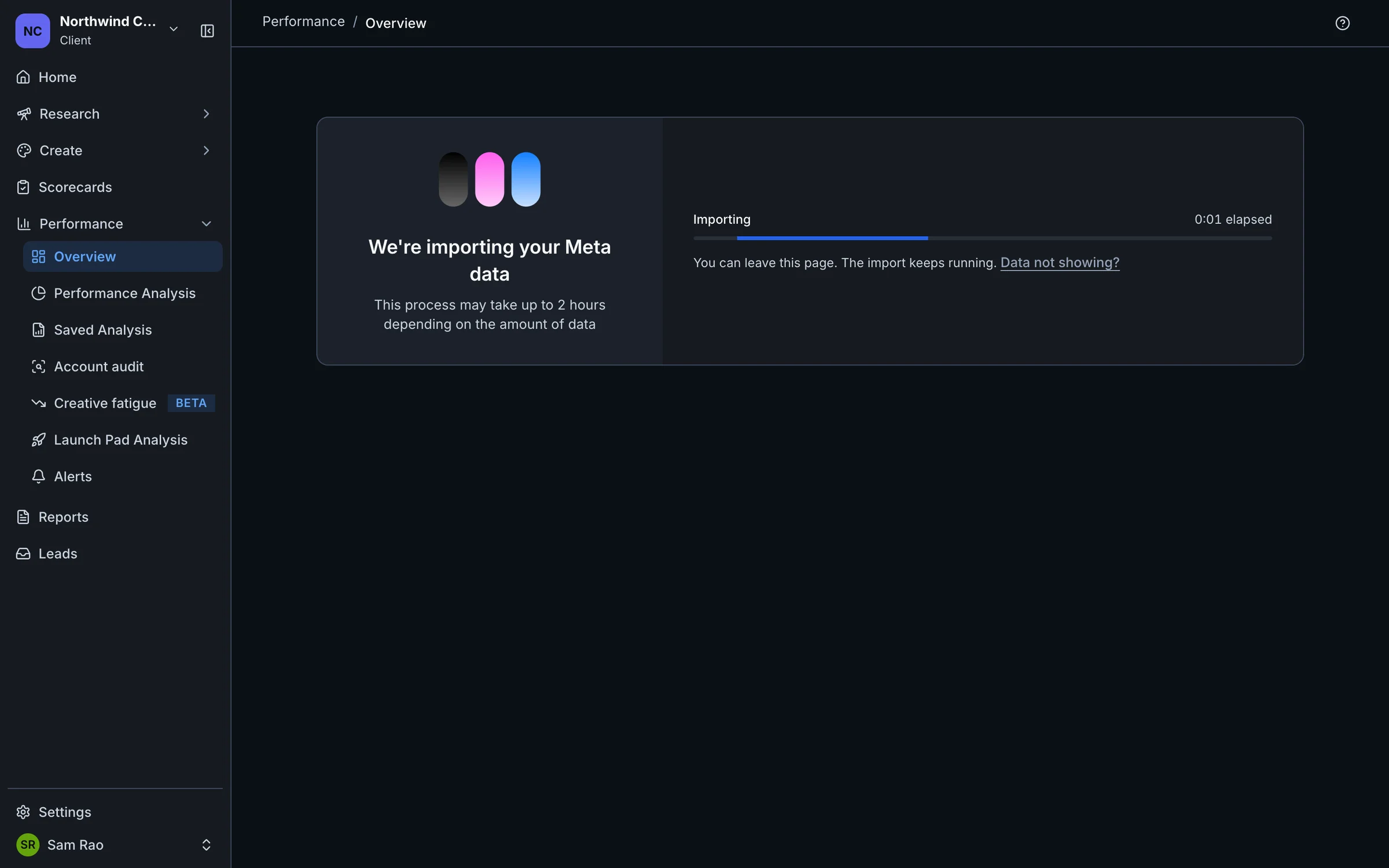
After you select an account, Marxx imports its history. The page says "We're importing your Meta data" and can take up to 2 hours, depending on how much data there is.
You can leave this page. The import keeps running. The page clears on its own when the import finishes.
What it unlocks
Once data is in, you get your account on Home and Performance, Alerts on what changed, lead forms in Leads, and your accounts inside any assistant connected through Marxx MCP.
Having trouble connecting?
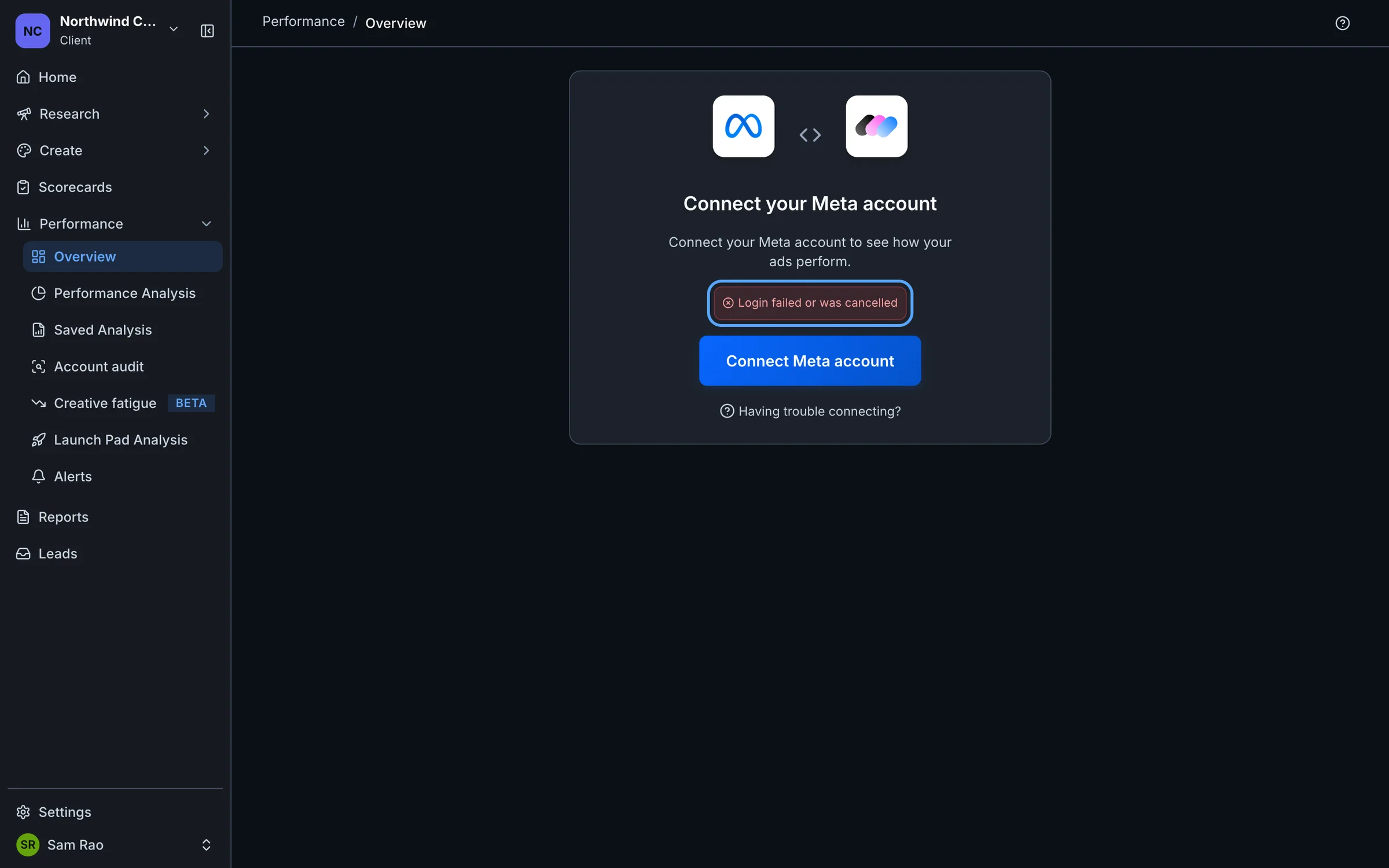
"Login failed or was cancelled"
This appears when the Facebook window closes before it finishes.
Work through these in order:
- Try again and complete every screen in the popup. Closing it, or going back, counts as cancelling.
- Make sure you can log in to facebook.com in the same browser. If Facebook's own login doesn't work there, Marxx's won't either.
- Allow popups (below) and try again.
- Try another browser, or a window with extensions turned off.
The popup is blocked
If nothing opens when you select Connect Meta account, your browser blocked the popup. Look for a blocked-popup icon at the right of the address bar, choose to always allow popups from app.marxx.ai, and select the button again. Marxx can't open the login without it.
The button says "Loading..." or "Failed to load Facebook SDK"
Facebook's login script didn't load. The button can sit on "Loading..." for a moment, and the card then shows "Failed to load Facebook SDK. Please check your internet connection."
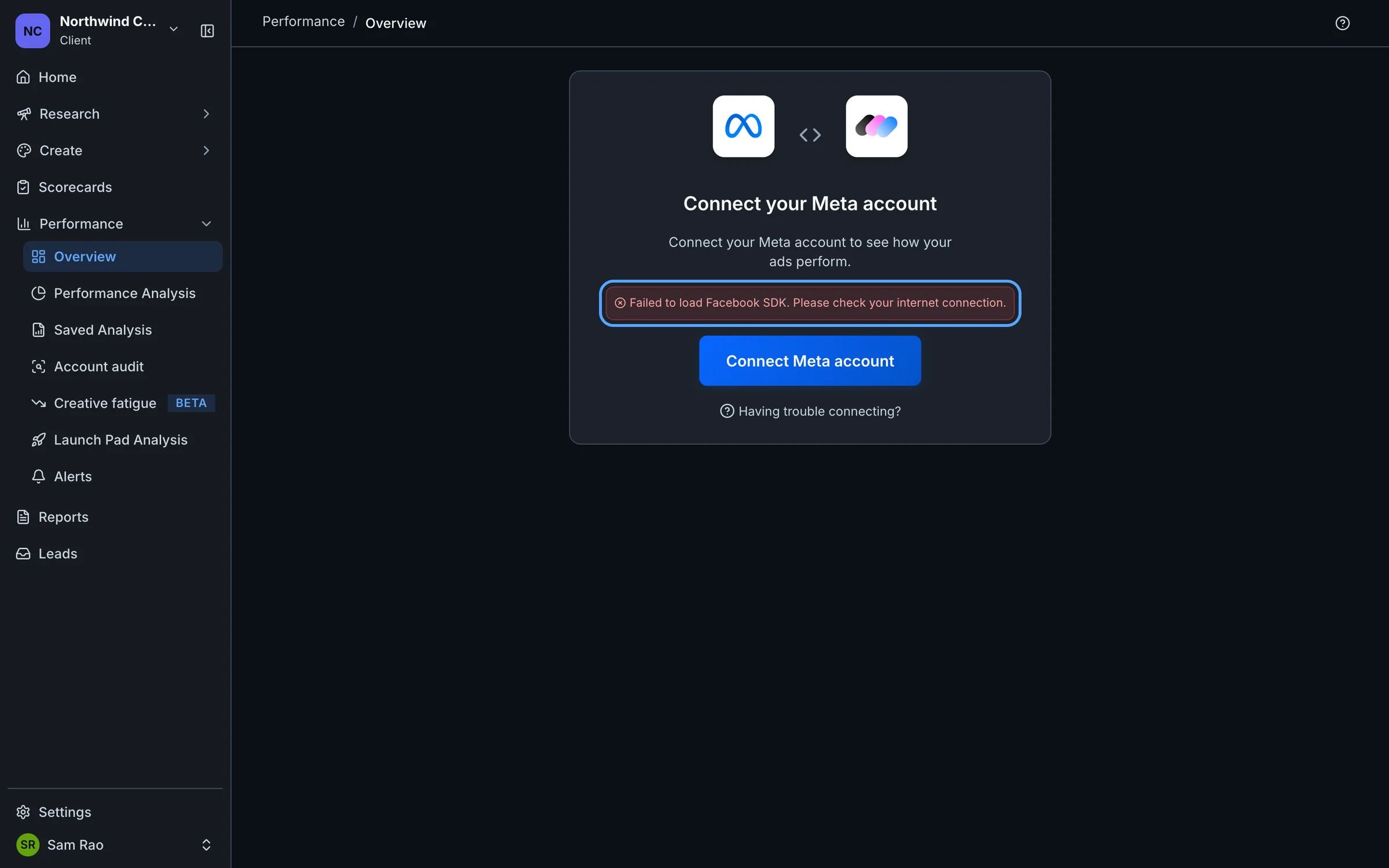
An ad blocker, privacy extension or company network is usually blocking connect.facebook.net. Turn it off for app.marxx.ai, or switch network, and reload the page.
You're not an admin of the ad account or Business
Marxx only sees what your Facebook profile can see. If the connection works but your ad account is missing, or Meta refuses permissions, you probably lack access. Ask an admin of the Business that owns the ad account to give your profile access to it in Meta Business Settings, with enough access to manage the account. Then connect again.
The account you need isn't listed
You may have logged in with the wrong Facebook profile. In the picker, select Connect another account. It reloads the page. Connect again and log in with the profile that has access.
If Meta asks which businesses or ad accounts to share, make sure the one you need is ticked.
The account may sit in a Business where your profile has no access. See the section above.
If the list is empty, you see a message starting "Failed to fetch ad accounts". Meta's own explanation follows it. Read it, as it usually names the cause.
"No client is selected"
Pick a client in the switcher, then connect again. Meta connects to a client, not to your whole organization.
"Facebook configuration is missing"
The card shows this message and the button stays on "Loading...". This one is on our side.
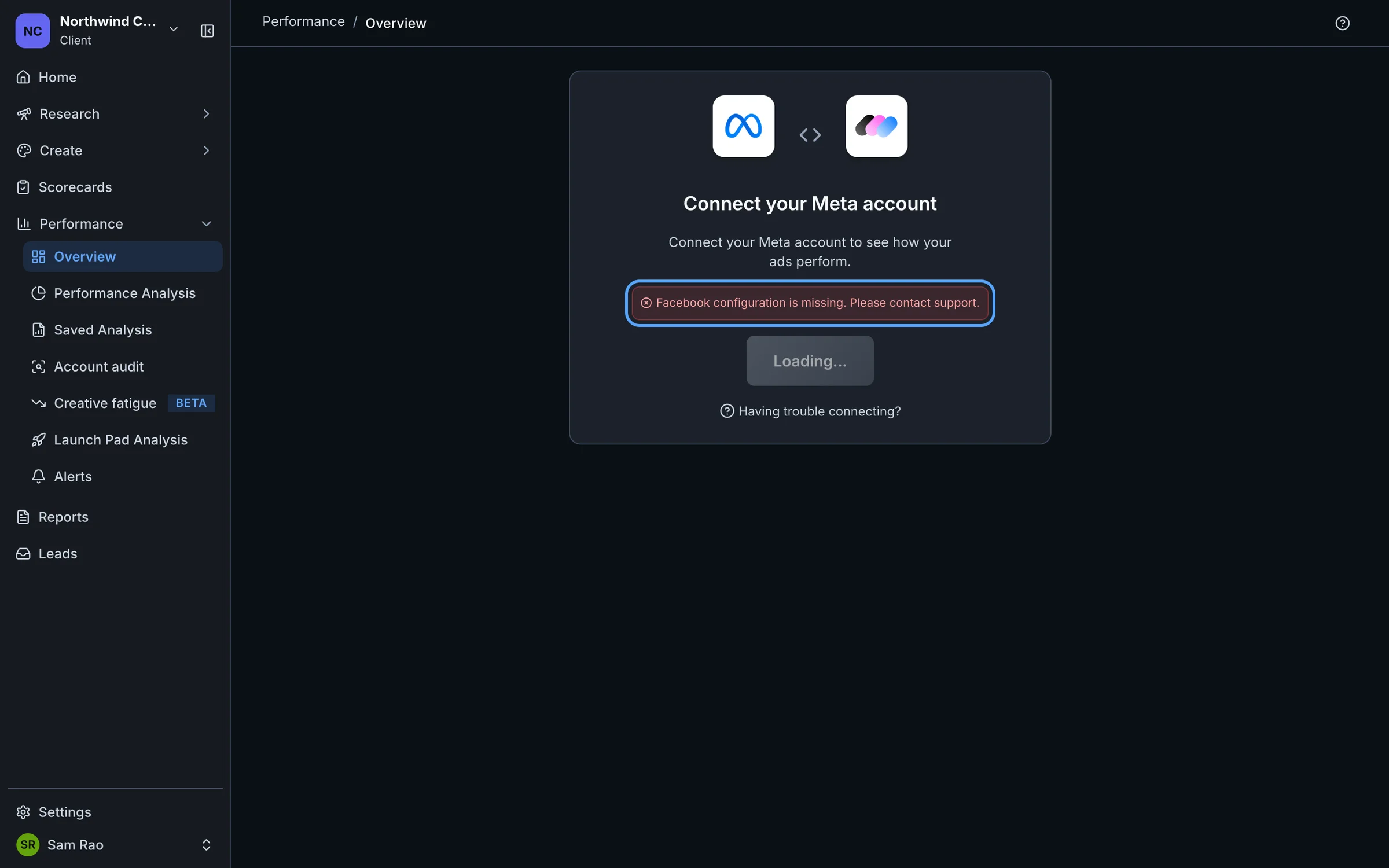
Email apurv@marxx.ai or book a call and include the exact message.
Connected, but nothing shows
Give the first import time, then see Data not showing. For a connection that stops working later, see Reconnect Meta.
Still stuck?
Email apurv@marxx.ai with a screenshot of what you see, or book a call and we will walk through it with you.