Connections
Connect Slack for alerts
Connect your Slack workspace, choose a channel, and turn Slack on for each alert rule.
Connect Slack and Marxx can post your alerts to a channel. Connecting has two parts: authorizing Slack, then choosing the channel. Alerts have nowhere to go until you choose one.
Connect
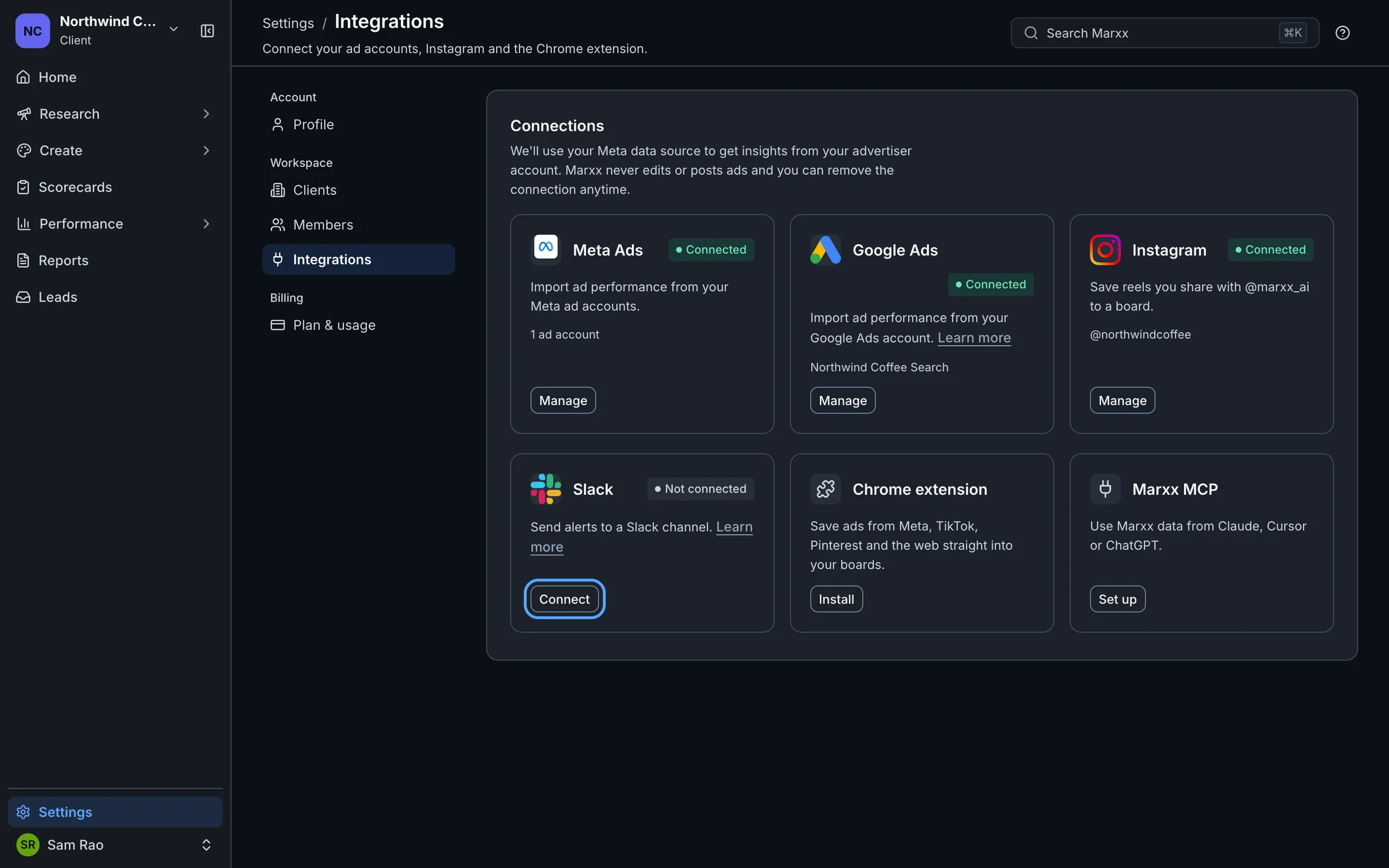
Open Settings → Integrations.
On the Slack card, select Connect. Slack opens in a new browser tab.
Choose your Slack workspace, review what Marxx asks for, and allow it.
Marxx brings you back to Settings and shows "Slack connected".
If the new tab doesn't open, allow popups for app.marxx.ai and select Connect again.
Marxx asks Slack for permission to post messages, list your channels, and read mentions of the Marxx app. The Slack authorization belongs to your organization, so your teammates see the same Slack workspace.
Choose a channel
After connecting, the card shows Needs attention and the line "Connected to your workspace name. Choose a channel". That's expected.
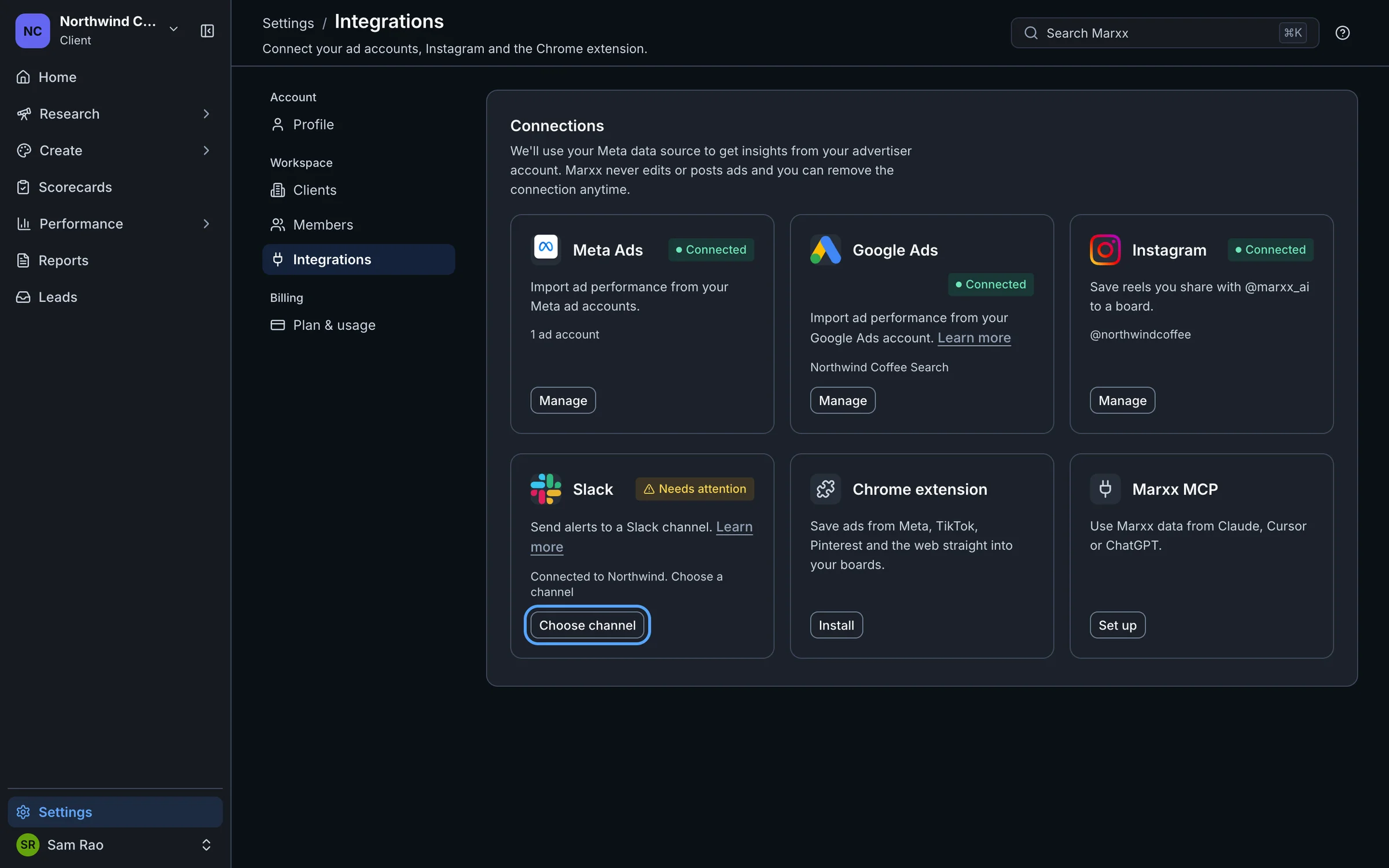
On the Slack card, select Choose channel.
Open the Channel list, which starts on "Choose a channel…", and pick a channel.
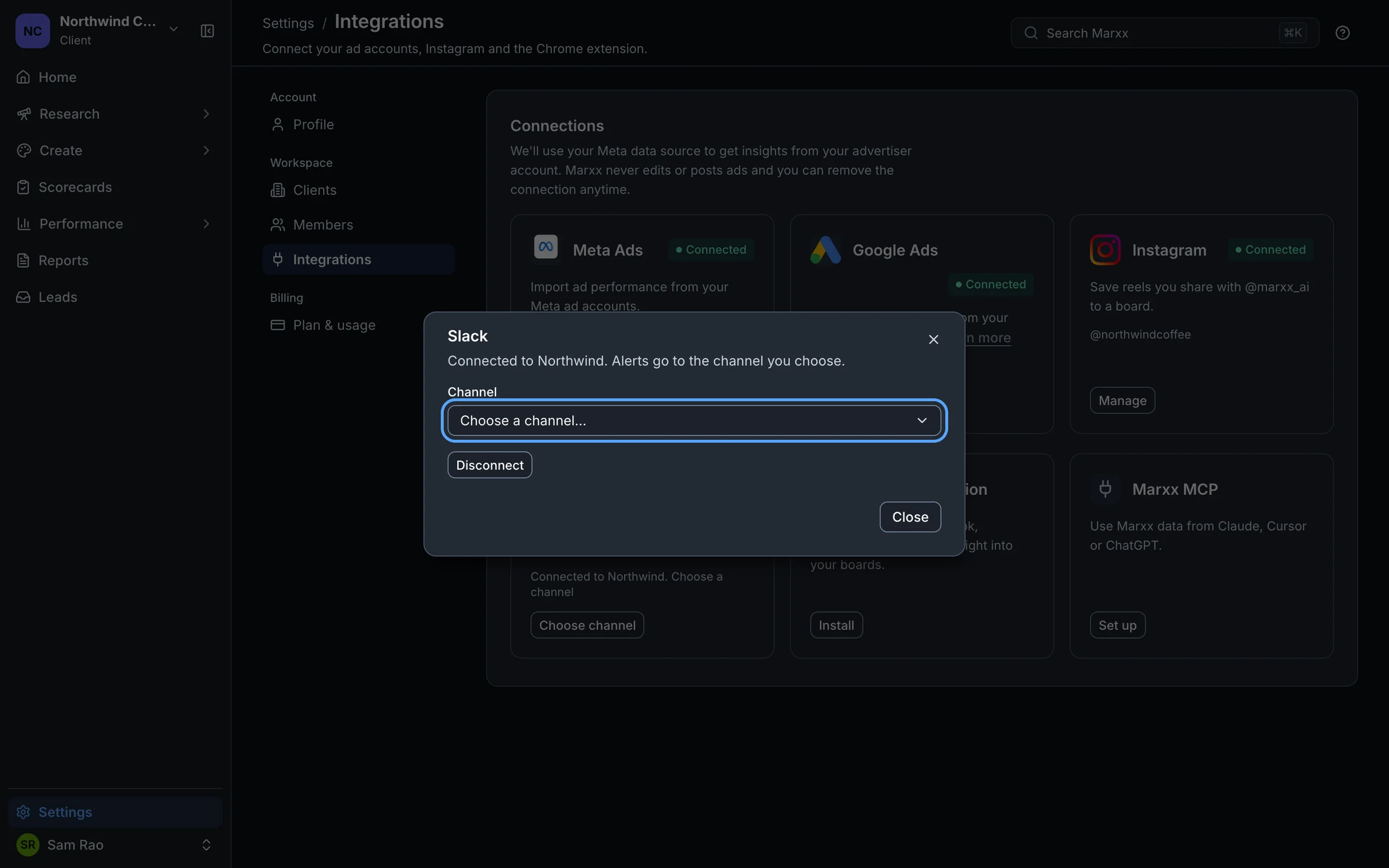
You see "Alerts go to #channel". When you change a channel that was already set, the message also offers Undo.
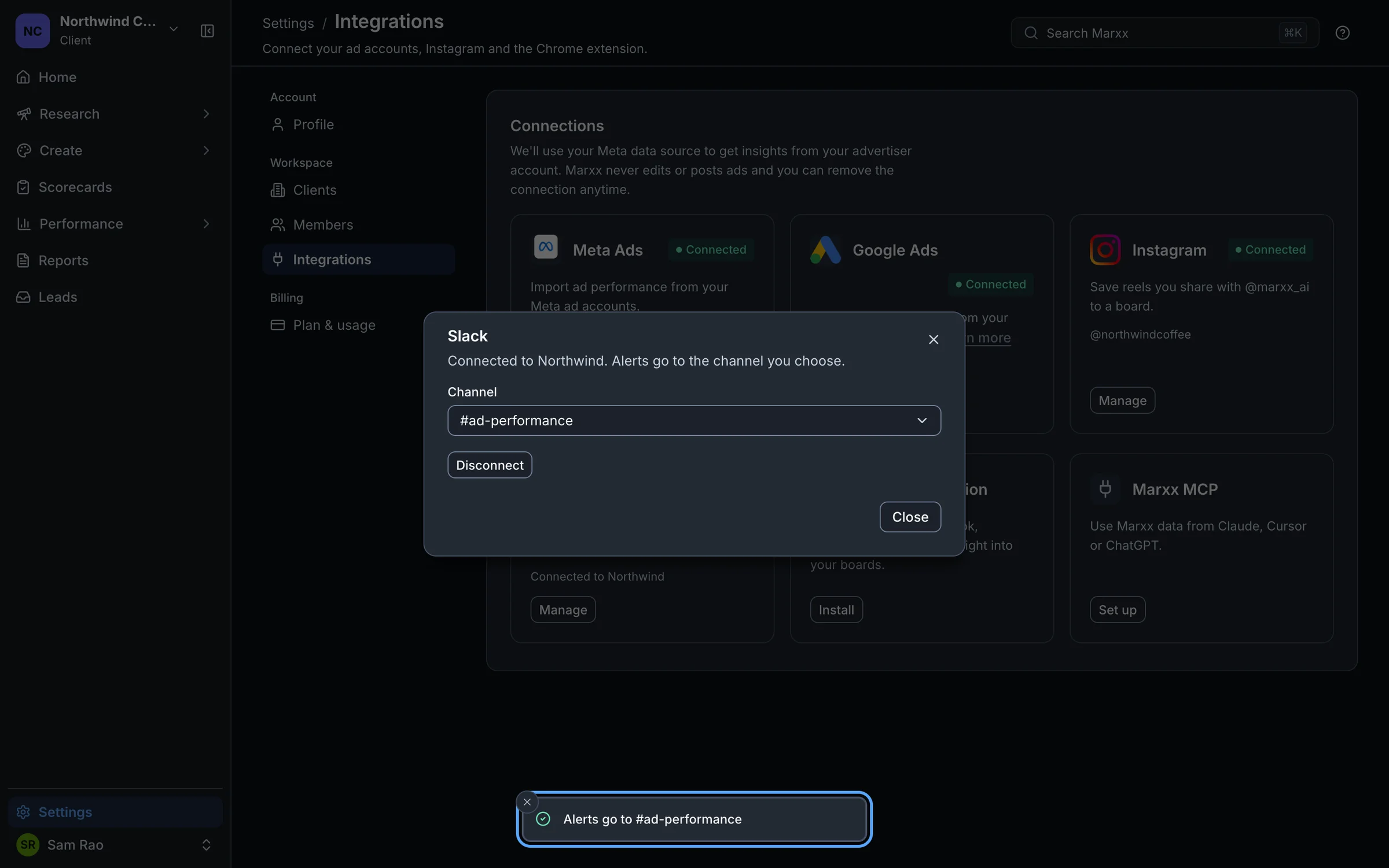
The card now shows Connected.
The channel is set per client. If you run several clients, switch to each one and choose its channel. Each client can send to a different channel.
Turn on Slack for an alert
Connecting Slack doesn't switch every alert to it. You choose per rule.
Open Performance → Alerts and go to Rules.
Create a rule, or edit an existing one.
Under Notify via, tick Slack. Email is always on.
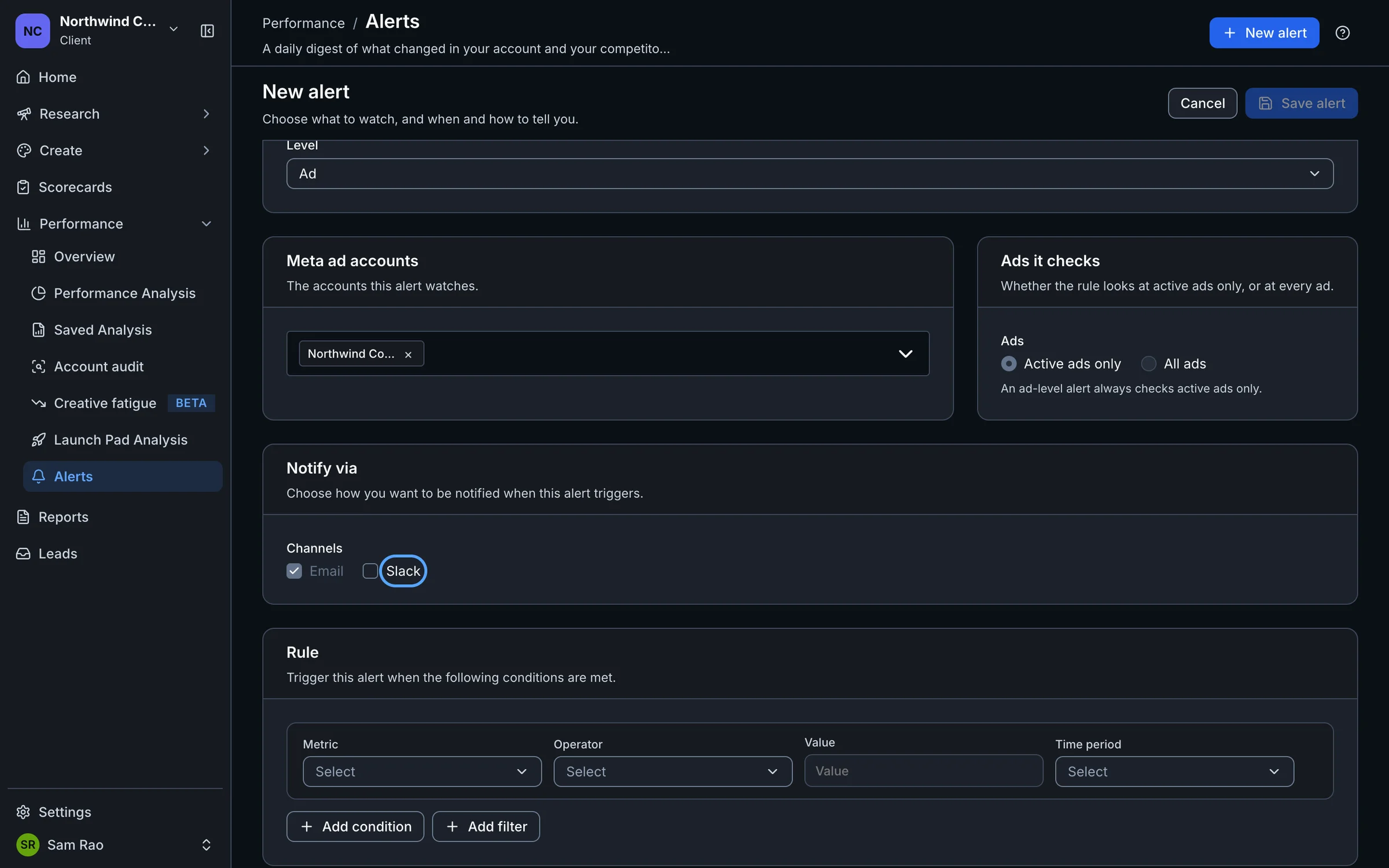
Save the rule.
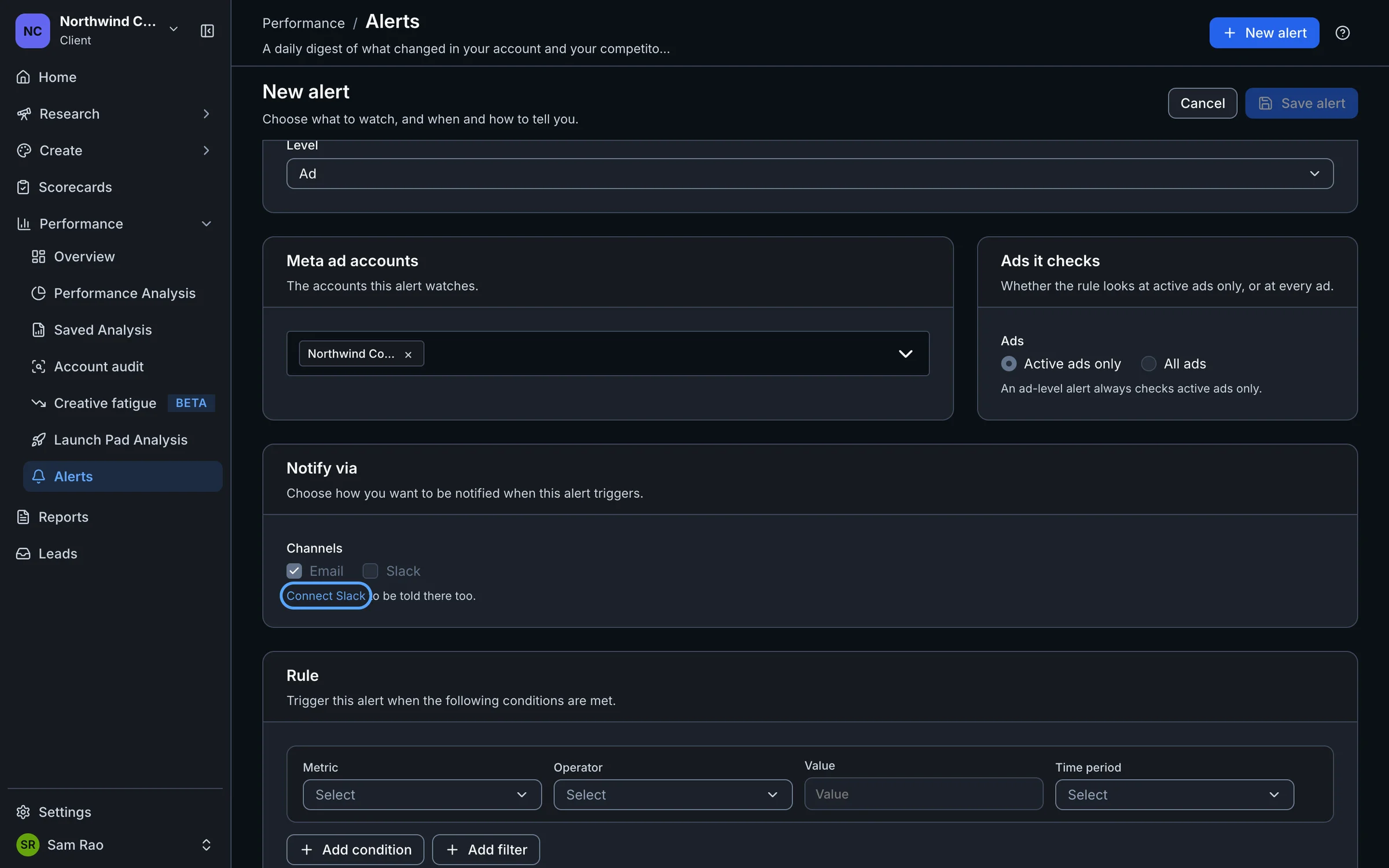
While Slack isn't connected, the Slack checkbox is greyed out, with a Connect Slack link beneath it.
Change the channel or disconnect
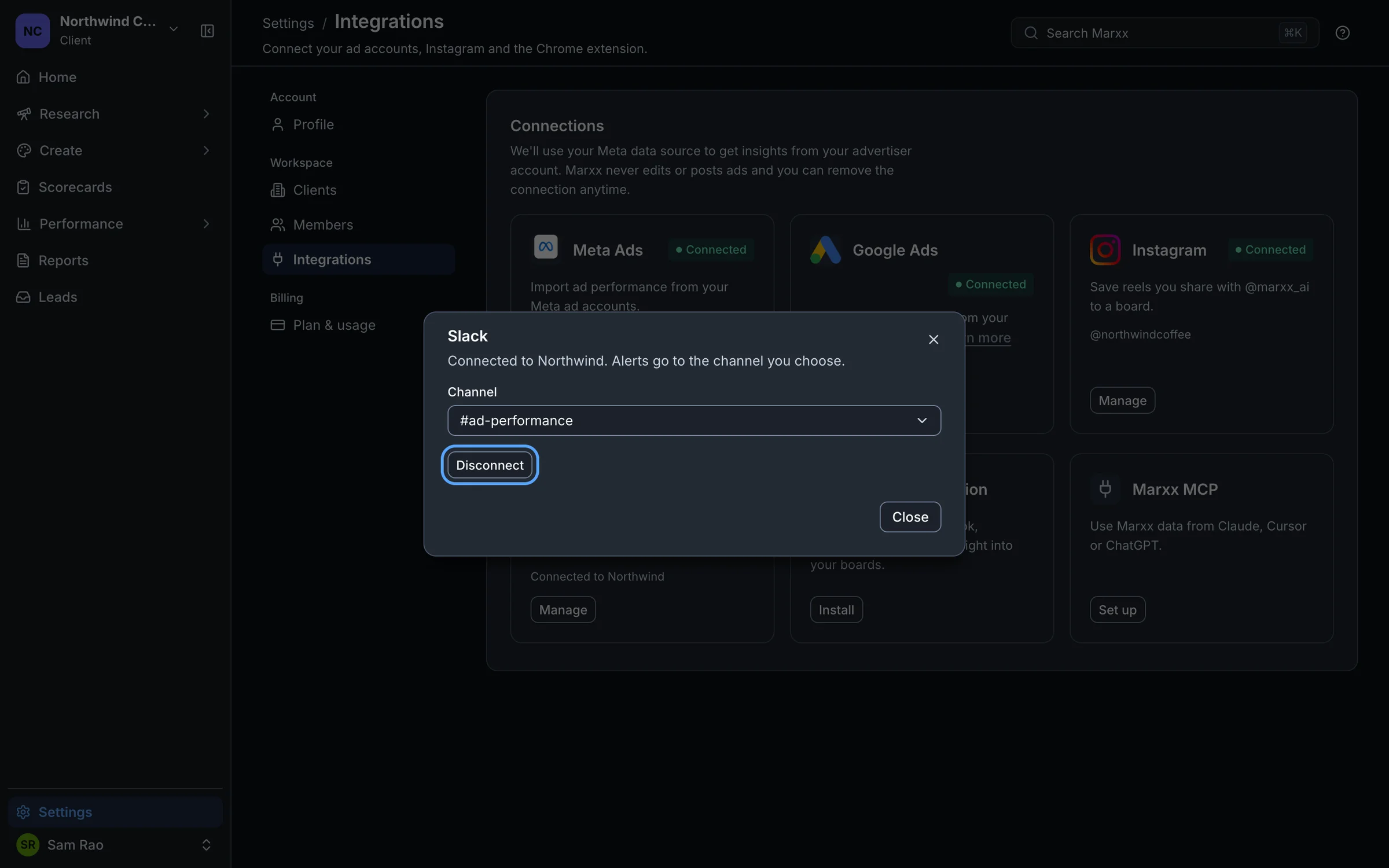
Select Manage on the Slack card.
- Pick another channel in the Channel list. It saves as soon as you pick.
- Select Disconnect and confirm to stop. The prompt reads "Alerts will stop going to Slack." Email alerts continue.
If it doesn't work
- Slack shows an error, or the tab closes without connecting. Select Connect again. If it repeats, email apurv@marxx.ai or book a call with what you saw.
- The card says Couldn't check. Select Retry on the card.
- Alerts aren't arriving. Check that the card says Connected, not Needs attention, that the rule has Slack ticked, and that you picked the channel for the right client.
Still stuck?
Email apurv@marxx.ai with a screenshot of what you see, or book a call and we will walk through it with you.