Connections
Connect WhatsApp to reply to leads
Link your WhatsApp Business number so you can reply to lead-form leads from the Leads page. Covers setup, the card step and the 24-hour reply window.
Connect a WhatsApp Business number and every lead-form submission with a phone number can become a conversation you reply to from Marxx, with the lead's form answers beside the thread. Your team keeps replying from the same phone as before.
Before you start
You need all four:
- The WhatsApp Business app. The number must be on the WhatsApp Business app, not personal WhatsApp.
- The app version 2.24.17 or newer. Update it first if you aren't sure.
- A number that isn't already attached to another WhatsApp Business account.
- A payment method for your WhatsApp Business account. Meta bills you directly for WhatsApp messages. Marxx can't pay on your behalf, and nothing sends until a card is on the account. You add it during setup.
Keep the phone that owns the number with you. Meta asks you to scan a QR code from it.
Connect
Open Leads and go to the WhatsApp tab. If you don't see it, WhatsApp isn't switched on for your workspace. See below.
Select Connect WhatsApp.
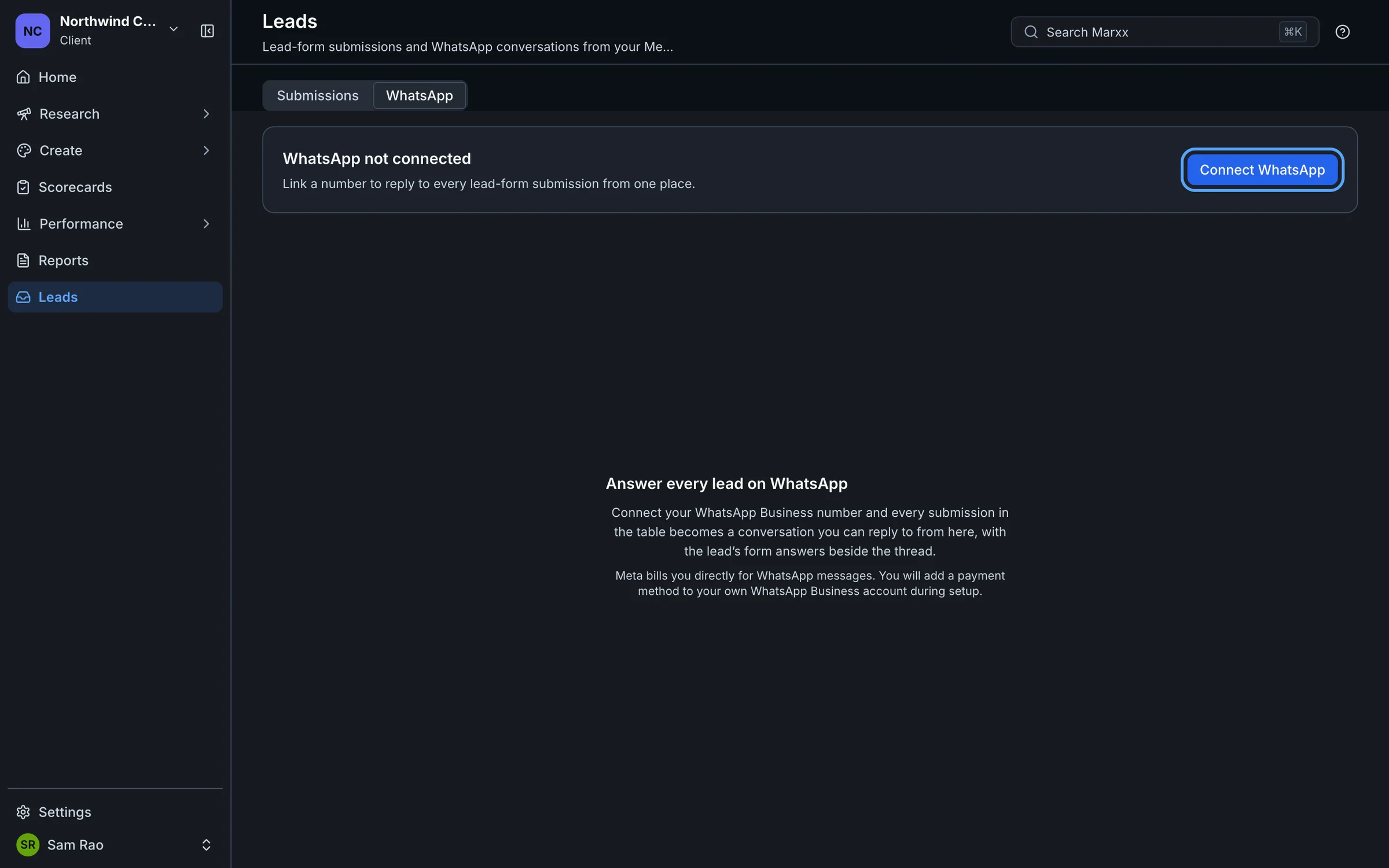
In the Connect WhatsApp window, read the checks and select Continue with Meta.
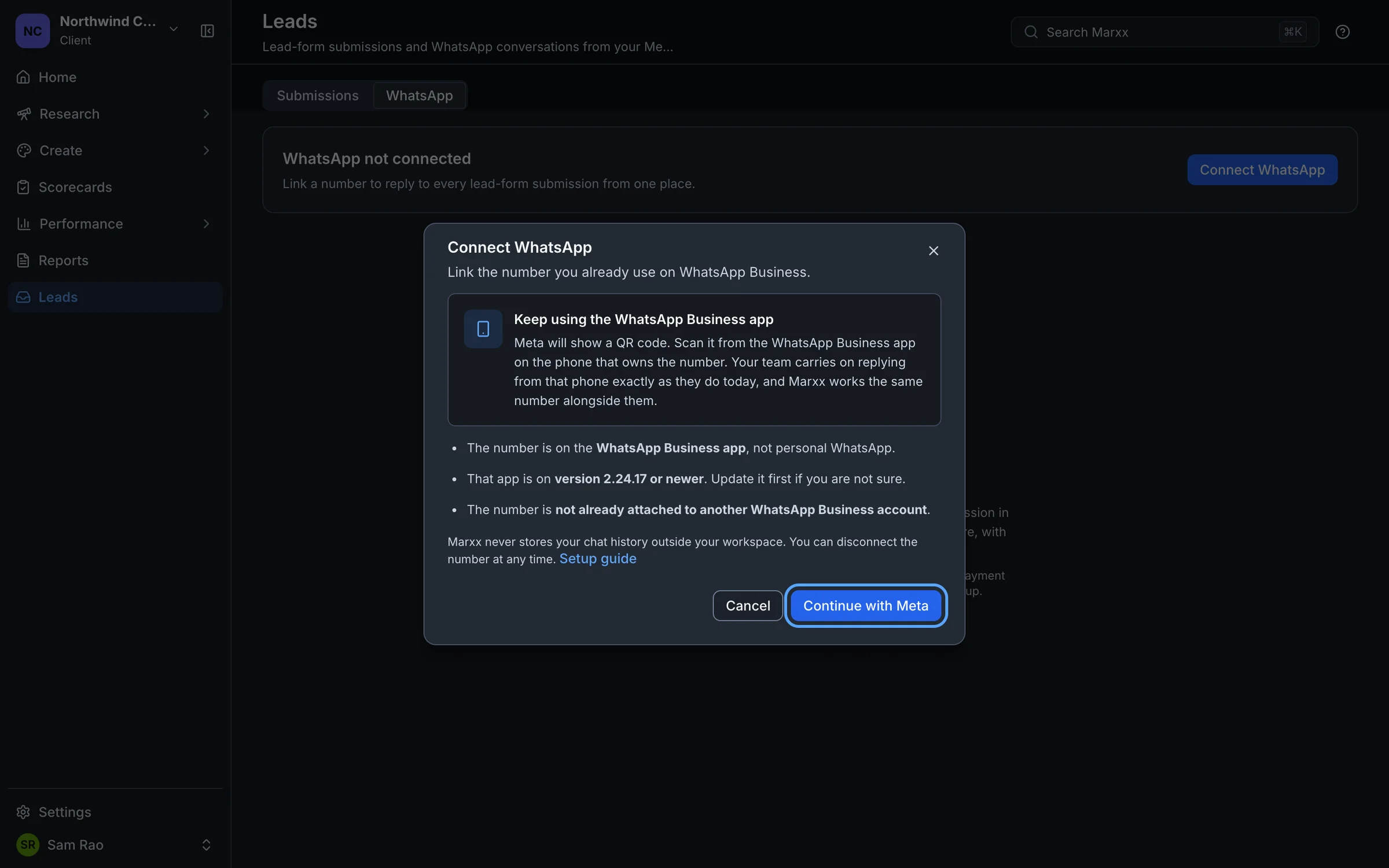
A Meta window opens. It asks for your business details, then shows a QR code. On the phone that owns the number, open the WhatsApp Business app and scan the code.
Finish the steps in the Meta window. Marxx shows "Waiting for Meta" and catches up when you're done.
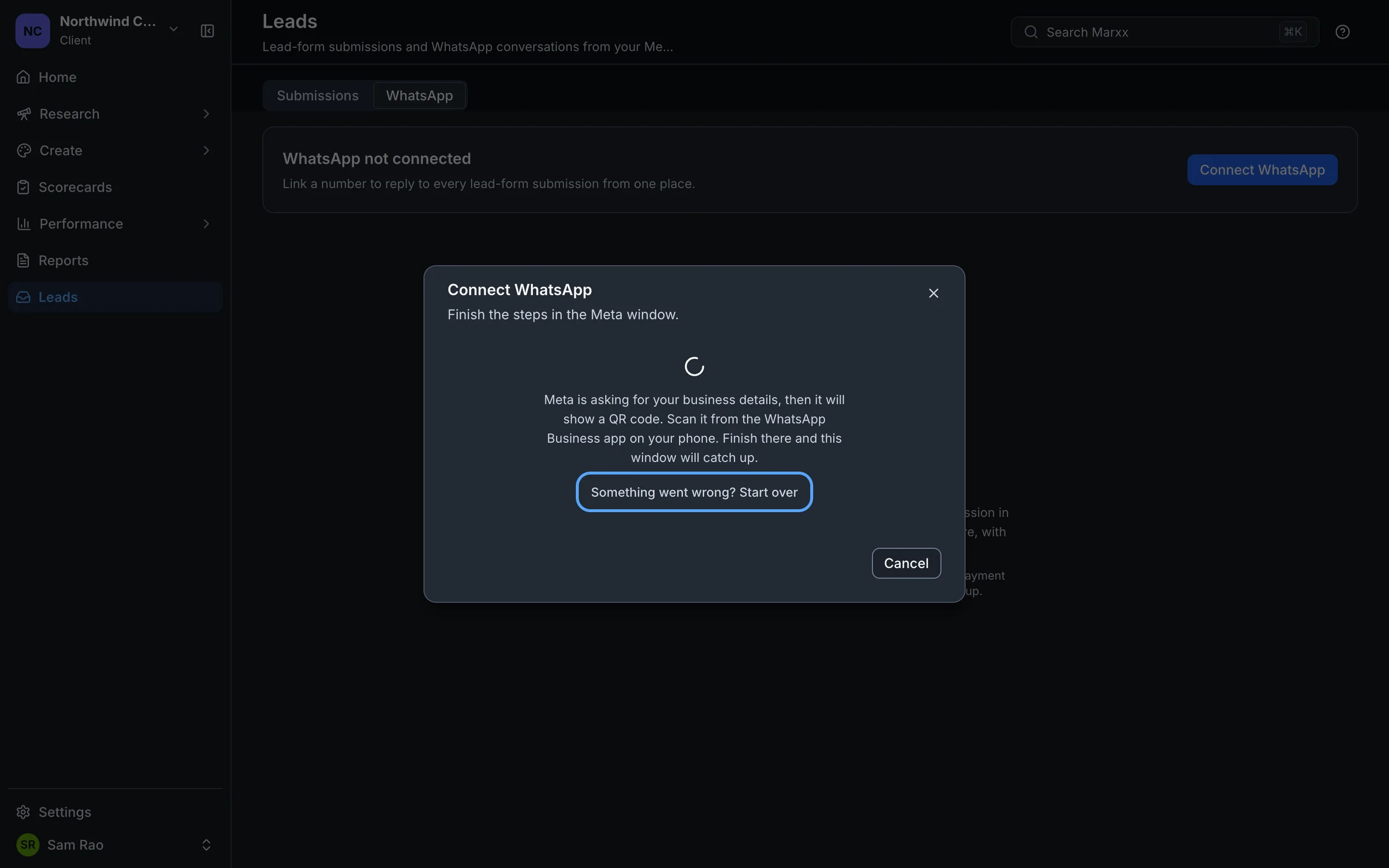
When the window changes to Almost there, add a payment method (below).
There's no number field or code to type in Marxx. Meta's window collects the number and the display name.
WhatsApp is connected per client. Switch to the right client before you start. See How Marxx is organised.
Add a payment method
The Almost there step reads "Add a payment method to your WhatsApp Business account".
Select Open WhatsApp Manager and add a card to your WhatsApp Business account.
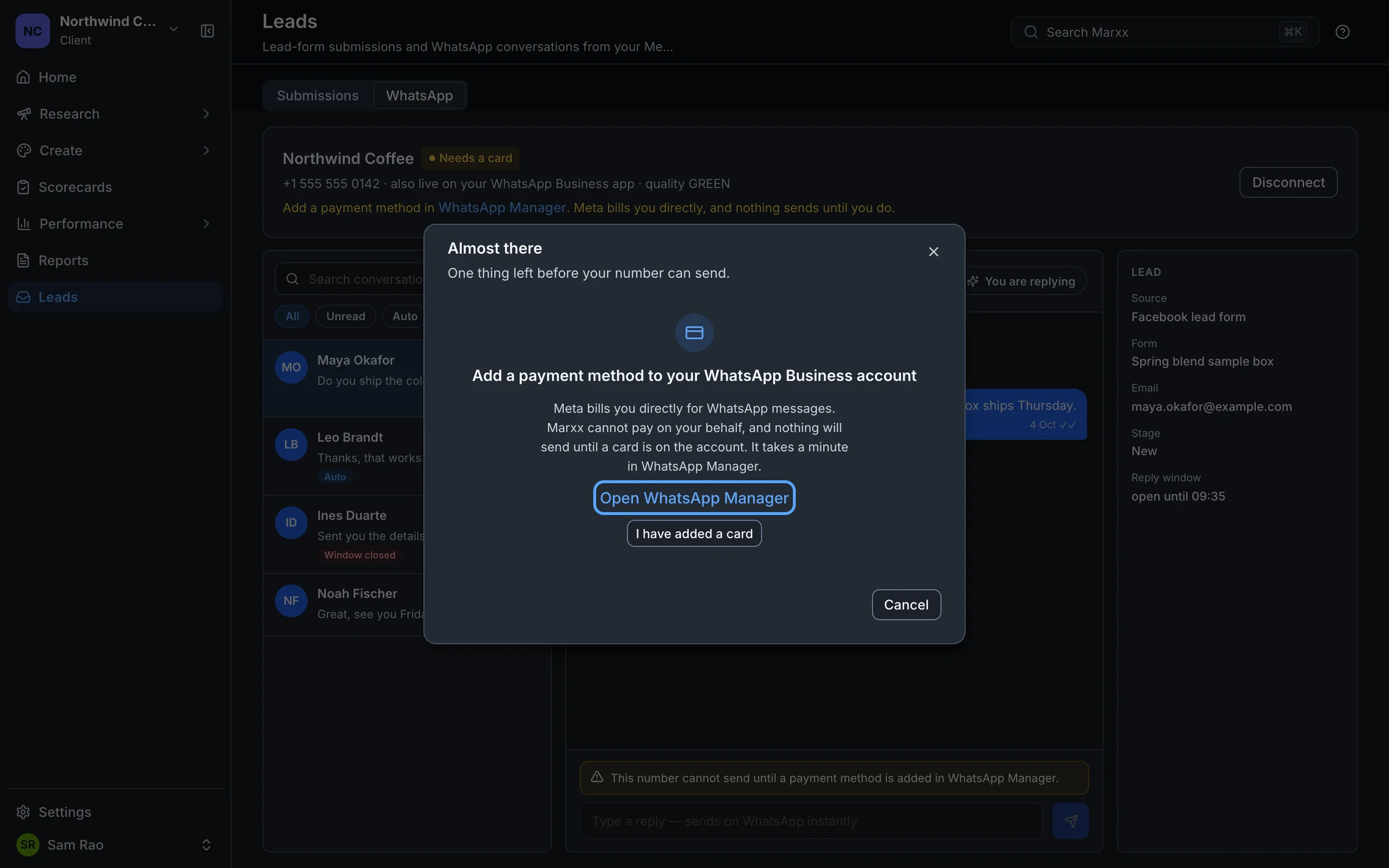
Back in Marxx, select I have added a card. The window shows "WhatsApp is connected".
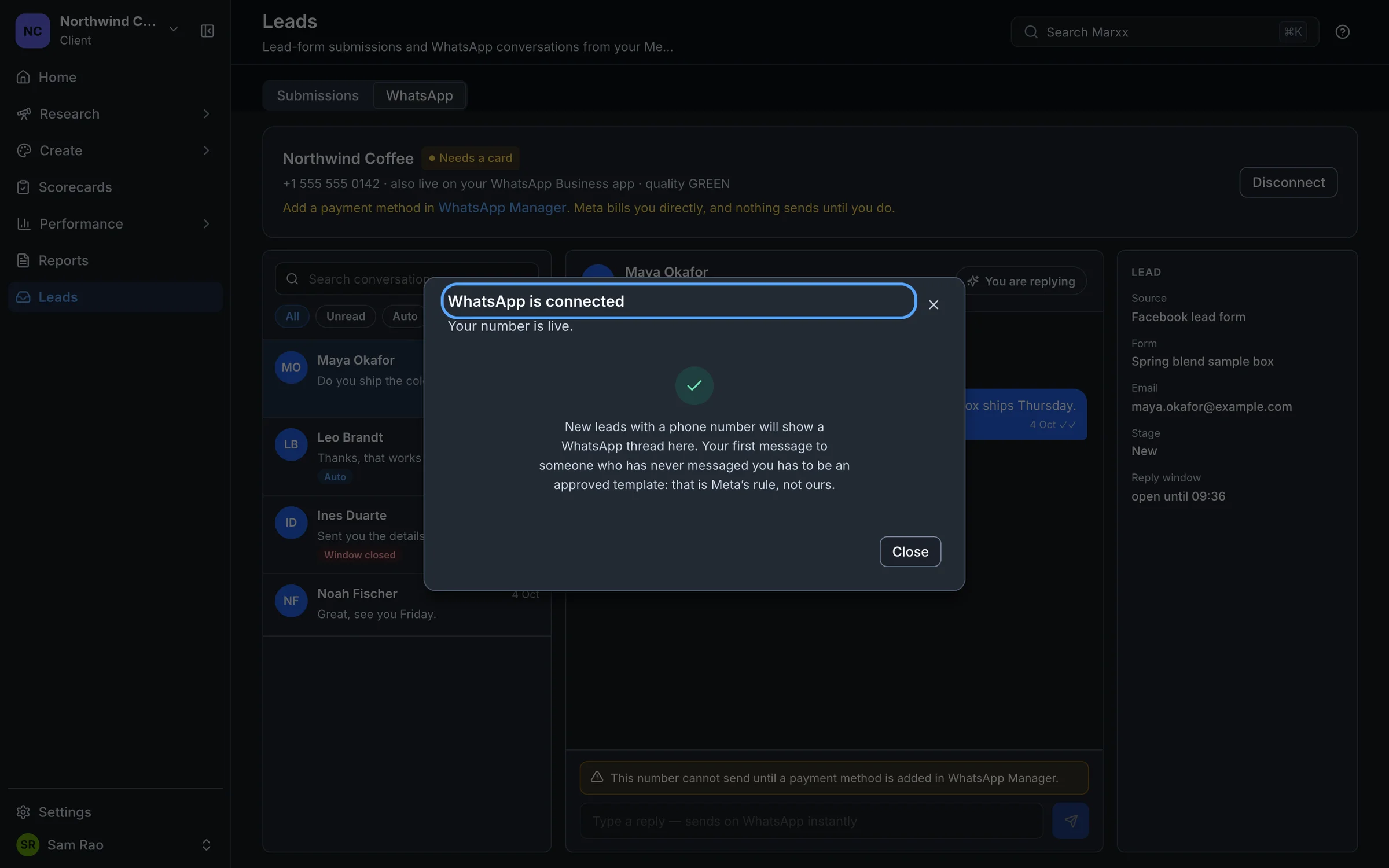
Until Meta has a card on file, the card on the WhatsApp tab shows Needs a card, and sending is blocked.
The status labels
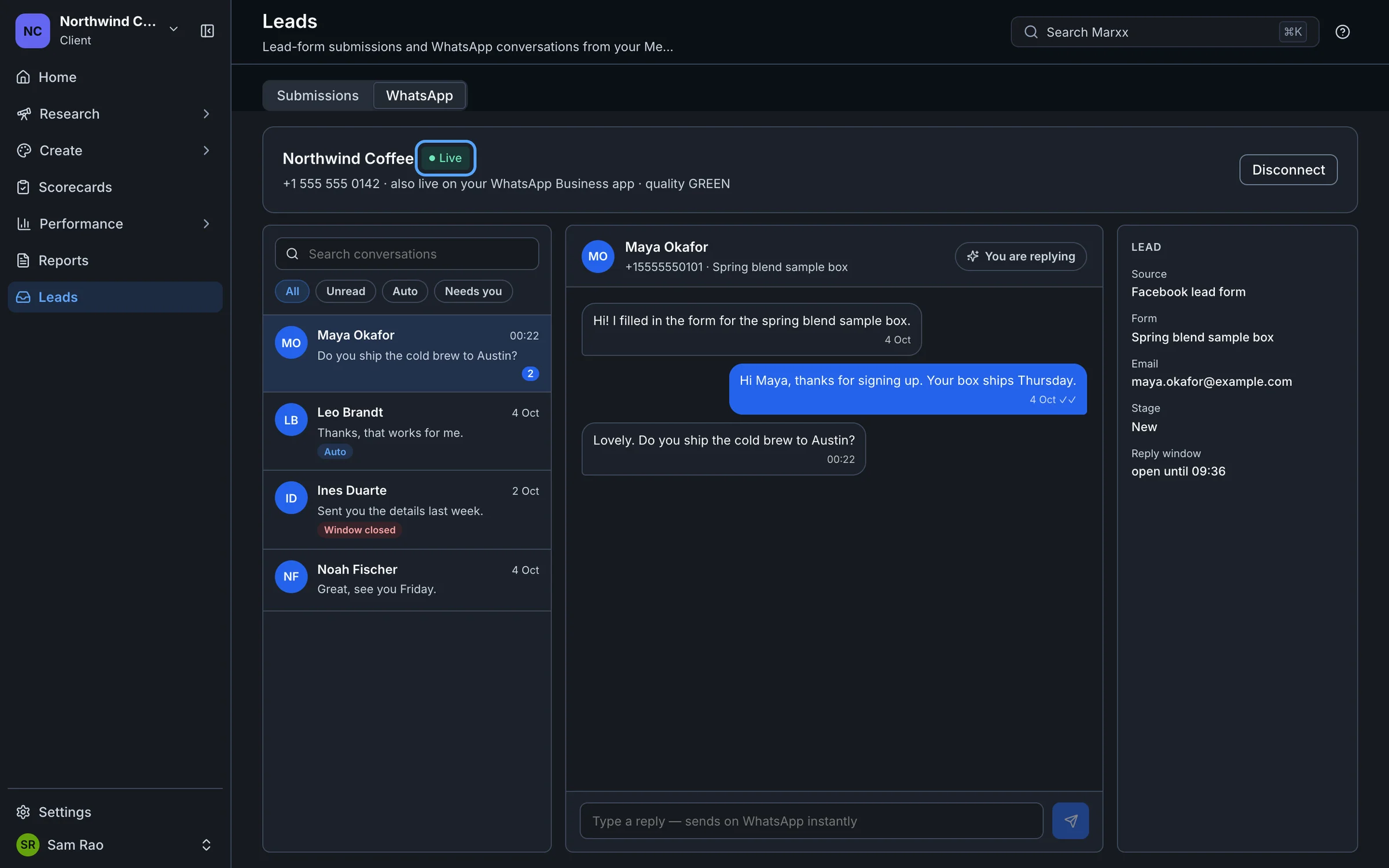
On the WhatsApp tab, the connection card shows your number and one of:
Live: the number can send and receive.
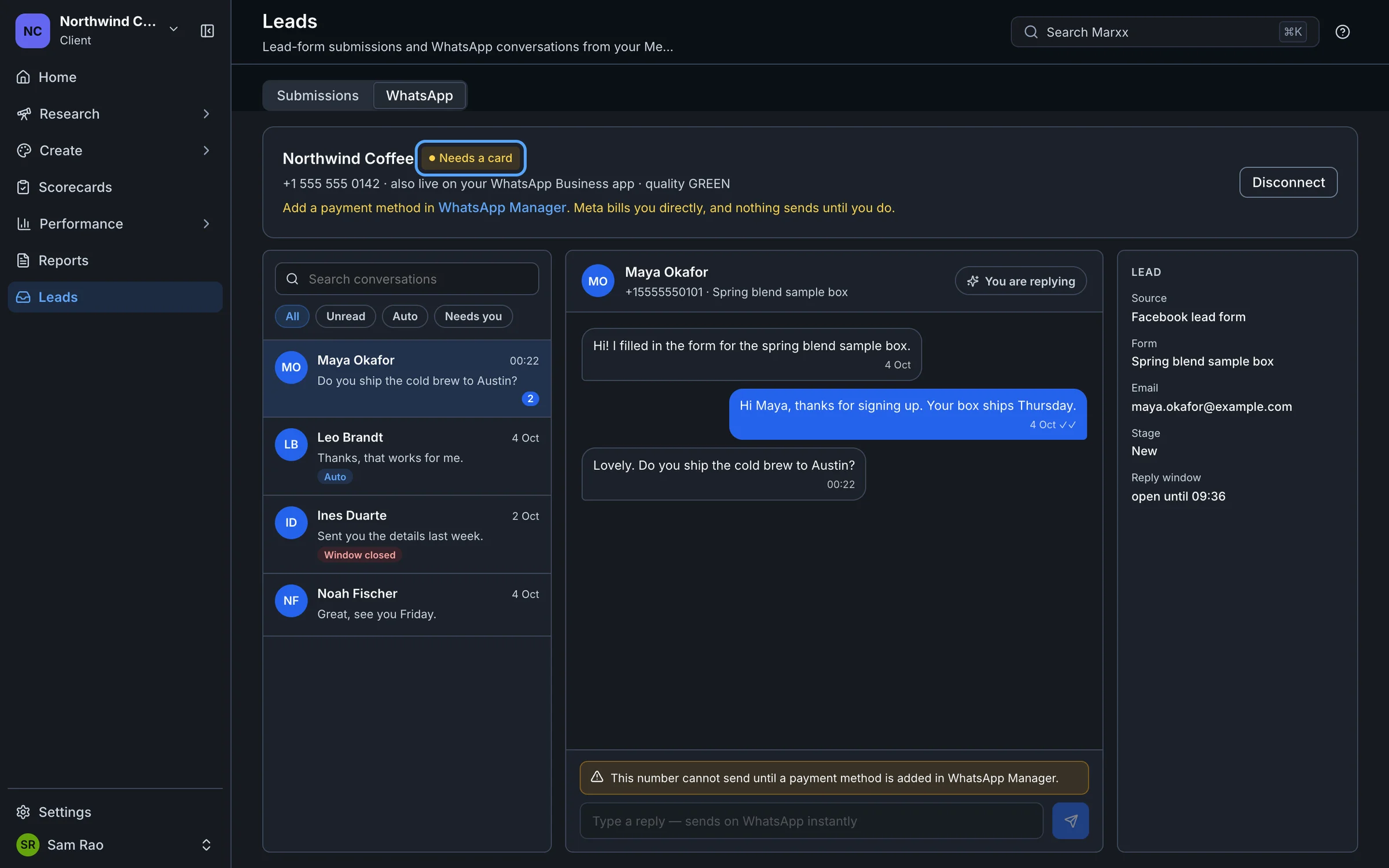
Needs a card: add a payment method in WhatsApp Manager. Meta bills you directly, and nothing sends until you do.
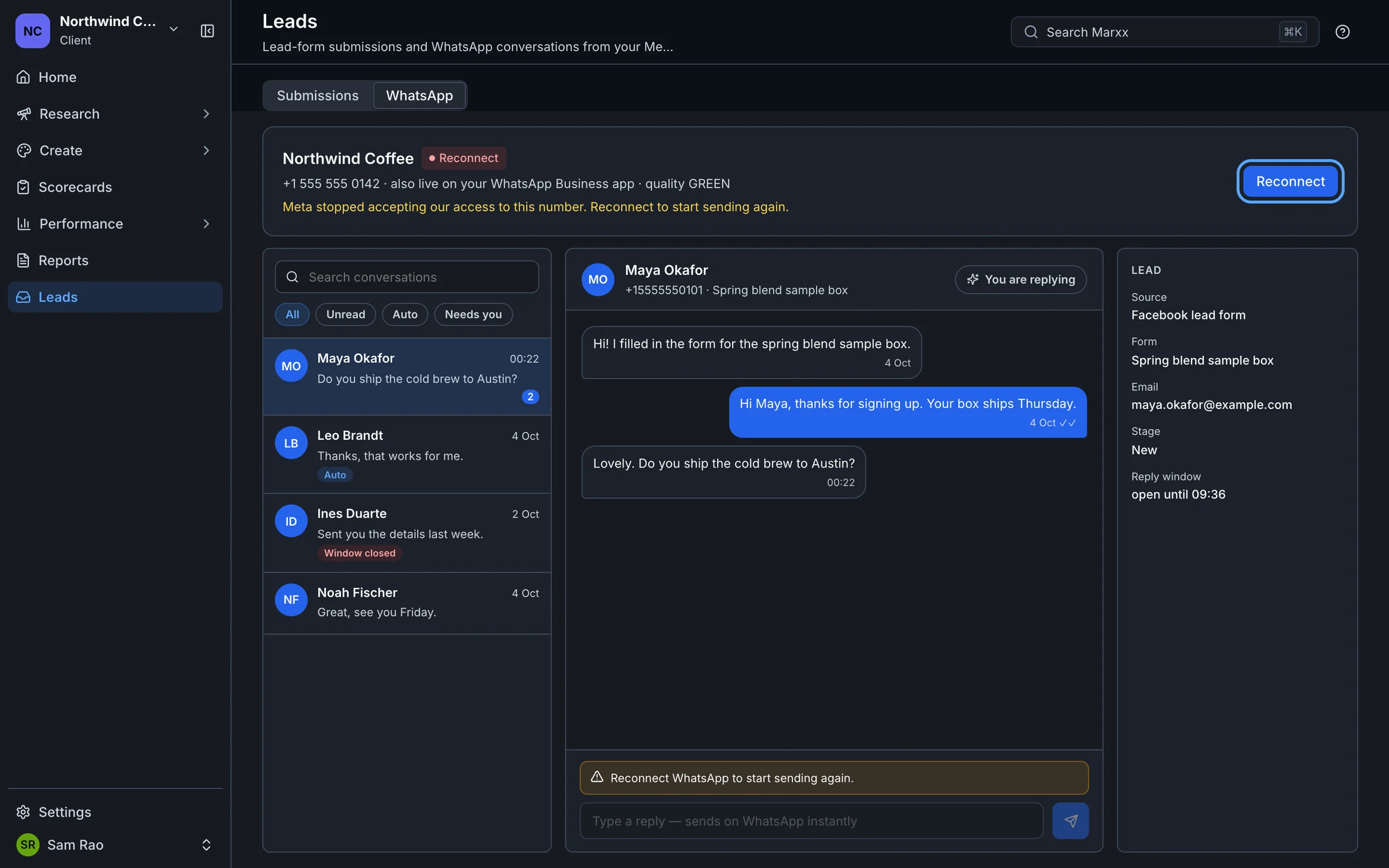
Reconnect: Meta stopped accepting Marxx's access to the number. Select Reconnect and run setup again. Marxx shows Meta's reason when it has one.
If something goes wrong in the Meta window, Marxx shows the reason and returns you to the first step. Select Something went wrong? Start over if the window seems stuck.
The 24-hour reply window
WhatsApp only lets you send free-form messages for 24 hours after the person last messaged you. This is Meta's rule.
While the window is open, you can type a reply. The thread shows when it closes.
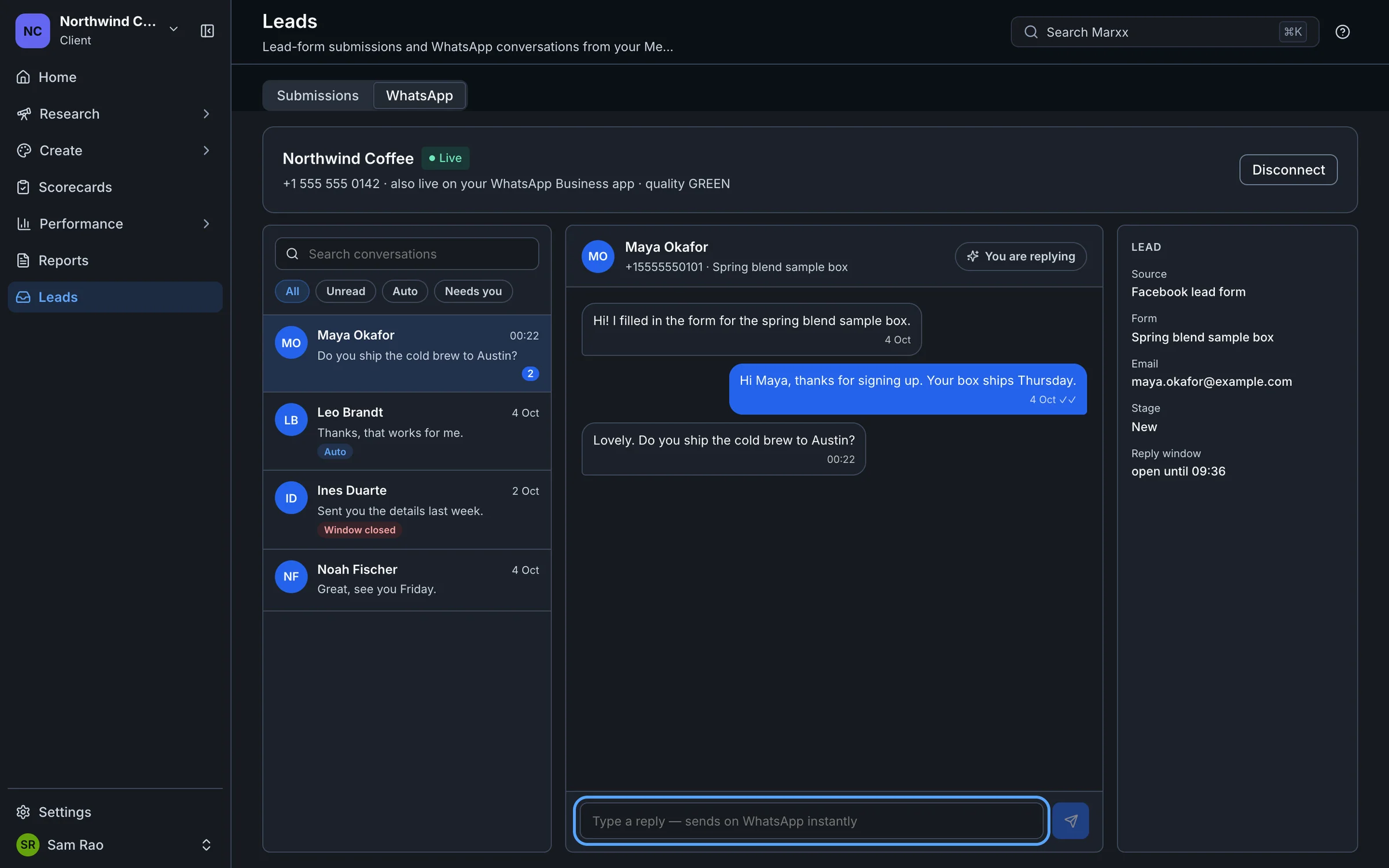
After it closes, the thread shows "The 24-hour reply window is closed". You can't type a message until the person messages you again, or you open the thread with an approved template.
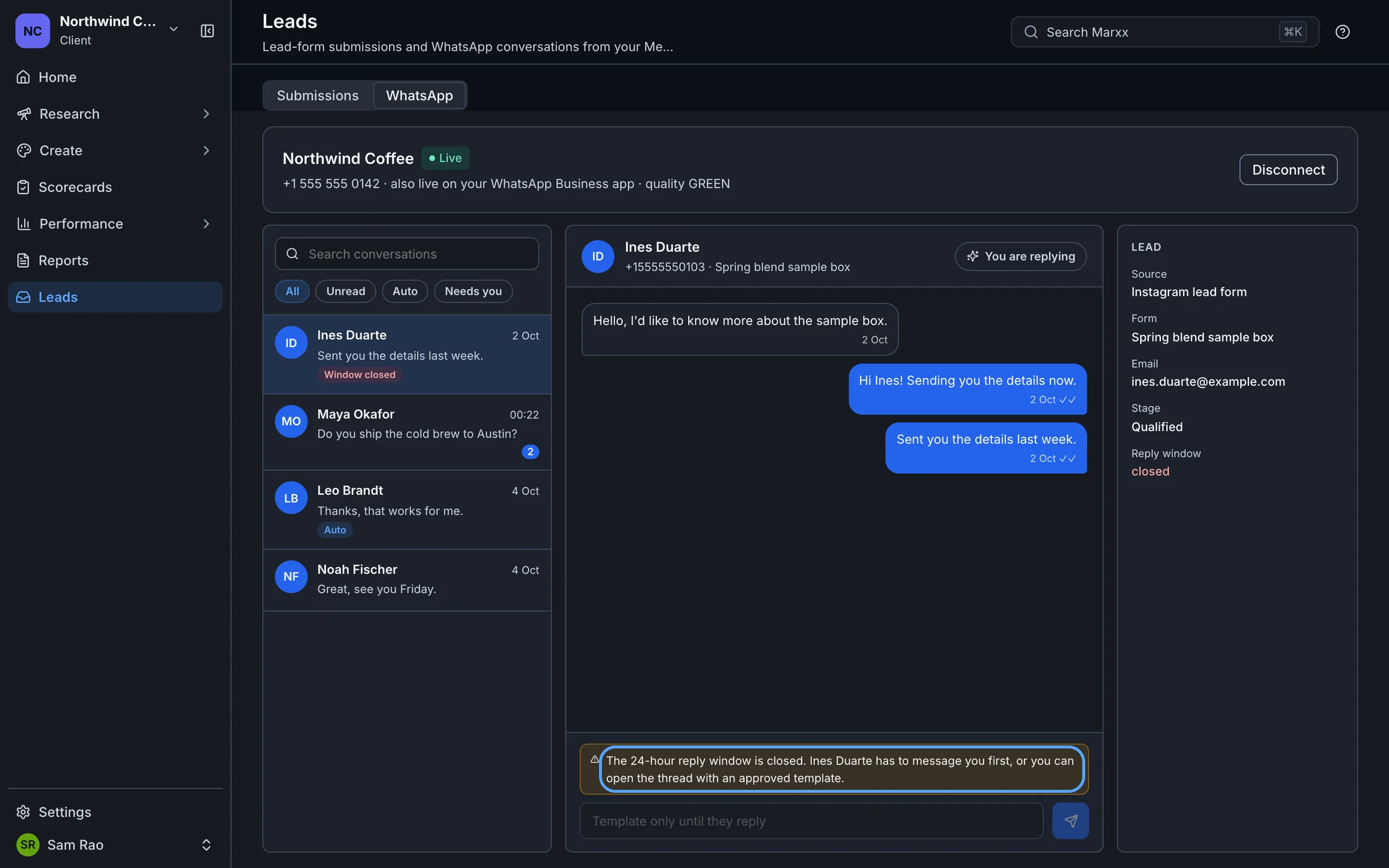
Your first message to someone who has never messaged you must be an approved template.
Disconnect
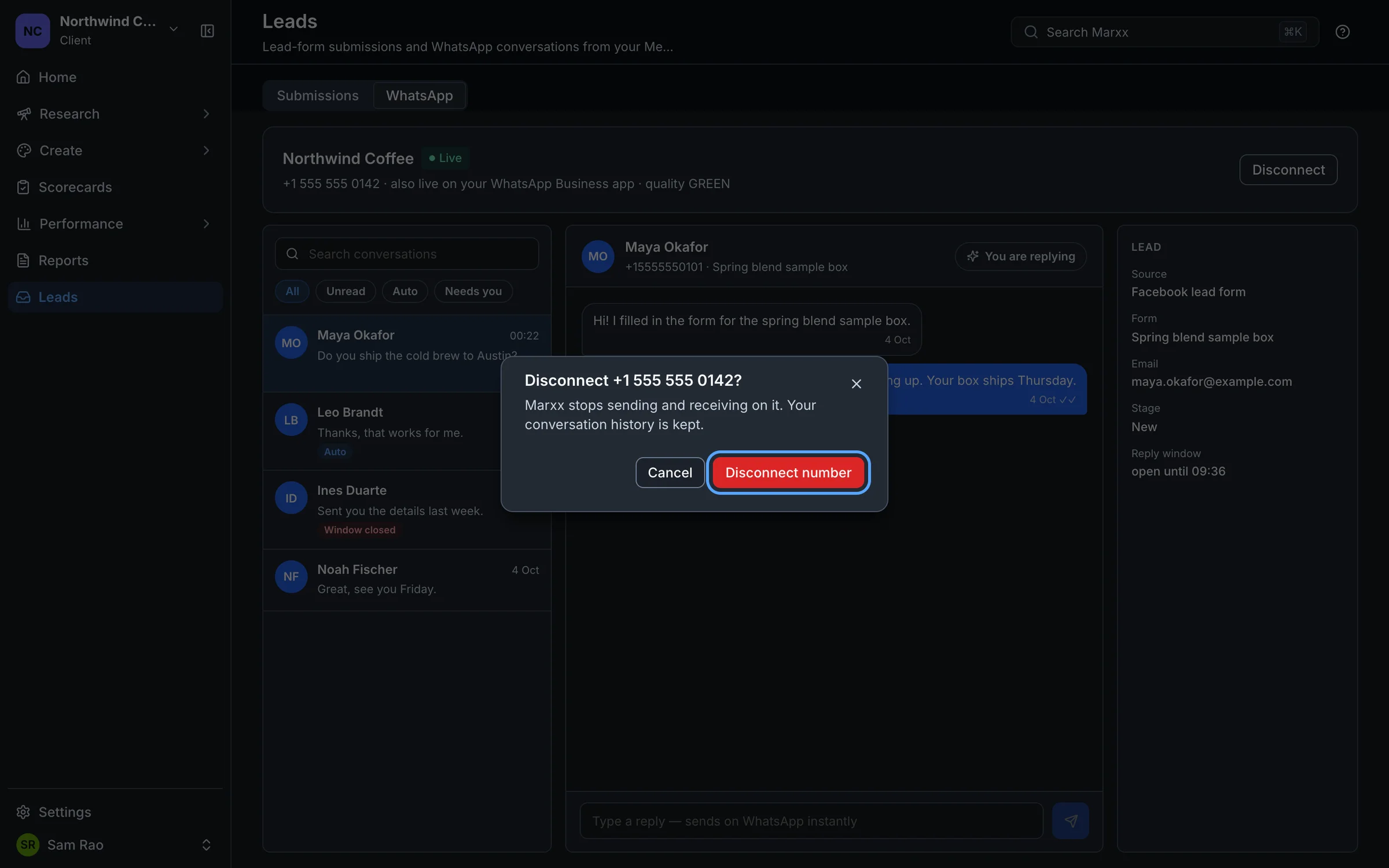
On the connection card, select Disconnect and confirm. Marxx stops sending and receiving on that number. Your conversation history is kept.
If WhatsApp doesn't appear
If there's no WhatsApp tab under Leads, or it shows a lock, the feature isn't on for your workspace. Email apurv@marxx.ai or book a call and we'll look at it.
If the connection fails after you've checked the four requirements, send us the exact message the window showed.
Still stuck?
Email apurv@marxx.ai with a screenshot of what you see, or book a call and we will walk through it with you.