Getting started
Get started with Marxx
Finish setup in three short screens, work through the Getting started checklist on Home, and learn where help lives in the app.
Setup takes a few minutes. After it, Home shows a short checklist that gets you to your first useful result.
Finish setup
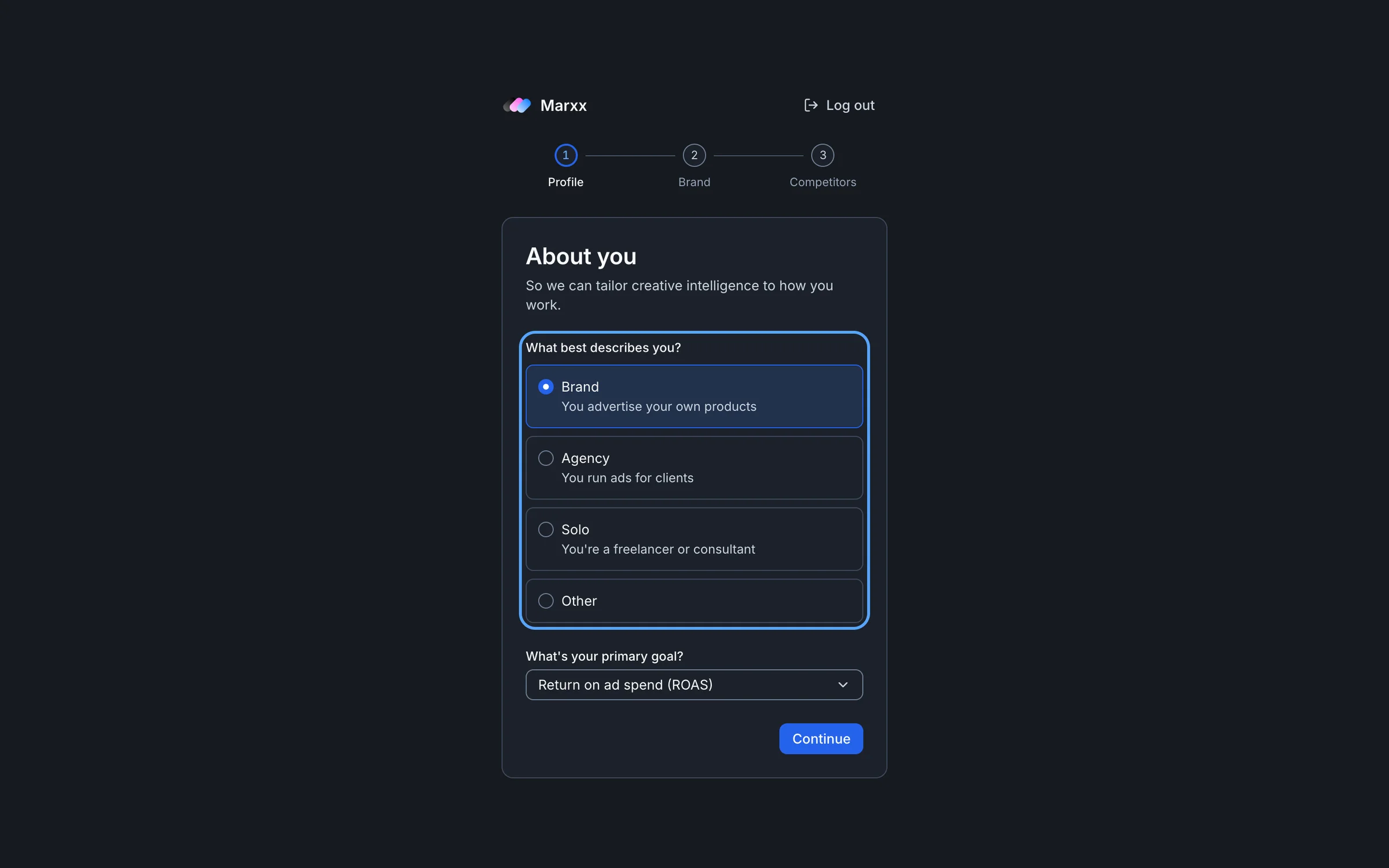
You see three screens the first time you sign in.
About you. Under What best describes you? choose Brand, Agency, Solo (a freelancer or consultant) or Other. Then pick your goal under What's your primary goal? Both are required before Continue turns on.
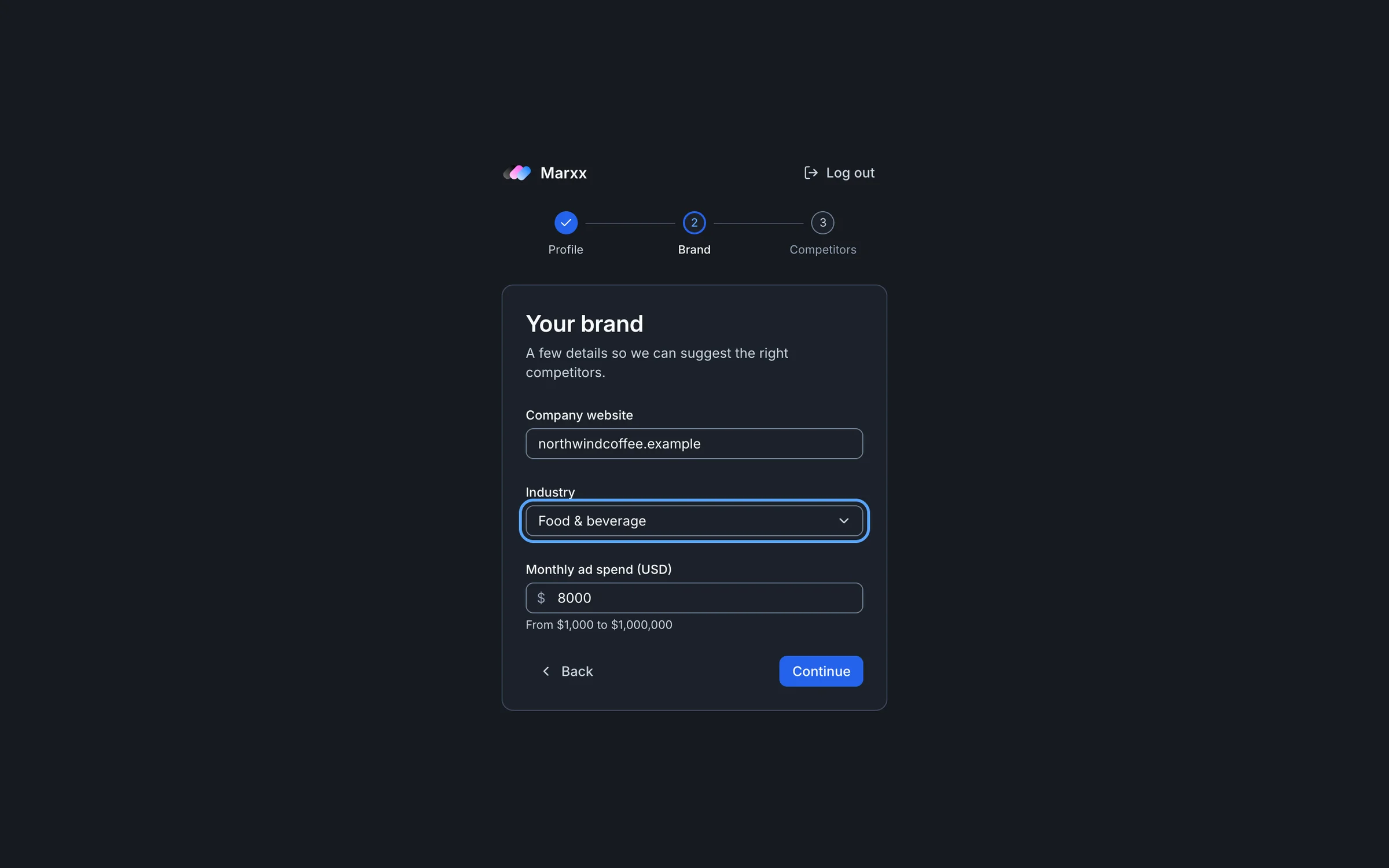
Your brand. Enter your Company website, choose your Industry (pick Other to type your own) and set your Monthly ad spend (USD). Marxx uses this to suggest competitors.
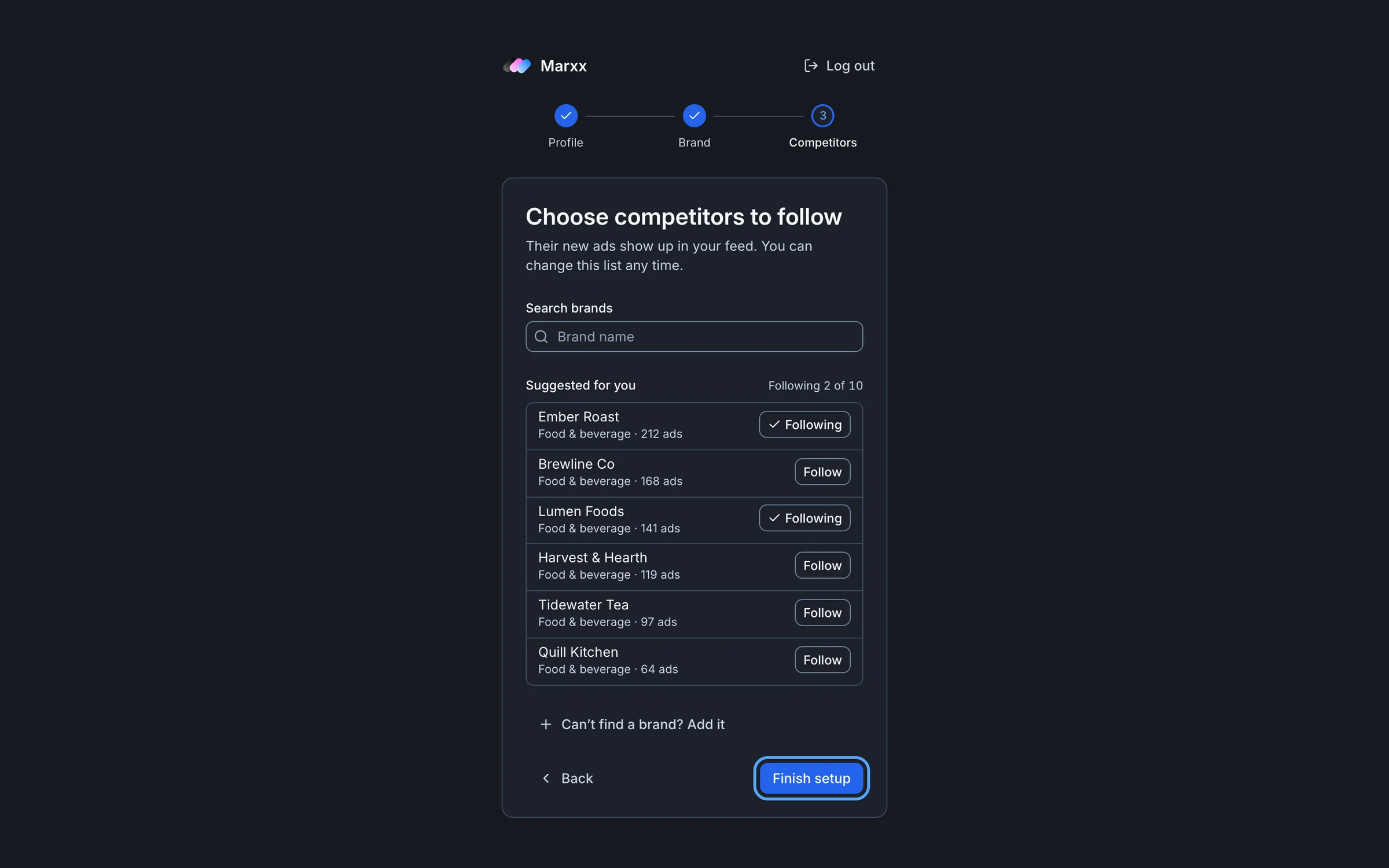
Choose competitors to follow. Follow at least one brand from Suggested for you, or search by name. You can follow up to 10 here. If a brand is missing, use Can't find a brand? Add it. Then press Finish setup.
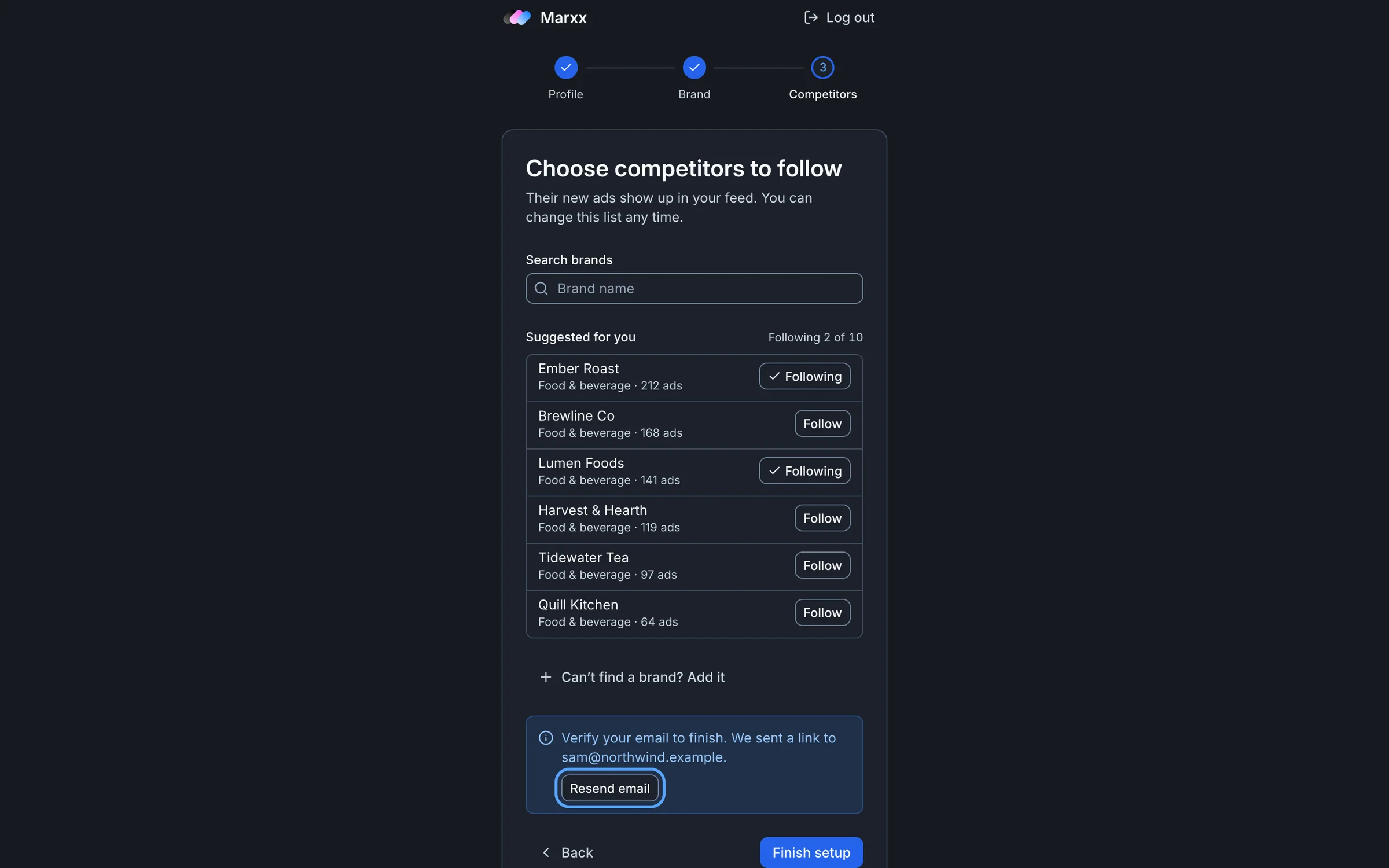
Finishing needs a verified email. If yours isn't verified, the screen says "Verify your email to finish" and shows Resend email. Open the link in your inbox, then press Finish setup again.
If you reload partway, Marxx picks up where you left off. You can change your competitor list later.
The Getting started checklist
Home opens with a Getting started card. Each row links to the place where the step happens and ticks itself when done. A row only appears if your plan includes the page it opens.
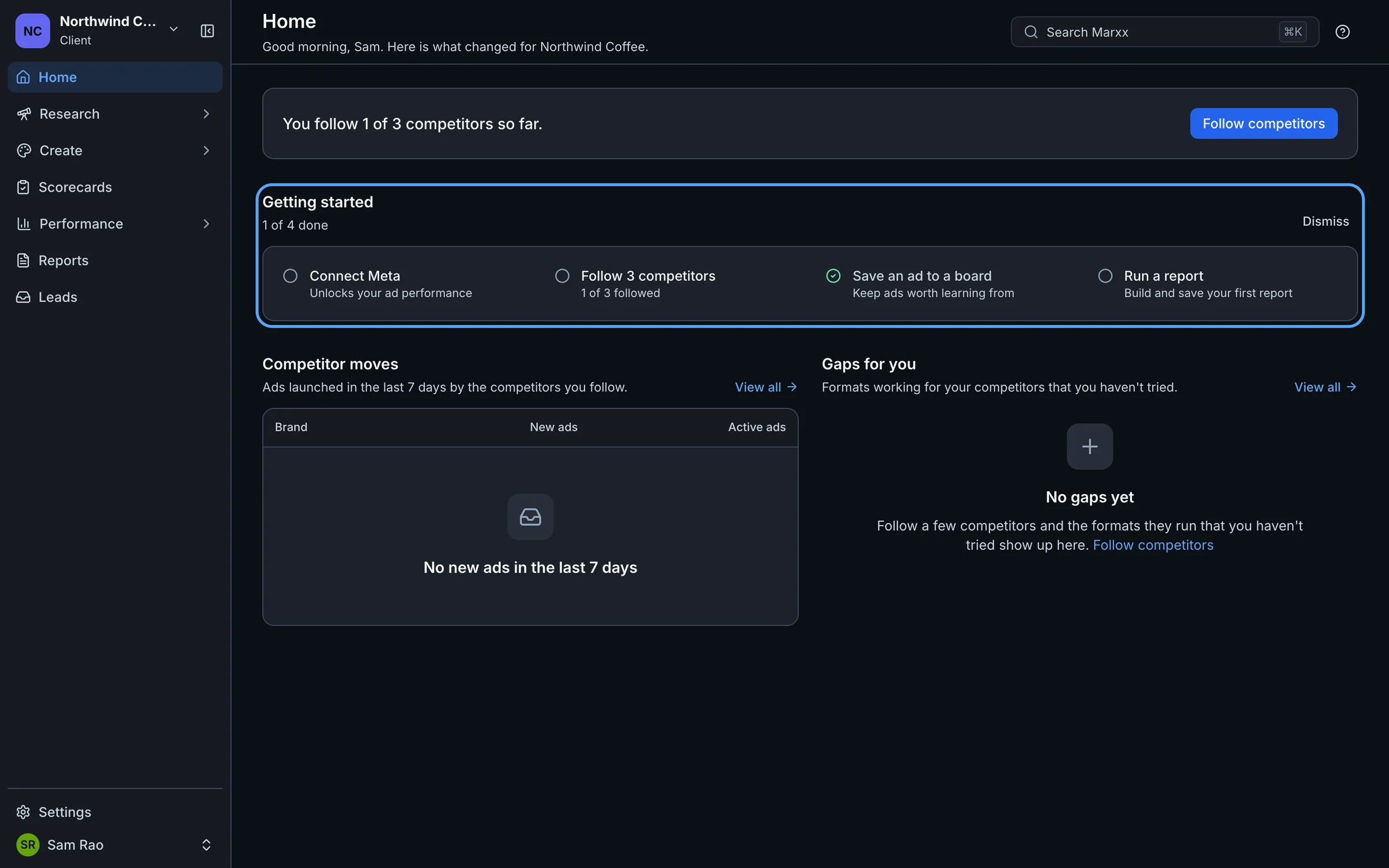
| Step | Where it takes you | What to do |
|---|---|---|
| Connect Meta | Settings, Integrations | Connect your ad account so Marxx can show your own performance. See Connect Meta. |
| Follow 3 competitors | Research, Competitors, Following tab | Follow brands to see every ad they run. |
| Save an ad to a board | Research, Competitors | Use the bookmark button on any ad card (Save to a board). |
| Run a report | Reports, Create report | Choose a Competitive report, Trends report, Meta data report or AI report, then save it. |
Press Dismiss on the card to hide it. It is hidden per person and per client, so a new client shows it again.
Where to find help
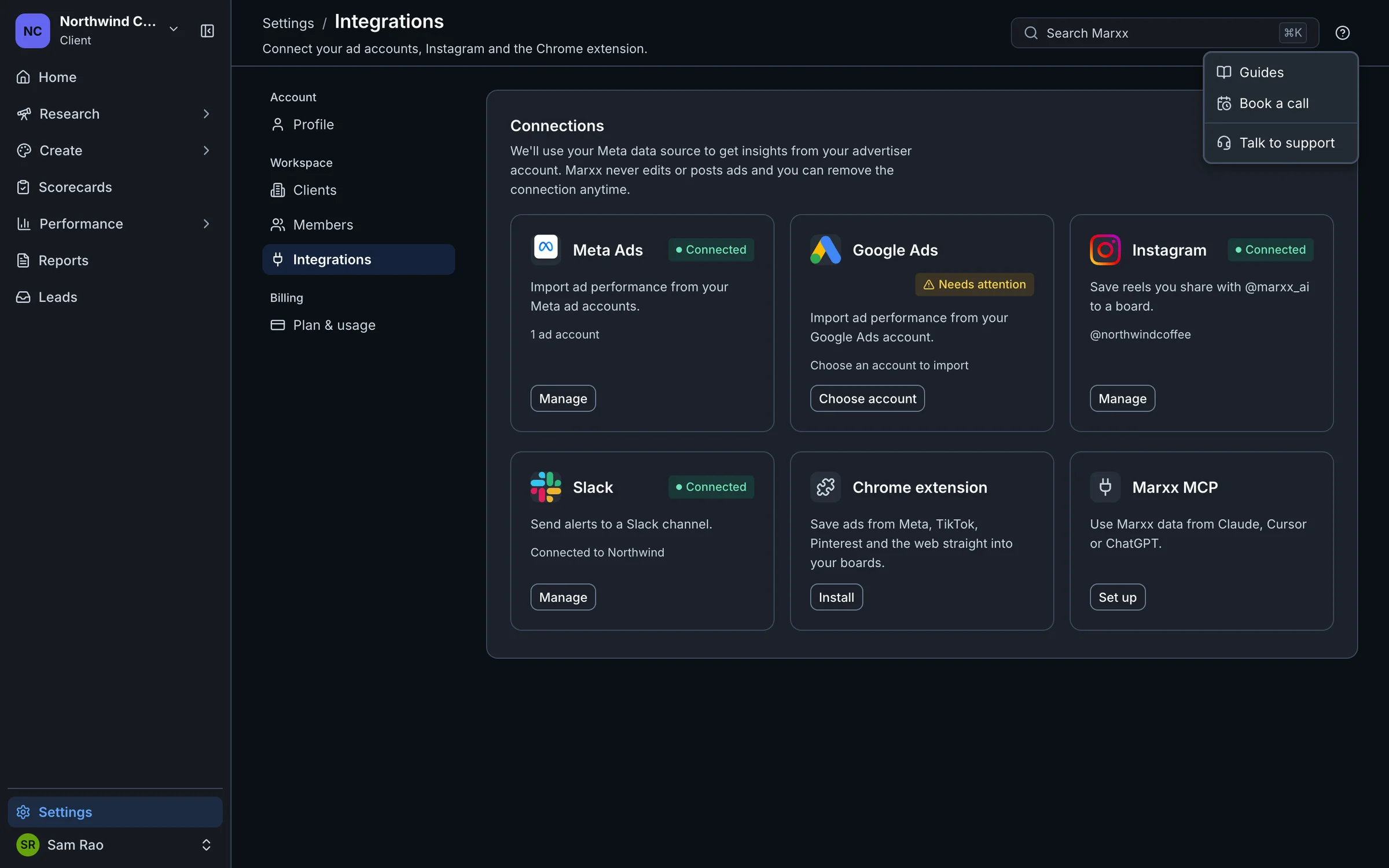
Select the Help icon (the question mark) at the top right of a page. The menu has three items:
- Guides opens this help centre in a new tab.
- Book a call opens a calendar to book time with us.
- Talk to support opens the support assistant. Choose Hide support to close it.
On a phone, Talk to support is in the navigation drawer.
The sidebar
The sidebar on the left is your map. Items with a padlock are not in your plan.
- Home. Your account, your competitors and what to do next.
- Research. Competitors, the 100M+ Ads Library, Marxx Playbook, Influencers, Brand kit, Personas and your Moodboard of saved ads.
- Create. Workflows, Templates and the Video editor for making ads.
- Scorecards. Score an ad before you launch it.
- Performance. How your ads perform: overview, analysis, creative fatigue, alerts and more.
- Reports. Every saved, built, AI and scheduled report.
- Leads. Lead-form submissions and WhatsApp conversations from your Meta ads.
- Settings. At the bottom. Profile, Clients, Members, Integrations, API keys, and Plan & usage.
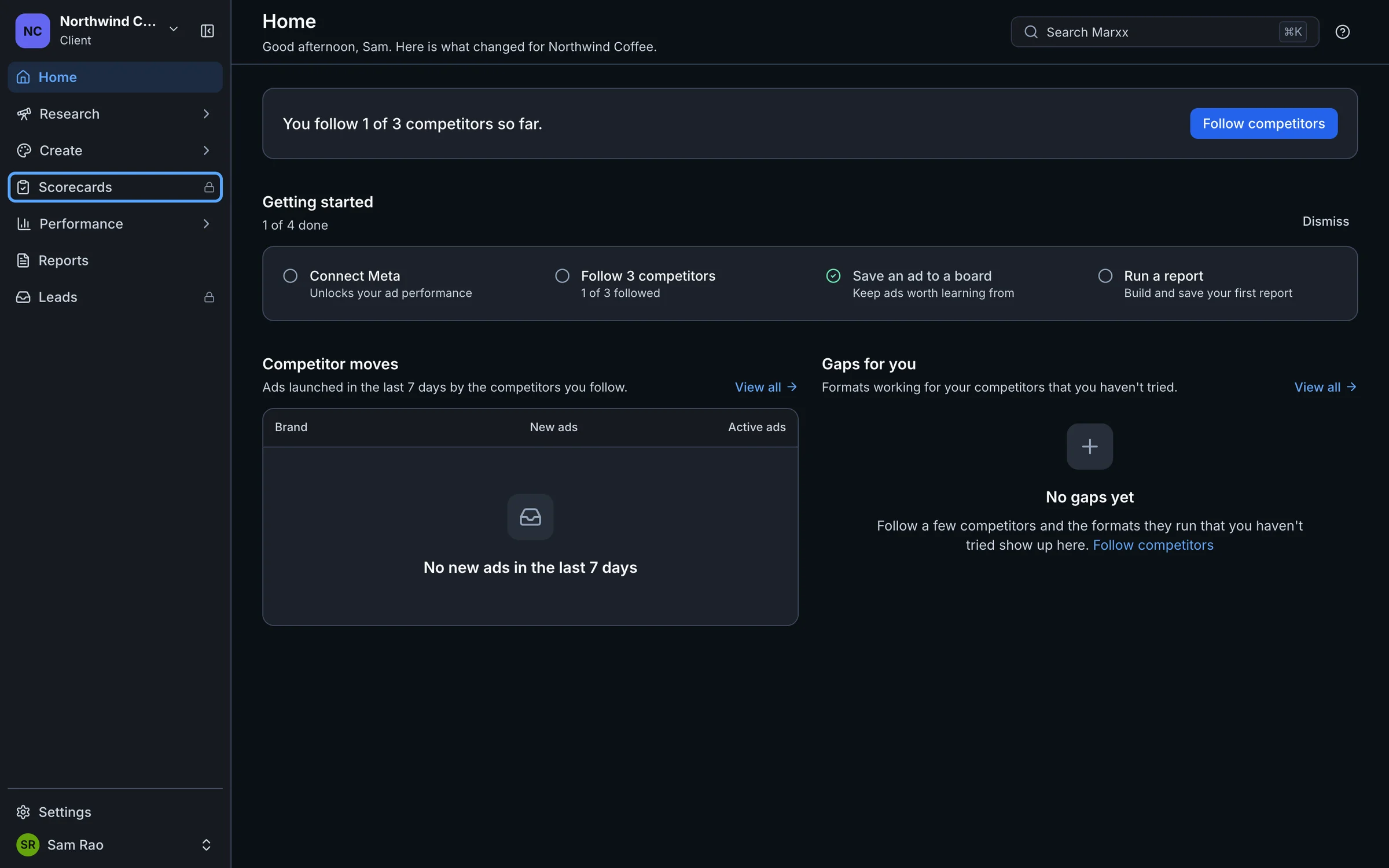
If you manage several businesses, a client switcher sits at the top of the sidebar. See How Marxx is organised.
Still stuck?
Email apurv@marxx.ai with a screenshot of what you see, or book a call and we will walk through it with you.