Getting started
How Marxx is organised
Your organization holds your team, plan and credits. Each client inside it keeps its own ad accounts, boards, personas and reports.
Marxx has two levels: the organization and its clients. Knowing which level a setting lives on explains most of what you see in the app.
Organization
The organization is your company's account. It holds:
- Your team. Everyone who signs in is a member of the organization. Admins can invite and remove people. See Invite your team.
- Your plan and credits. Credits are shared across your organization. See Credits and plan limits.
Clients
A client is one business you work on. If you run ads for one brand, you have one client. If you are an agency, you have one per customer. Settings calls them Clients, and each one keeps its own:
- Ad accounts. The Meta and Google Ads accounts connected for that business.
- Brand pages. The pages Marxx treats as that client's own brand.
- Boards. The ads you save in Moodboard.
- Personas. Audience personas built from customer comments and reviews.
- Reports. Saved and scheduled reports.
- Connections. Meta and Google Ads are connected for a client, in Settings, Integrations.
- Followed competitors. The Clients page shows how many each client follows.
Everything you see in Research, Performance, Reports and Leads belongs to the client you are viewing. Switch client and every page changes with it.
The client switcher
If your organization has more than one client, the card at the top of the sidebar shows the client you are in, with the label Client. When the sidebar is collapsed it is a round chip with the client's initials.
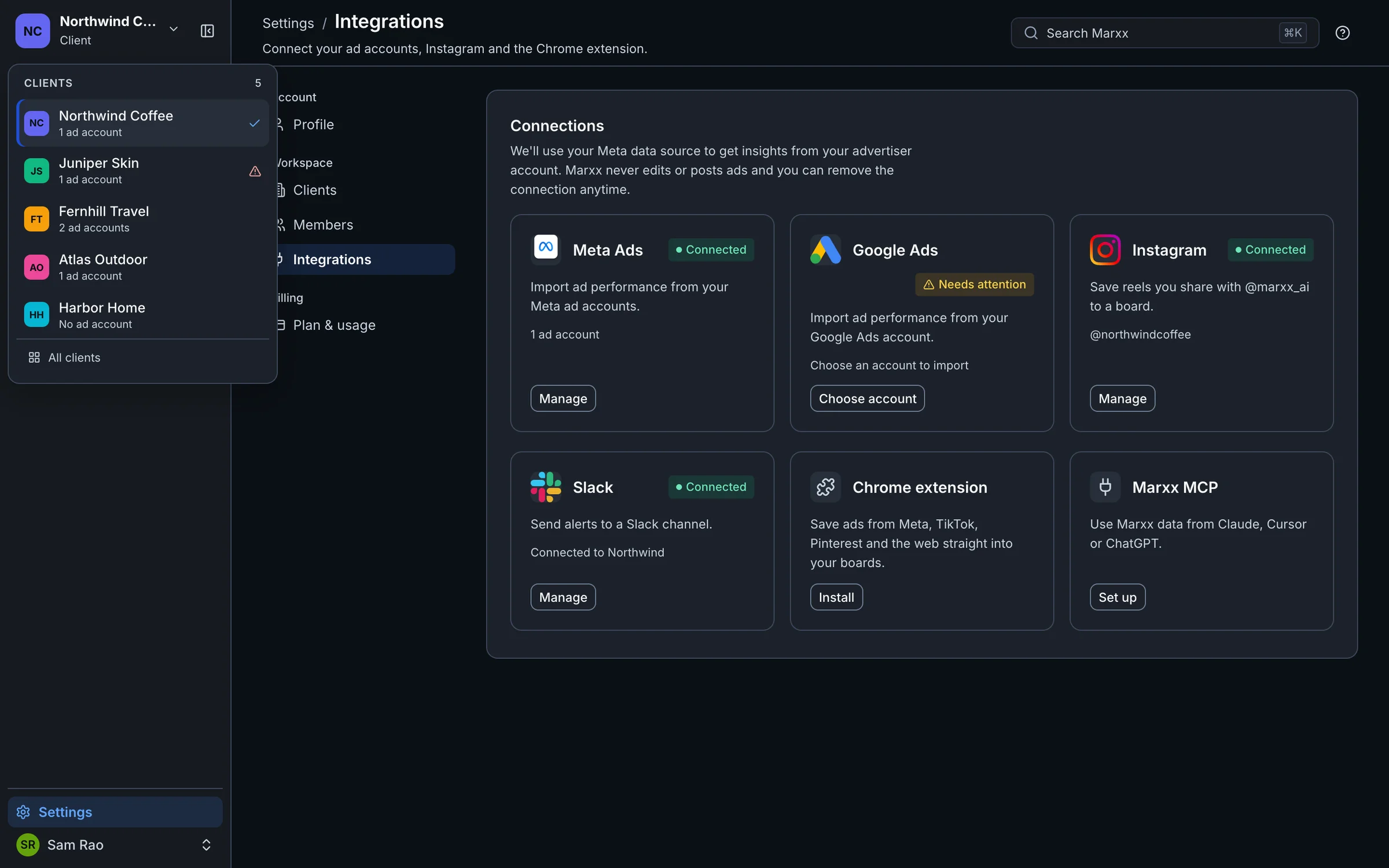
- Select the card at the top of the sidebar.
- Pick a client from the Clients list. Search appears once you have more than six.
- Every page now shows that client's data.
Marxx remembers your choice in this browser, so a reload keeps you on the same client. Each row shows how many ad accounts the client has, or No ad account. All clients at the bottom opens Settings, Clients, where you can compare them.
When the sidebar is collapsed, the client shows as a round chip with its initials. Select it to open the same list.
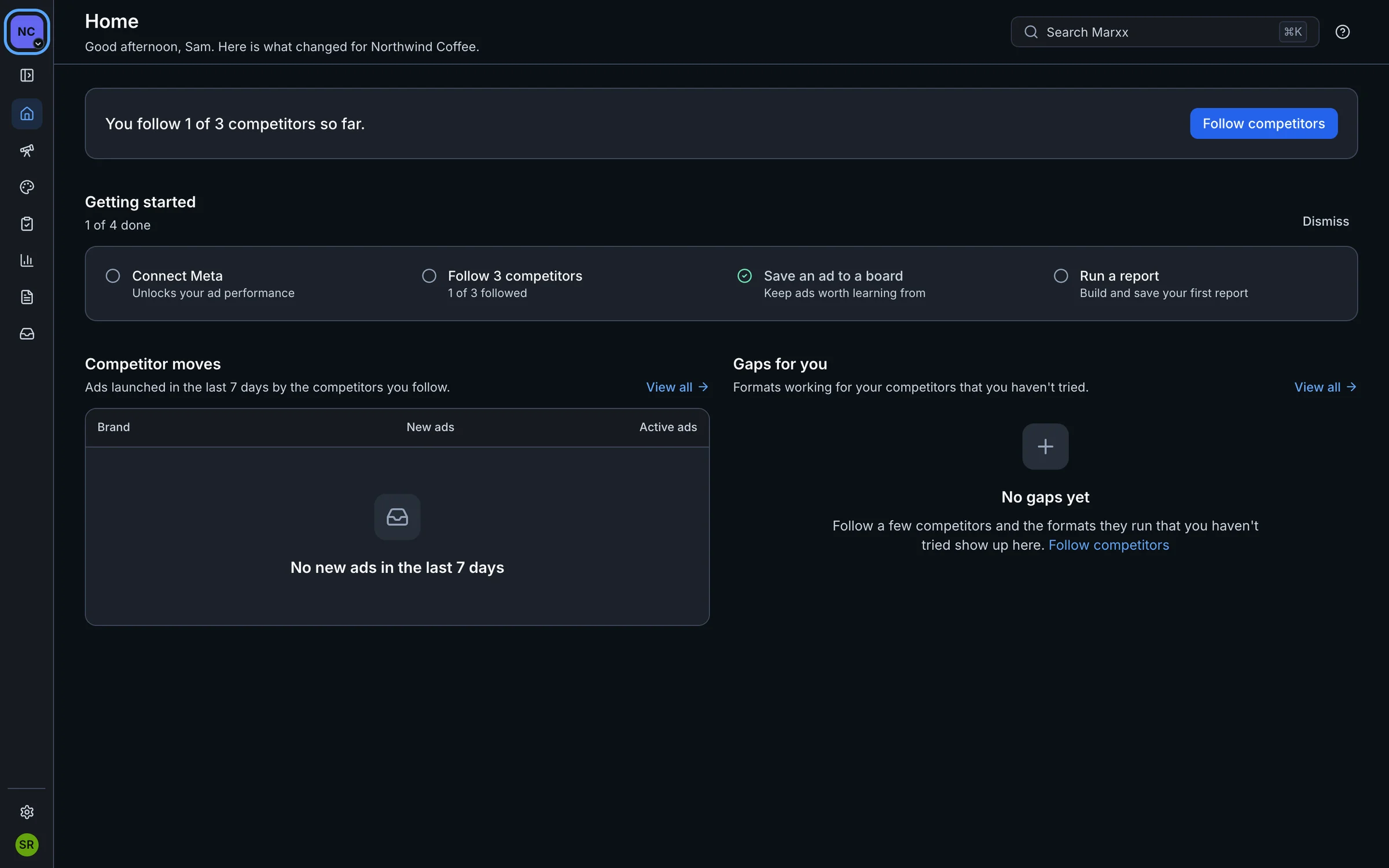
A small warning icon on a client means an ad account needs attention. See Manage clients.
With only one client there is nothing to switch, so the switcher does not open.
Who can open which client
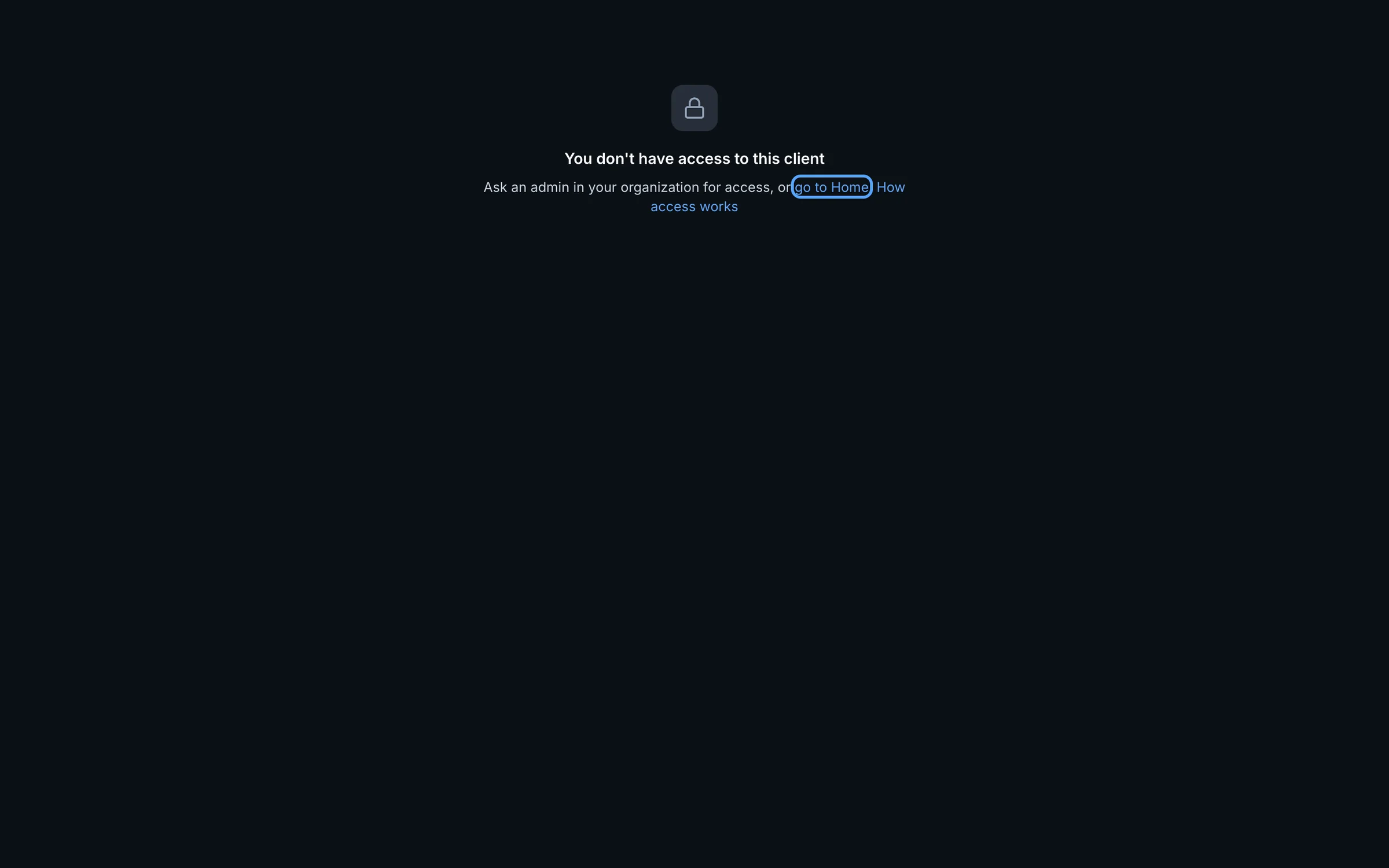
Members can open every client by default. An admin can limit a person to specific clients in Settings, Members. That person can open only those clients. If they follow a link to a client they can't open, they see "You don't have access to this client".
Where to go next
- Manage clients: add, rename and archive clients.
- Invite your team: add people and choose their clients.
- Connect Meta: connect an ad account to a client.
Still stuck?
Email apurv@marxx.ai with a screenshot of what you see, or book a call and we will walk through it with you.