Clients and team
Invite your team and control client access
Invite people by email, choose their role, limit them to specific clients, and fix the usual invitation problems.
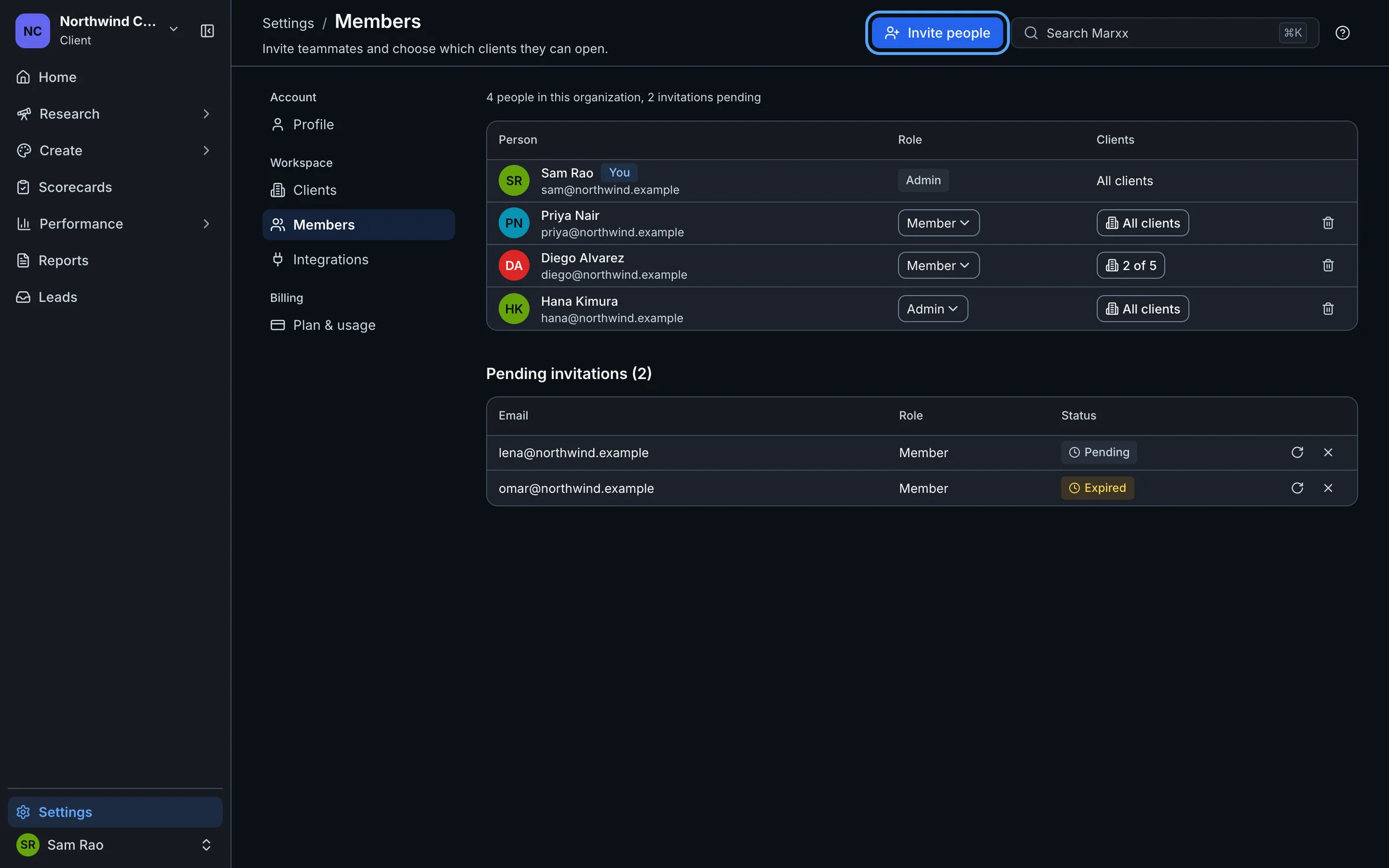
Invite and manage people in Settings, then Members. Only organization admins can invite or remove people. Everyone else can see the list.
Invite people
Go to Settings, then Members.
Select Invite people.
Under Email addresses, enter one or more. Separate them with commas or new lines, or paste a column from a spreadsheet.
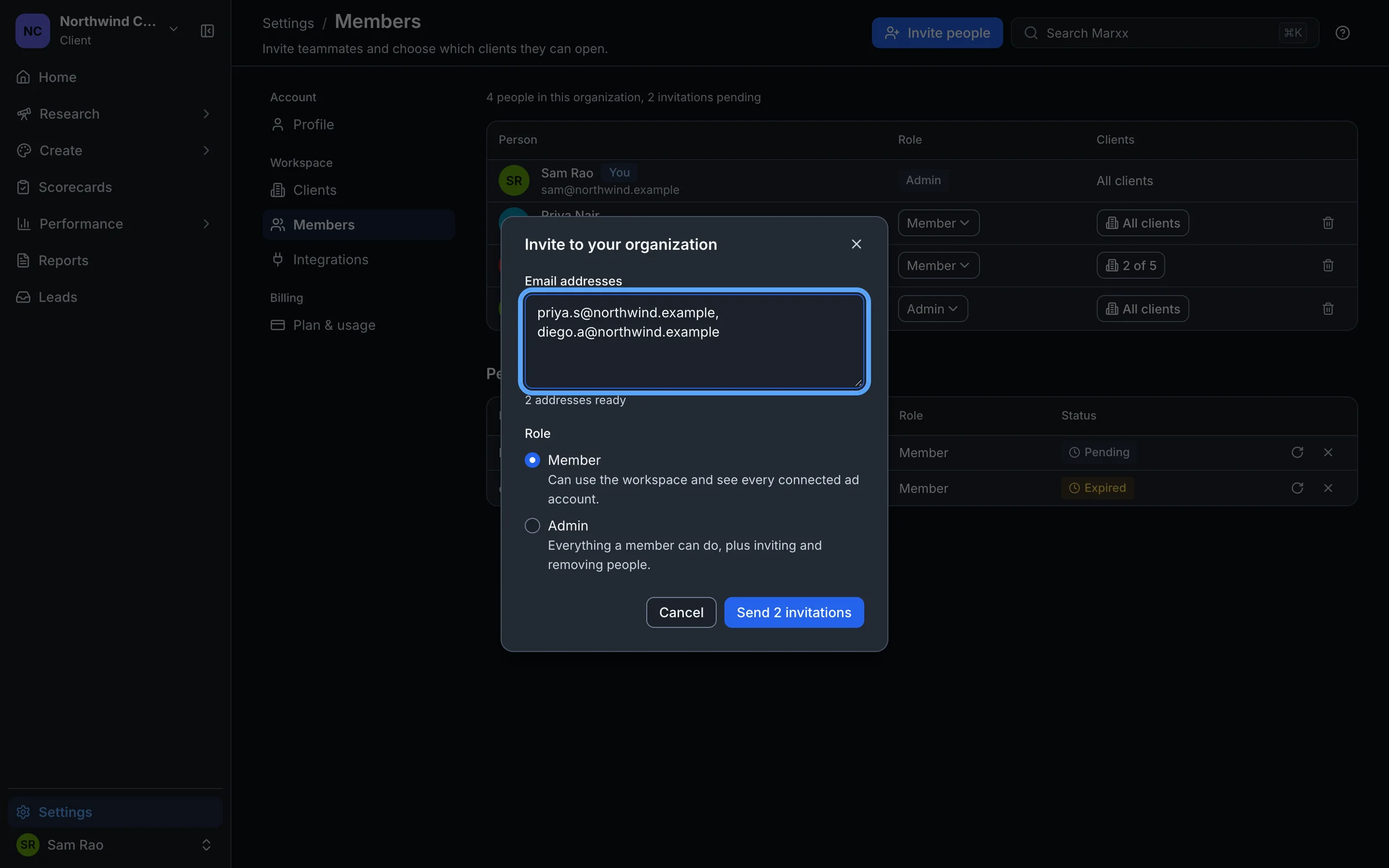
Choose a Role (see below).
Select Send invitation. With several addresses the button reads Send 3 invitations, for example.
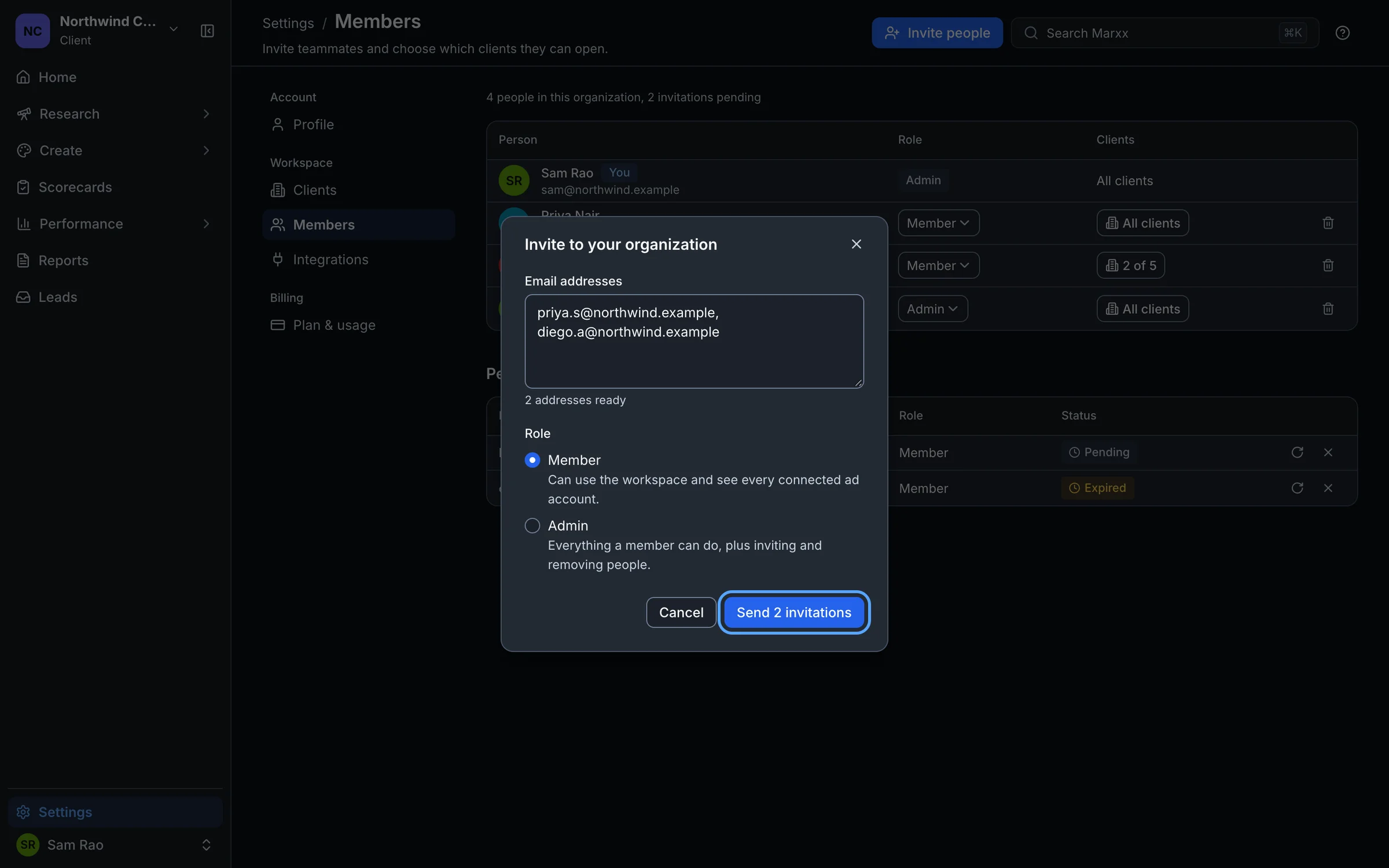
You will see "2 invitations sent" or similar. If an address is already in your organization, Marxx says so. If an address isn't valid, the dialog says how many are not valid and lists them, so you can fix them before sending.
Roles
- Member. "Can use the workspace and see every connected ad account."
- Admin. "Everything a member can do, plus inviting and removing people."
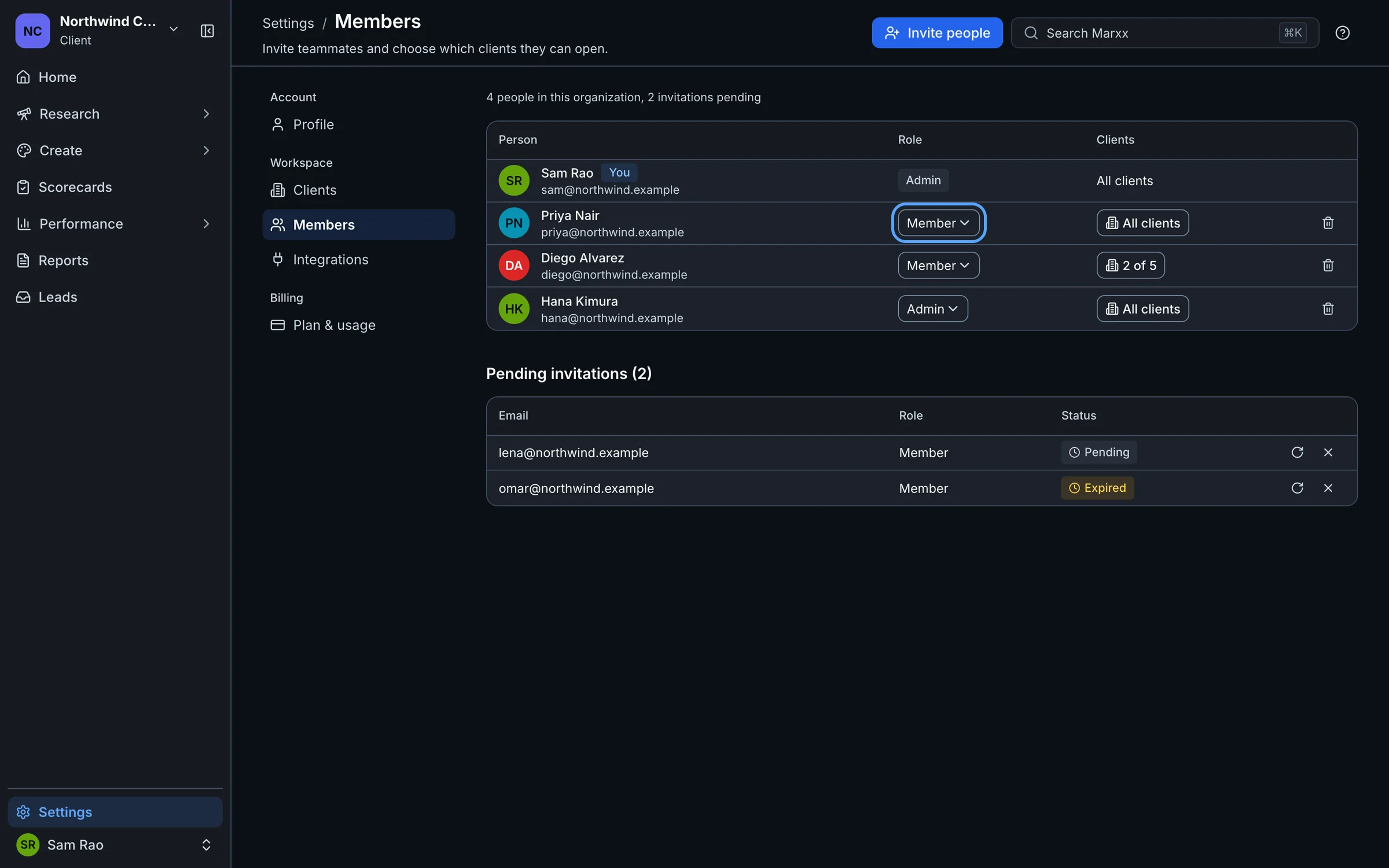
To change someone's role later, use the Role menu beside their name. The change saves at once and the confirmation has an undo. You can't change your own role.
Limit a person to specific clients
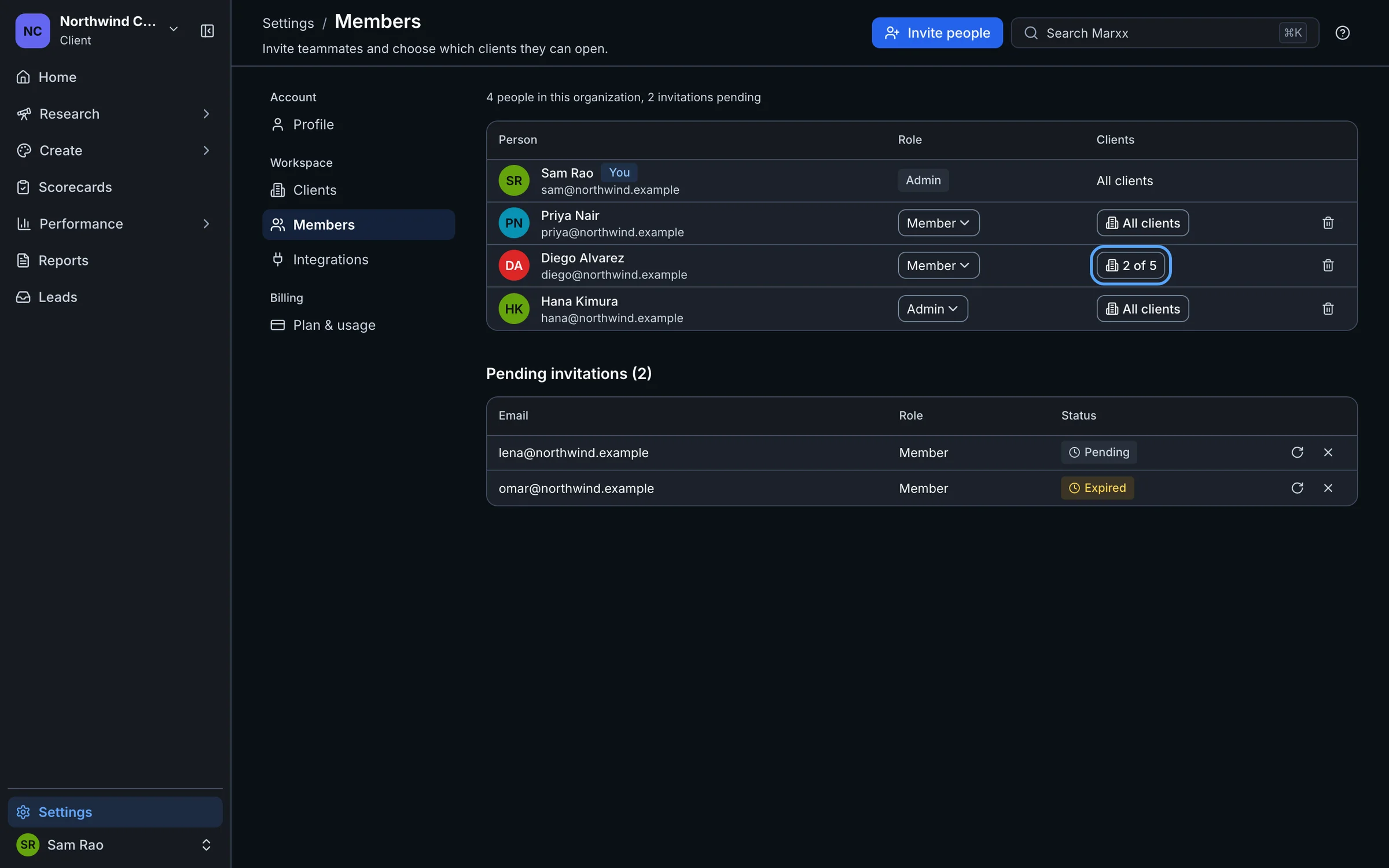
By default a member can open every client. If your organization has more than one client, a Clients column appears in the table.
Find the person and select their Clients button. It reads All clients or a count such as 2 of 5.
In Client access, tick the clients they should open.
Select Limit access.
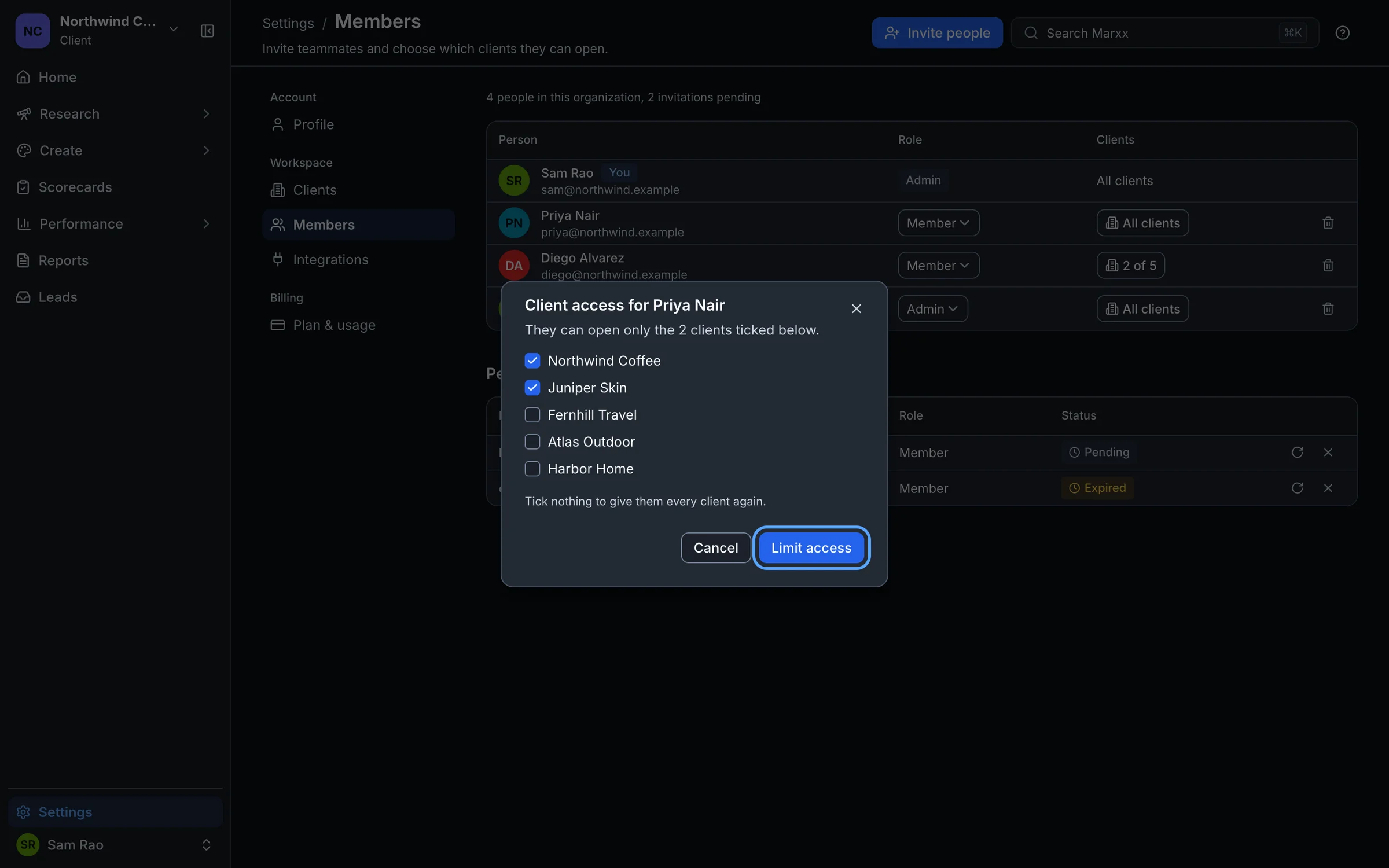
They can then open only those clients. To undo it, untick everything and select Give access to all. The prompt reminds you: "Tick nothing to give them every client again." Giving access to all includes any client you add later.
You can't change your own access. The person you limit must already be a member, so do this after they accept.
Chase an invitation
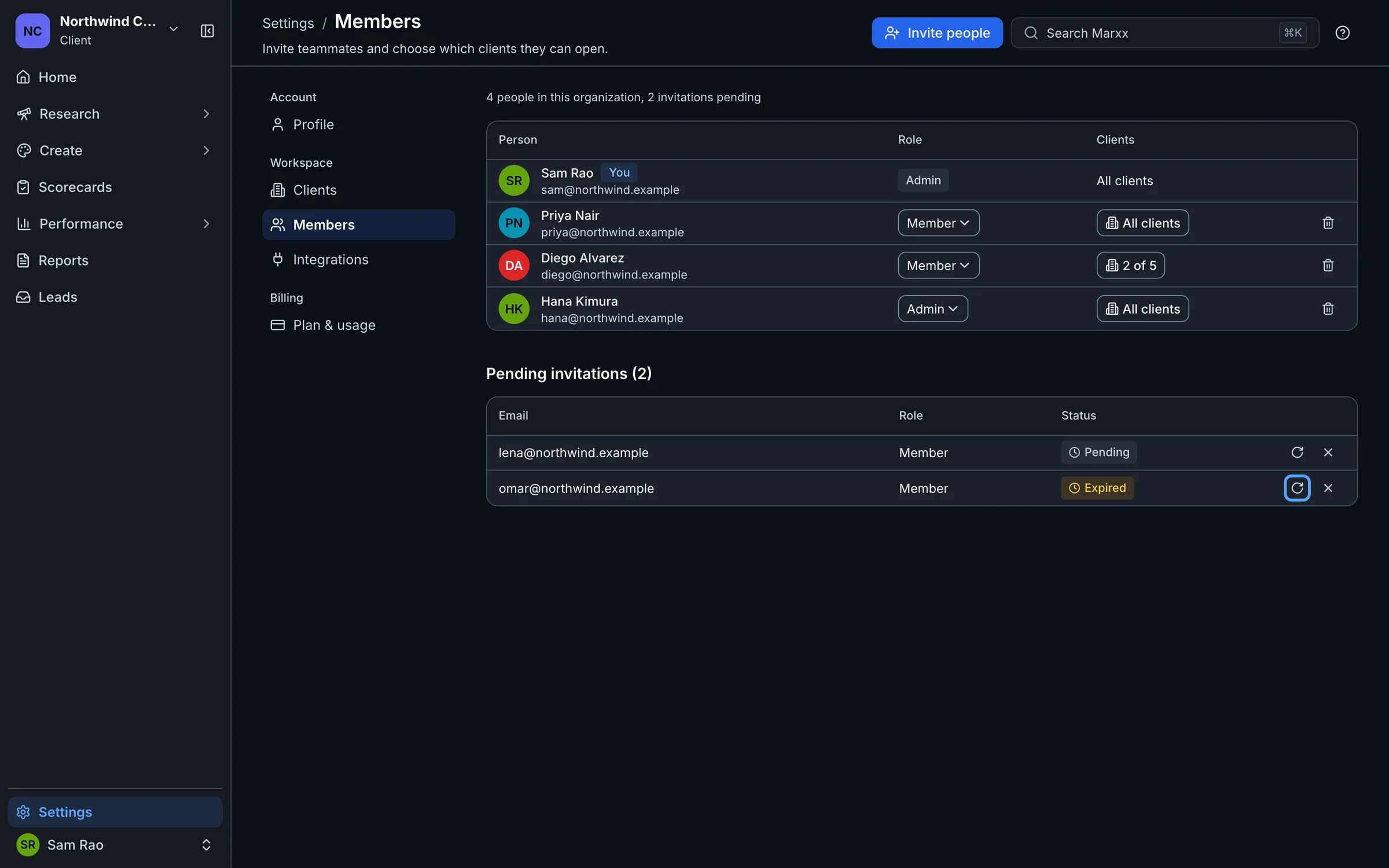
Invitations you've sent but nobody has accepted appear under Pending invitations. Each shows Pending or Expired. Two buttons sit on the row:
- Resend invitation sends it again.
- Revoke invitation cancels it.
Remove someone
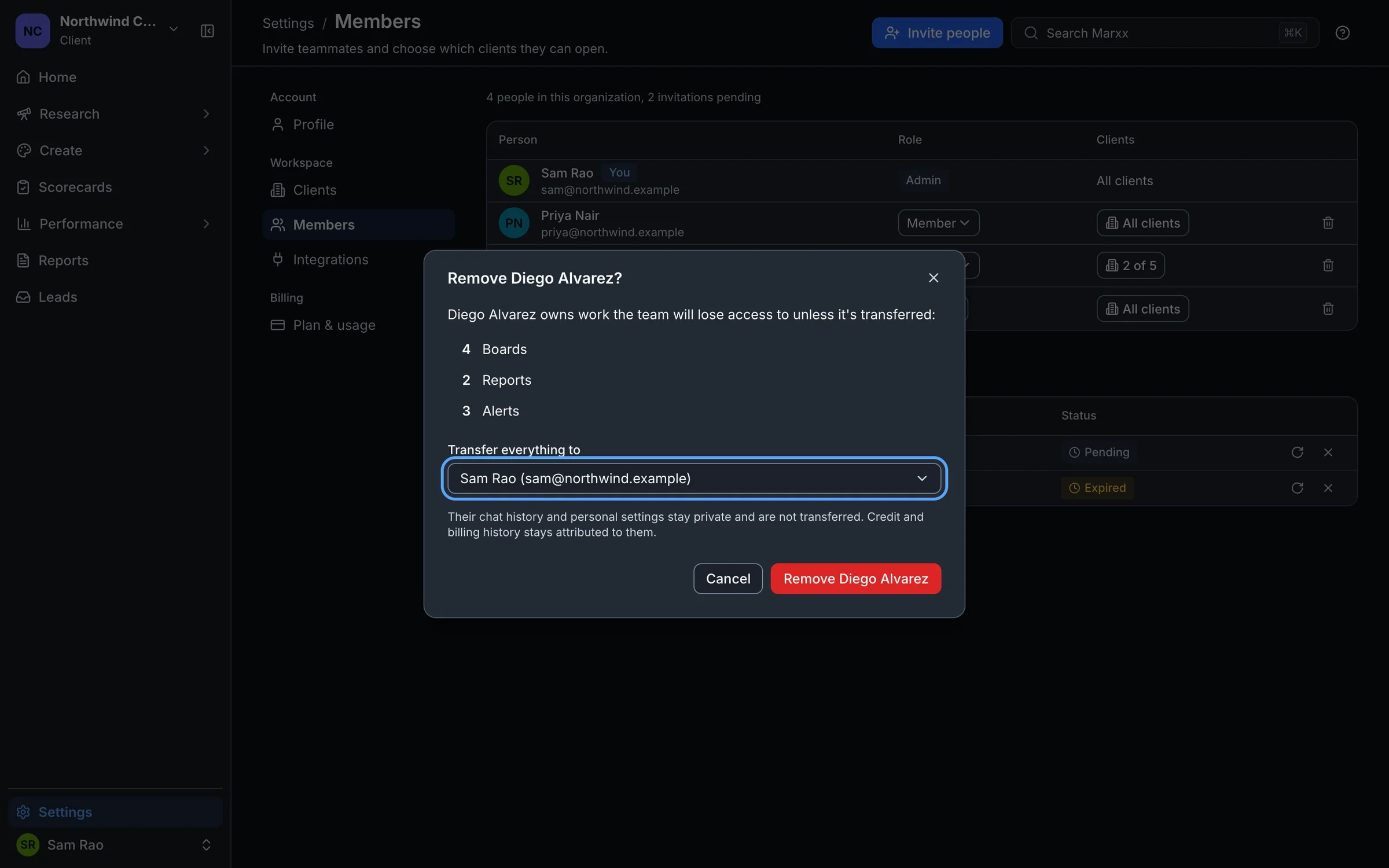
Select the bin icon on their row. Marxx lists the boards, reports and alerts they own and asks you to pick who receives them under Transfer everything to. Their work moves to that person instead of being deleted. You can't remove someone if nobody else is in the organization to receive it.
If an invitation link fails
People open the link from their email. If they are signed out they go to log in or sign up with the address filled in, and then Marxx adds them automatically. You will see "Joining" and then "You're in".
When it fails, the page is titled This invitation can't be used:
"It was sent to , and you're signed in as
." They are signed in with the wrong account. Select Log in as and sign in with the invited one.
"This invitation is no longer valid." The link has expired or been cancelled, for example. Ask an admin to select Resend invitation, or send a new one, then use the newest email.

"We couldn't load this invitation. Try the link again." Open the link again. If it keeps failing, ask an admin to resend it.
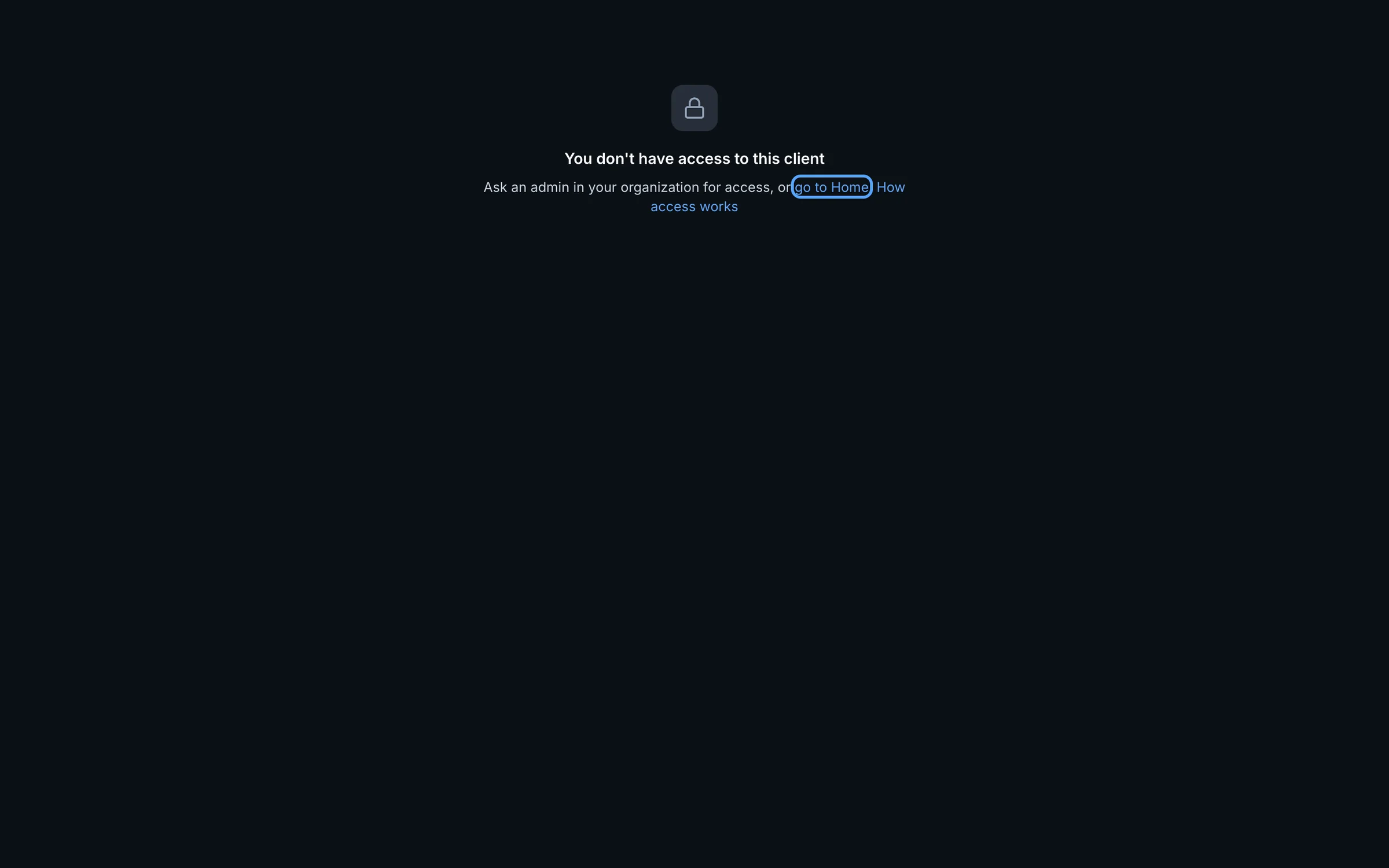
"You don't have access to this client"
This page appears when someone opens a link to a client they are not allowed into. Ask an organization admin to give them access in Settings, Members, as above. go to Home takes them back to the clients they can open.
Still stuck?
Email apurv@marxx.ai with a screenshot of what you see, or book a call and we will walk through it with you.